Atom P
Sonos Staff
April 8, 2026
Tutorial

Sonos + UniFi: Best Practices & Recommended Settings

  • April 8, 2026
  • 106 replies
  • 9468 views

Hello, everyone! I want to share some insights regarding Sonos setups in Ubiquiti UniFi environments. We see common questions and suggestions around how best to use Sonos with UniFi networks, and I wanted to give you the inside scoop on how we approach this troubleshooting. Unifi already has a solid guide on Sonos that we recommend checking out here, but we wanted to expand upon this.

We know that UniFi gear is incredibly popular among our power users (and many of us internally!). While Sonos is designed to work on standard home networks out of the box, managed networks like UniFi offer a level of control that can sometimes inadvertently block the communication Sonos needs to keep your system in sync.

To be clear, home networking is complex and every environment is unique. However, based on our internal documentation and successful troubleshooting sessions, here are the configurations we recommend to keep your music playing without interruption.


Disclaimer. This article is up to date through April 2026. Some settings might have changed since we first made this article.

June 2026 Update: The Sonos app now gives users the ability to disable SonosNet across their entire Sonos system. Take a look at ​@Liz P.’s update post for more info!


The "Golden Rule": Wired vs. Wireless


One of the most common causes of network storms/loops is a mixed environment where some Sonos players are wired and others are wireless, combined with conflicting Spanning Tree Protocol (STP) settings.

For the most stability, we generally recommend one of two approaches:

  • Fully Wireless: All Sonos products connect directly to your UniFi WiFi. 
    • This is often the easiest setup for modern Sonos products like Era 100/300, Move, and Roam.
  • Fully Wired: All capable Sonos products are Ethernet-wired.
    • WiFi is manually disabled on each player via the Sonos app.

If you are using a "Mixed" setup (some wired, some wireless using SonosNet), you must configure your STP settings correctly on your switches to avoid packet storms. (See the "Spanning Tree" section below).


Troubleshooting: "Missing Rooms" or Grouping Issues


If you are seeing speakers disappear from the Sonos app, or if you group rooms but audio only plays from one speaker, check that Multicast traffic is not being blocked or filtered and IGMP snooping is enabled.

Here are the settings we recommend checking in your UniFi Network Controller. Note: Menus may vary slightly depending on your Controller version.

  1. Check the basics: Ensure the controller (your phone) and the system are on the same subnet/VLAN.
  2. Verify the "Disable" list: Go back to the WiFi settings above and triple-check that Multicast and Broadcast Control and Multicast Enhancement are turned off. 
  3. Re-Provision: After changing these settings, allow a minute for the Access Points to re-provision. It is often helpful to reboot the Sonos players after the network settings have been applied to clear any stale connection states.

Unifi WiFi & Network Settings for Sonos


TL;DR: Disable Multicast Enhancement, Broadcast Control, and Client Isolation

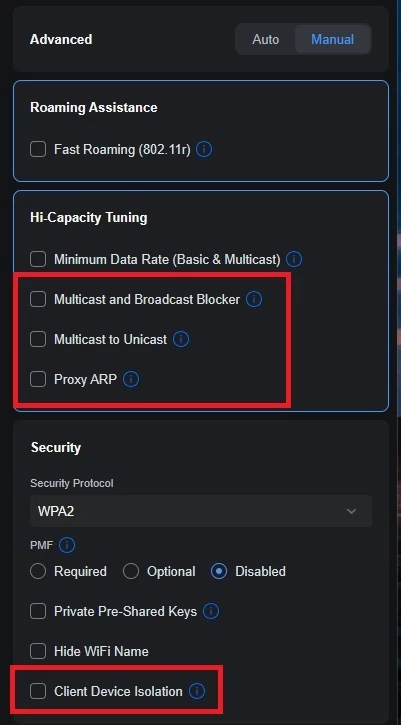
Go to Settings > WiFi and select your WiFi name. Change Advanced Configuration to Manual to verify the following:

  • Hotspot 2.0: Set to Off. 
  • Multicast to Unicast (previously called “Multicast Enhancement”): Disabled (unchecked). Note: While this sounds like something you’d want on, it converts multicast to unicast, which can cause issues with Sonos grouping.
  • Multicast and Broadcast Control: Disabled (unchecked). This blocks multicast traffic for non-listed devices and is a common culprit for missing players.
  • Client Device Isolation: Disabled (unchecked). This prevents devices on the same AP from talking to each other.
  • Proxy ARP: Disabled (unchecked).

Global Network Settings


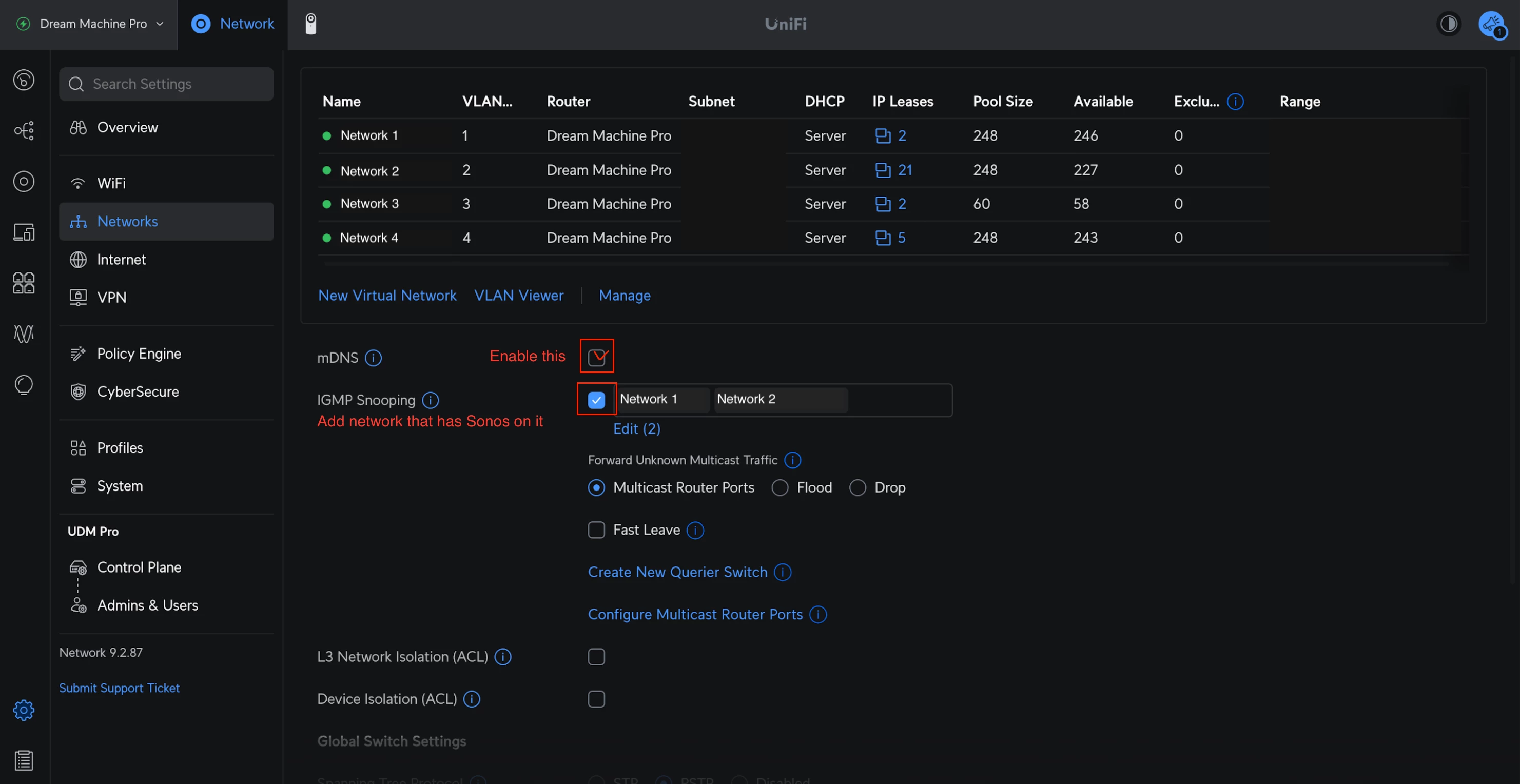
TL;DR: mDNS: Enabled, IGMP Snooping: Enabled

Go to Settings > Networks and select the network Sonos uses:

  • IGMP Snooping: Enabled. This helps reduce unnecessary multicast traffic while ensuring the right packets get to your speakers.
  • mDNS: Enabled. Technically speaking, this helps with device discovery. However, if you are running a complex setup with separate Sonos systems on different VLANs, mDNS might actually need to be disabled—but for 99% of home users, keep this ON.
Spanning Tree Protocol (STP) Settings


If you have any Sonos devices wired to your network (without disabling WiFi), you must configure STP on your UniFi switches to prevent network loops. Sonos uses STP (802.1d) to figure out the best path for data.


Global Switch Settings


TL;DR: STP switch priority 4096/8192/12288.

  • Spanning Tree: Select STP (not RSTP).
  • Priority: Set your core/main switch to 4096.
    • If you have secondary switches daisy-chained, set them to 8192.
    • Tertiary switches should be set to 12288.

Port Specific Settings: For the specific ports where a Sonos device is plugged in:

  • STP: Enabled
  • Edge Port: Auto or Enabled
  • BPDU Guard: Disabled
  • Root Guard: Disabled
  • Path Cost: 10
  • Port Priority: 128

Final Thoughts


I hope this helps clarify the best way to harmonize Sonos with UniFi gear. We know some of you have sophisticated home networks, and we want to ensure our products play nicely with them.

I'm happy to answer questions about these specific settings to the best of my ability. If you have a specific topology that defies these rules, let us know in the comments—we love seeing how you all set things up!

106 replies

Local Superstar
September 21, 2026


I hope that all you bright guys may provide a solution for me.

Regards, Poul

Check UniFi logs for clues, and delete all DHCP IP reservations you have for the Sonos devices.

Lyricist III
September 21, 2026


I hope that all you bright guys may provide a solution for me.

Regards, Poul

Check UniFi logs for clues, and delete all DHCP IP reservations you have for the Sonos devices.

Thanks, but could you pls explain about the IP reservations? I have all sonos devices on fixed ip Addrs


Stanley_4
Grand Maestro
September 21, 2026

That really sounds like the Ubiquity gear is getting confused by the link to the Sub, the log review is likely your best option to find what changes when things break. Maybe also check for differences in the internal configuration with and without the Sub present.

Does it still break if the Sub is connected but powered down?

If that works what changes when you power the Sub up?


It is an issue that is usually only seen on older gear but if nothing else is working, worth a shot. Assign reserved IP addresses to all Sonos, power them all down, clear the old dynamic leases for your Sonos, reboot the router, power up the Sonos.

Not sure the lease clearing is needed but it eliminates a possible issue.

Local Superstar
September 21, 2026


I hope that all you bright guys may provide a solution for me.

Regards, Poul

Check UniFi logs for clues, and delete all DHCP IP reservations you have for the Sonos devices.

Thanks, but could you pls explain about the IP reservations? I have all sonos devices on fixed ip Addrs


Remove ALL DHCP reservations for your Sonos devices, it is not required. Doing so will cause the issues you are seeing when you bond the Sub to the stereo pair. Ignore the myth you need to reserve, it is not best practice.

Lyricist III
September 21, 2026

That really sounds like the Ubiquity gear is getting confused by the link to the Sub, the log review is likely your best option to find what changes when things break. Maybe also check for differences in the internal configuration with and without the Sub present.

Does it still break if the Sub is connected but powered down?

If that works what changes when you power the Sub up?


It is an issue that is usually only seen on older gear but if nothing else is working, worth a shot. Assign reserved IP addresses to all Sonos, power them all down, clear the old dynamic leases for your Sonos, reboot the router, power up the Sonos.

Not sure the lease clearing is needed but it eliminates a possible issue.

Thanks Stanley.

This afternoon I had several interruptions. I just checked the unifi log. There’s not a single entry regarding those clients during these events. Unifi thinks all is well. 

Yesterday I moved the sub and had it powered down. Still breaks in the secondary audio stream.

My Sonos devices have had fixed IP addresses since years. Only the new 3 devices started of course by having handed out a dynamic ip lease. Regarding clearing leases. Where can I do that? I’m not aware where I can find that.

Regards, Poul

Stanley_4
Grand Maestro
September 21, 2026

Clearing leases is usually under the DHCP server somewhere.

The reservation issue has two sides, more modern dnsmasq DHCP servers try to minimize the need for reservations by trying to always assign a device the same address, haven't researched that in detail since I don't use one. Older DHCP servers like the ISC one don't try for stable dynamic addresses. If the DHCP server you are using isn't causing address related issues then dynamic ones are fine, if it is, and that is hard to diagnose, setting static ones may help.

For what it is worth I have several single Sonos devices, 2 home theater Rooms with a Sub, 2 stereo Rooms, 2 stereo Rooms with Subs and have been using reserved addresses on my ISC DHCP system for many years with no issues. Without the reservations I had issues. 

I hesitate to say "best practice" as a blanket statement in a situation where there are several parts to the issue and what works appears to depend on exactly what one nas.

Lyricist III
September 21, 2026


I hope that all you bright guys may provide a solution for me.

Regards, Poul

Check UniFi logs for clues, and delete all DHCP IP reservations you have for the Sonos devices.

Thanks, but could you pls explain about the IP reservations? I have all sonos devices on fixed ip Addrs


Remove ALL DHCP reservations for your Sonos devices, it is not required. Doing so will cause the issues you are seeing when you bond the Sub to the stereo pair. Ignore the myth you need to reserve, it is not best practice.

Thanks for your input. I removed the fixed ip addresses for these speakers and it does seem to work. Need to see if that is stable. 

Stanley_4
Grand Maestro
September 21, 2026

Please let us know how that works out long term, it might be worth adding your result to the first post here.

Lyricist III
September 21, 2026

Well, it is not stable. Lost the audio stream on the secondary unit already twice in half an hour.

So this does not appear to be the solution.

Anybody who knows what the led signal means (10x white followed by 5 or so quick orange flashes and the continuous white)? 

buzz
Grand Maestro
September 21, 2026