Atom P
Sonos Staff
April 8, 2026
Tutorial

Sonos + UniFi: Best Practices & Recommended Settings

  • April 8, 2026
  • 106 replies
  • 9466 views

Hello, everyone! I want to share some insights regarding Sonos setups in Ubiquiti UniFi environments. We see common questions and suggestions around how best to use Sonos with UniFi networks, and I wanted to give you the inside scoop on how we approach this troubleshooting. Unifi already has a solid guide on Sonos that we recommend checking out here, but we wanted to expand upon this.

We know that UniFi gear is incredibly popular among our power users (and many of us internally!). While Sonos is designed to work on standard home networks out of the box, managed networks like UniFi offer a level of control that can sometimes inadvertently block the communication Sonos needs to keep your system in sync.

To be clear, home networking is complex and every environment is unique. However, based on our internal documentation and successful troubleshooting sessions, here are the configurations we recommend to keep your music playing without interruption.


Disclaimer. This article is up to date through April 2026. Some settings might have changed since we first made this article.

June 2026 Update: The Sonos app now gives users the ability to disable SonosNet across their entire Sonos system. Take a look at ​@Liz P.’s update post for more info!


The "Golden Rule": Wired vs. Wireless


One of the most common causes of network storms/loops is a mixed environment where some Sonos players are wired and others are wireless, combined with conflicting Spanning Tree Protocol (STP) settings.

For the most stability, we generally recommend one of two approaches:

  • Fully Wireless: All Sonos products connect directly to your UniFi WiFi. 
    • This is often the easiest setup for modern Sonos products like Era 100/300, Move, and Roam.
  • Fully Wired: All capable Sonos products are Ethernet-wired.
    • WiFi is manually disabled on each player via the Sonos app.

If you are using a "Mixed" setup (some wired, some wireless using SonosNet), you must configure your STP settings correctly on your switches to avoid packet storms. (See the "Spanning Tree" section below).


Troubleshooting: "Missing Rooms" or Grouping Issues


If you are seeing speakers disappear from the Sonos app, or if you group rooms but audio only plays from one speaker, check that Multicast traffic is not being blocked or filtered and IGMP snooping is enabled.

Here are the settings we recommend checking in your UniFi Network Controller. Note: Menus may vary slightly depending on your Controller version.

  1. Check the basics: Ensure the controller (your phone) and the system are on the same subnet/VLAN.
  2. Verify the "Disable" list: Go back to the WiFi settings above and triple-check that Multicast and Broadcast Control and Multicast Enhancement are turned off. 
  3. Re-Provision: After changing these settings, allow a minute for the Access Points to re-provision. It is often helpful to reboot the Sonos players after the network settings have been applied to clear any stale connection states.

Unifi WiFi & Network Settings for Sonos


TL;DR: Disable Multicast Enhancement, Broadcast Control, and Client Isolation

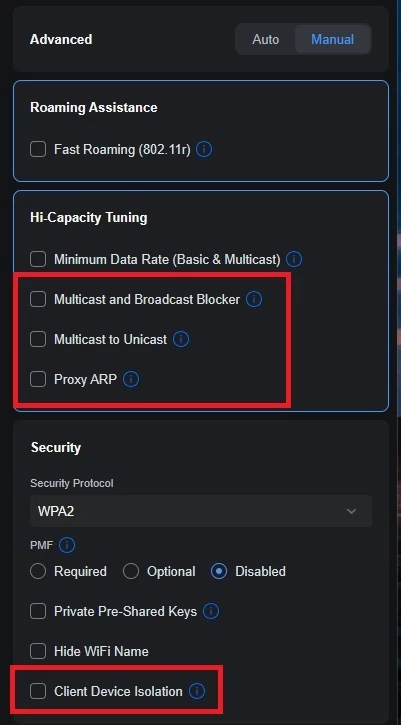
Go to Settings > WiFi and select your WiFi name. Change Advanced Configuration to Manual to verify the following:

  • Hotspot 2.0: Set to Off. 
  • Multicast to Unicast (previously called “Multicast Enhancement”): Disabled (unchecked). Note: While this sounds like something you’d want on, it converts multicast to unicast, which can cause issues with Sonos grouping.
  • Multicast and Broadcast Control: Disabled (unchecked). This blocks multicast traffic for non-listed devices and is a common culprit for missing players.
  • Client Device Isolation: Disabled (unchecked). This prevents devices on the same AP from talking to each other.
  • Proxy ARP: Disabled (unchecked).

Global Network Settings


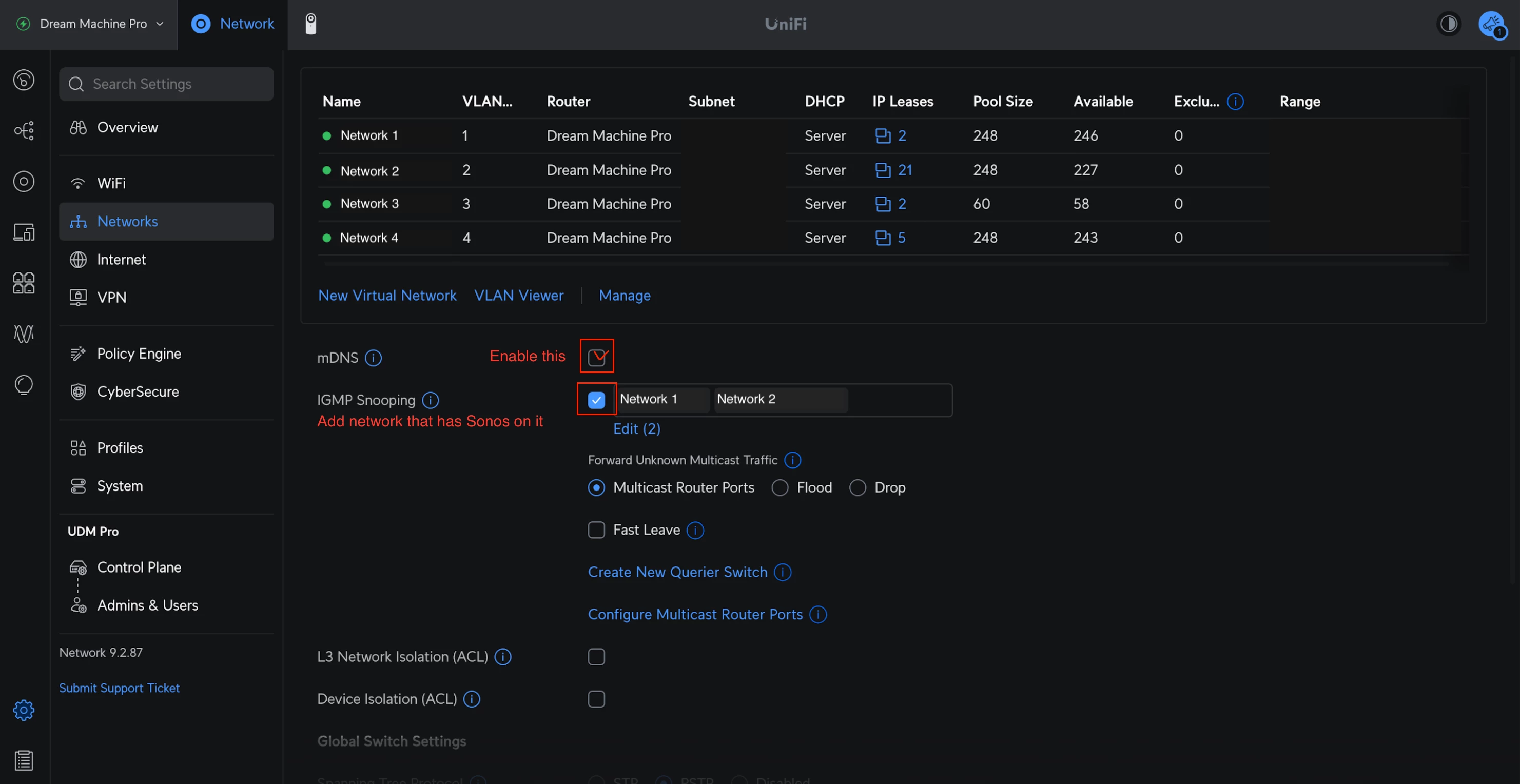
TL;DR: mDNS: Enabled, IGMP Snooping: Enabled

Go to Settings > Networks and select the network Sonos uses:

  • IGMP Snooping: Enabled. This helps reduce unnecessary multicast traffic while ensuring the right packets get to your speakers.
  • mDNS: Enabled. Technically speaking, this helps with device discovery. However, if you are running a complex setup with separate Sonos systems on different VLANs, mDNS might actually need to be disabled—but for 99% of home users, keep this ON.
Spanning Tree Protocol (STP) Settings


If you have any Sonos devices wired to your network (without disabling WiFi), you must configure STP on your UniFi switches to prevent network loops. Sonos uses STP (802.1d) to figure out the best path for data.


Global Switch Settings


TL;DR: STP switch priority 4096/8192/12288.

  • Spanning Tree: Select STP (not RSTP).
  • Priority: Set your core/main switch to 4096.
    • If you have secondary switches daisy-chained, set them to 8192.
    • Tertiary switches should be set to 12288.

Port Specific Settings: For the specific ports where a Sonos device is plugged in:

  • STP: Enabled
  • Edge Port: Auto or Enabled
  • BPDU Guard: Disabled
  • Root Guard: Disabled
  • Path Cost: 10
  • Port Priority: 128

Final Thoughts


I hope this helps clarify the best way to harmonize Sonos with UniFi gear. We know some of you have sophisticated home networks, and we want to ensure our products play nicely with them.

I'm happy to answer questions about these specific settings to the best of my ability. If you have a specific topology that defies these rules, let us know in the comments—we love seeing how you all set things up!

106 replies

buzz
Grand Maestro
August 31, 2026

I saw random high latency PING’s on a UNFI network calm down after priorities were straightened out.

Local Superstar
September 4, 2026

Heads Up:

There is a new ‘feature’ in the new Unifi 10.6 Network App, called ‘Multicast Suppression’, I expect this will need to be ‘OFF’ on networks that contain Sonos devices, other options are “Conservative” or “Aggressive”. Only available on new APs, U7 etc running 8.x firmware, but I also see that the older APs running 6.x firmware will now be upgraded to same 8.x firmware.

Contributor I
September 5, 2026

Well, I’ve read something, comunication is WiFi on the physical level. Aplikation protocol behind that is just trying to establish under 45ms latency. Nothing to do with physical connection.\


In no way is 5GHz faster than wire, do not forget we are talking about latency. WiFi have no chance to be faster, just because how it works….


That the roaming decision is on client side that is a fact and I have to dug deaper in this topic.


Thank you all so much for your help. 

Stanley_4
Grand Maestro
September 5, 2026

The Sonos 5 gHz connection is not standard Wi-Fi and is optimized for synchronized audio so standard Wi-Fi documents do not apply. Outside of Sonos engineering there is no knowledge of exactly how it works BUT the guidance from Sonos is to use the 5 gHz Home Theater link and not a wired connection unless there are extenuating circumstances. 

That recommendation has proven to be accurate by many here. It may not apply to every network but it applies to a lot of them.

Edit: Also note Ethernet is not provided by default on newer Sonos as they feel it is usually unnecessary. 

Side note, when looking at wired timings make sure you factor in how the Sonos supported speed 100 M is dealt with by your hardware. 

jgatie
September 5, 2026

Since the wireless connection between the soundbar/Amp and the surrounds/Sub is direct, one-way, and supposed to be in the same room, it is quite possible for it to be lower latency (notice this doesn't necessarily mean "faster") than Ethernet, which must hop around to traverse the network in order to complete a transfer of data.  This is further borne out by countless posters who found their surrounds/Sub connection/reliability problems were solved by disconnecting their surrounds/Sub from Ethernet.


Airgetlam
September 5, 2026

The way I’ve always imagined it (which may or not be based in reality) is the speed of the switching device. When connected via WiFi, there is none, the signal goes straight from the soundbar to the surrounds and Sub. When connected by Ethernet, the signal has to go to a switch/router that decides where the packets go to, and sends them. Unfortunately, that takes some extra time. It could be insignificant, it might not be. Why tempt fate, especially given the fact that surrounds and subs were primarily designed to connect via the WiFi, and fall back to the Ethernet when necessary?

Bruce
Local Superstar
September 6, 2026

A Sonos device has a Fast Ethernet limited to 100Mb/s, that has less available bandwidth than the 5GHz WiFi connection:

https://www.intel.com/content/www/us/en/support/articles/000005725/wireless/legacy-intel-wireless-products.html

Sonos requires a fraction of available bandwidth, even for Hi-Res / Lossless.

The buffers in the Sonos devices will handle some latency/packet loss, if there is some congestion and/or interference. I did a test a couple of years ago to prove this for myself, with some artificial interference introduce with a Microwave, albeit on the 2.4GHz band (which has less bandwidth available than the 5GHz BTW) that is easier to create interference:


Why tempt fate, especially given the fact that surrounds and subs were primarily designed to connect via the WiFi

Exactly, the Sonos engineers have spent many man years developing and testing this, and understand the bandwidth requirements and limitations of the various network technologies used. They know their system better than us (the consumers), even if we may (think we?) know a little about networking and digital sound.

jgatie
September 6, 2026

The following is just my opinion, but I always assume underneath all the “I want everything connected via Ethernet” demands is an unwarranted fear of the effects of non-ionizing EMF from WiFi.  Too many of the early “Let us turn off WiFi” threads eventually devolved into this issue for me to think such concerns aren’t still out there. 

Contributor I
September 9, 2026

Moved my whole Sonos system to its own VLAN on UniFi (UCG-Fiber, Network 10.6). All 13 devices, nothing left behind on the LAN: two home theatre groups (an Arc Ultra with stereo Era 300 surrounds and a sub, and an Arc with two surrounds and a sub), two stereo pairs and a Port. All wireless. Controllers (phones, laptops) stay on the main LAN. Everything works, both home theatre groups included, plus grouping and Spotify Connect. What mattered and why, because most of the advice in this thread did not apply.

Worth knowing before you go looking in the controller: bonded surrounds and subs do not appear as separate clients on the VLAN, they ride their primary. Only the primaries and stereo pair members get their own address. Sonos itself reports the full picture, GetZoneGroupState on any player lists every zone player and its address.

Did not need:

  • STP changes. Left everything on RSTP at default priority and never touched spanning tree. My system is all wireless, so no speaker bridges a wired and a wireless path and no loop can form. If you run genuinely mixed wired and wireless, this part of my experience will not transfer.
  • Multicast Enhancement off. It is usually advised off because it converts multicast to unicast per client and can silently drop a group member. Left it on, grouping is fine. On a busy 2.4GHz band true multicast costs more airtime, so I left the working setting alone.
  • Proxy ARP off. Same, no symptom, left on.
  • Moving speakers to a different SSID. UniFi assigns a VLAN per client (Virtual Network Override), so the VLAN follows the client instead of the SSID. Speakers kept their SSID and were not re-paired.

Did need:

  • Gateway mDNS proxy scoped to include the Sonos VLAN. mDNS is link local with TTL 1 and does not cross a router on its own. AirPlay and Spotify Connect discovery both ride on it.
  • IGMP snooping scoped to include the Sonos VLAN. Without it the switch floods Sonos multicast to every port on the VLAN. Check your querier setting: snooping with no querier can expire group memberships and black hole traffic, unless the controller floods unregistered groups.
  • An SSDP relay. UniFi's mDNS proxy relays mDNS only. The Sonos app discovers over SSDP on 239.255.255.250:1900, also link local, and nothing in UniFi carries it across a VLAN. The symptom is specific: Spotify Connect works immediately while the Sonos app finds nothing. That split means mDNS is crossing and SSDP is not. I run multicast-relay on a box that already sits on the LAN. Concrete example on Debian: give that box a leg in the Sonos VLAN with ip link add link eth0 name eth0.30 type vlan id 30 plus an address in that subnet, then run the relay across both interfaces. I use the scyto/multicast-relay container with network_mode host, INTERFACES=eth0 eth0.30 and OPTS=--noMDNS, the last one so it does not duplicate what the UniFi mDNS proxy already does. Make the sub interface persistent, otherwise it disappears on reboot and discovery silently breaks. The VLAN has to be tagged on that box's switch port, which it often already is.
  • Sonos to LAN firewall rules: UDP 319, 1900-1902, 6969, 32768-65535 and TCP 3400, 3401, 3500. Speaker to controller direction, needed for replies and status. Sonos picks a random high UDP port for some of it, so 32768-65535 is not optional.

What actually broke it:

My block rule matched all connection states, which drops ESTABLISHED and RELATED as well as NEW. Return traffic of connections my own phone had opened was dropped on the way back, so discovery died regardless of which ports I opened. Match NEW and INVALID only.

Home Assistant:

Only relevant if you use it. The HA Sonos integration needs no inbound rule. In conntrack every flow is opened by HA towards the speaker on 1443 and 1400, the speakers never initiate, and replies return as ESTABLISHED which the NEW only block already allows. I removed my allow rule and nothing changed. Pointing the VLAN's DNS at a filtering resolver is a separate choice, unrelated to Sonos working.

How far the isolation goes:

Speakers cannot open connections to the main LAN except the ports above, cannot reach my IoT VLAN or any other VLAN, and cannot reach the gateway admin interface. The gateway needs its own rule, it sits in a separate firewall zone and a LAN rule does not cover it. LAN to Sonos stays unrestricted.

Verify by sourcing traffic from the Sonos VLAN to a device on another VLAN and confirming it fails while the same request from the LAN succeeds. Testing from the router, or from a host with a direct route to the target, proves nothing, the packet never reaches the firewall.

Still open: UDP to the LAN in that high range is wide and I have not found a way to narrow it.

Lyricist III
September 21, 2026

I have been fighting with a new room setup with new speakers. 

I am posting in this thread because SONOS level2 support tells me it’s to do with the Unifi settings. 

In this room I have 2 ERA 100SLs and a Sub mini. 
I want to set them up as a stereo pair with the sub attached.

Setting up the stereo pair works flawlessly (initially the left speaker as primary), but as soon as I add the sub, the secondary (right) ERA looses its audio stream.

At some point it may come back for a while (minutes to hours) and then it may loose the audio stream again. 

I removed everything and set the stereo pair up starting from the right ERA. Adding the sub cuts out the audio on the left (again the secondary) speaker.

When the audio stream is lost, the controls on the top of that speaker still work (sort of). 
Volume up and down works flawlessly.
Pause works, but when I tap it under that condition the led flashes bright white 10 times followed by quick flashes orange 4 or 5 times, followed by continuous white. 
The music pauses though and I can restart it again from that secondary speaker (but mostly still no sound on that speaker.

When there is sound from the secondary, the controls work as expected.

In the sonos app, all speakers have a normal status and they are visible in the About Your System page. 

Unifi does show them all, connected and active to the same AP, all on the 5 GHZ band. 

All Sonos speakers are connected wireless and Sonosnet is switched off in the app.

I contacted Sonos support and have had several sessions with level 2 support ending in the advice to contact a Unifi specialist because he is sure that the problem lies on the Unifi side.

He told me that I needed to:

  1. activate UPnP on the gateway (which I don’t want and I don’t understand the reasoning either) 
  2. I used OpenDNS servers and he told me to use Google DNS (don’t think that will make any difference but I changed it).
  3. Activate mDNS (which is no longer a toggle in Unifi). There’s only mDNS proxy, which I have on for my main LAN and the IOT VLAN. 
  4. IGMP Snooping on, which already was the case.
  5. Hotspot, Client device isolation, Proxy ARP, Multicast and Broadcast  all off (they were off already)

My conclusions are:

A. No problem with any of the speakers itself. They all function one time or another, but intermittently the secondary stops the audio stream and only when a sub is attached to the pair.

B. Unifi is set up as it should be. 

C. I am assuming that the 10 white flashes followed by 4 or 5 quick orange flashes form some sort of an error code, but it is not described anywhere.

I hope that all you bright guys may provide a solution for me.


Sorry for the long post ;-)

Regards, Poul