Atom P
Sonos Staff
April 8, 2026
Tutorial

Sonos + UniFi: Best Practices & Recommended Settings

  • April 8, 2026
  • 106 replies
  • 9469 views

Hello, everyone! I want to share some insights regarding Sonos setups in Ubiquiti UniFi environments. We see common questions and suggestions around how best to use Sonos with UniFi networks, and I wanted to give you the inside scoop on how we approach this troubleshooting. Unifi already has a solid guide on Sonos that we recommend checking out here, but we wanted to expand upon this.

We know that UniFi gear is incredibly popular among our power users (and many of us internally!). While Sonos is designed to work on standard home networks out of the box, managed networks like UniFi offer a level of control that can sometimes inadvertently block the communication Sonos needs to keep your system in sync.

To be clear, home networking is complex and every environment is unique. However, based on our internal documentation and successful troubleshooting sessions, here are the configurations we recommend to keep your music playing without interruption.


Disclaimer. This article is up to date through April 2026. Some settings might have changed since we first made this article.

June 2026 Update: The Sonos app now gives users the ability to disable SonosNet across their entire Sonos system. Take a look at ​@Liz P.’s update post for more info!


The "Golden Rule": Wired vs. Wireless


One of the most common causes of network storms/loops is a mixed environment where some Sonos players are wired and others are wireless, combined with conflicting Spanning Tree Protocol (STP) settings.

For the most stability, we generally recommend one of two approaches:

  • Fully Wireless: All Sonos products connect directly to your UniFi WiFi. 
    • This is often the easiest setup for modern Sonos products like Era 100/300, Move, and Roam.
  • Fully Wired: All capable Sonos products are Ethernet-wired.
    • WiFi is manually disabled on each player via the Sonos app.

If you are using a "Mixed" setup (some wired, some wireless using SonosNet), you must configure your STP settings correctly on your switches to avoid packet storms. (See the "Spanning Tree" section below).


Troubleshooting: "Missing Rooms" or Grouping Issues


If you are seeing speakers disappear from the Sonos app, or if you group rooms but audio only plays from one speaker, check that Multicast traffic is not being blocked or filtered and IGMP snooping is enabled.

Here are the settings we recommend checking in your UniFi Network Controller. Note: Menus may vary slightly depending on your Controller version.

  1. Check the basics: Ensure the controller (your phone) and the system are on the same subnet/VLAN.
  2. Verify the "Disable" list: Go back to the WiFi settings above and triple-check that Multicast and Broadcast Control and Multicast Enhancement are turned off. 
  3. Re-Provision: After changing these settings, allow a minute for the Access Points to re-provision. It is often helpful to reboot the Sonos players after the network settings have been applied to clear any stale connection states.

Unifi WiFi & Network Settings for Sonos


TL;DR: Disable Multicast Enhancement, Broadcast Control, and Client Isolation

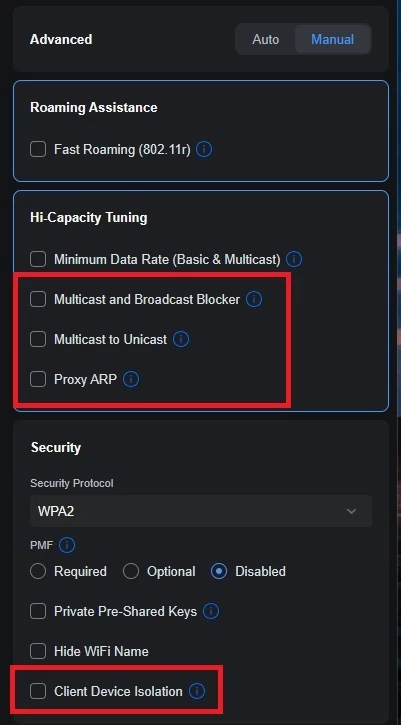
Go to Settings > WiFi and select your WiFi name. Change Advanced Configuration to Manual to verify the following:

  • Hotspot 2.0: Set to Off. 
  • Multicast to Unicast (previously called “Multicast Enhancement”): Disabled (unchecked). Note: While this sounds like something you’d want on, it converts multicast to unicast, which can cause issues with Sonos grouping.
  • Multicast and Broadcast Control: Disabled (unchecked). This blocks multicast traffic for non-listed devices and is a common culprit for missing players.
  • Client Device Isolation: Disabled (unchecked). This prevents devices on the same AP from talking to each other.
  • Proxy ARP: Disabled (unchecked).

Global Network Settings


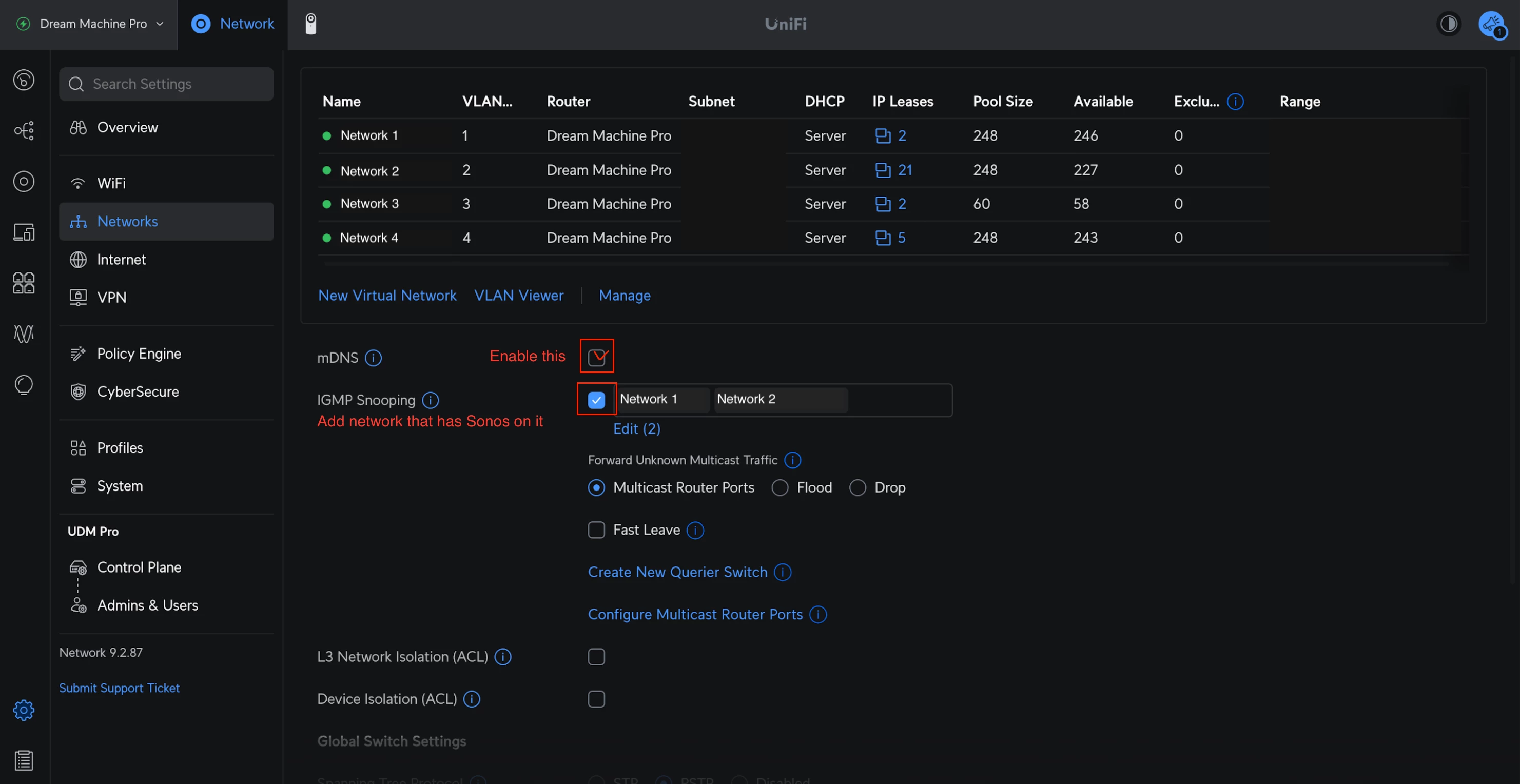
TL;DR: mDNS: Enabled, IGMP Snooping: Enabled

Go to Settings > Networks and select the network Sonos uses:

  • IGMP Snooping: Enabled. This helps reduce unnecessary multicast traffic while ensuring the right packets get to your speakers.
  • mDNS: Enabled. Technically speaking, this helps with device discovery. However, if you are running a complex setup with separate Sonos systems on different VLANs, mDNS might actually need to be disabled—but for 99% of home users, keep this ON.
Spanning Tree Protocol (STP) Settings


If you have any Sonos devices wired to your network (without disabling WiFi), you must configure STP on your UniFi switches to prevent network loops. Sonos uses STP (802.1d) to figure out the best path for data.


Global Switch Settings


TL;DR: STP switch priority 4096/8192/12288.

  • Spanning Tree: Select STP (not RSTP).
  • Priority: Set your core/main switch to 4096.
    • If you have secondary switches daisy-chained, set them to 8192.
    • Tertiary switches should be set to 12288.

Port Specific Settings: For the specific ports where a Sonos device is plugged in:

  • STP: Enabled
  • Edge Port: Auto or Enabled
  • BPDU Guard: Disabled
  • Root Guard: Disabled
  • Path Cost: 10
  • Port Priority: 128

Final Thoughts


I hope this helps clarify the best way to harmonize Sonos with UniFi gear. We know some of you have sophisticated home networks, and we want to ensure our products play nicely with them.

I'm happy to answer questions about these specific settings to the best of my ability. If you have a specific topology that defies these rules, let us know in the comments—we love seeing how you all set things up!

106 replies

kdowling
September 21, 2026

Anybody who knows what the led signal means (10x white followed by 5 or so quick orange flashes and the continuous white)? 

My guess, it’s flashing white while trying to reconnect to the network. The orange flashes, after having pressed play/pause...

“The status light may flash orange rapidly after you press the Play/Pause button on a Sonos product. This means that there’s nothing in the playback queue or nothing was played recently.”

Back to white, connected and everything back to normal?

Sonos LED lights

Stanley_4
Grand Maestro
September 21, 2026

Well, it is not stable. Lost the audio stream on the secondary unit already twice in half an hour.

So this does not appear to be the solution.

Anybody who knows what the led signal means (10x white followed by 5 or so quick orange flashes and the continuous white)? 

If it is two different blink codes it would be "rebooting" followed by "no content" when you try to play something.

Do you nave another stereo pair you could try adding the mini-Sub to?

Thanks for the reserved address update. 

Lyricist III
September 22, 2026

Well, it is not stable. Lost the audio stream on the secondary unit already twice in half an hour.

So this does not appear to be the solution.

Anybody who knows what the led signal means (10x white followed by 5 or so quick orange flashes and the continuous white)? 

If it is two different blink codes it would be "rebooting" followed by "no content" when you try to play something.

Do you nave another stereo pair you could try adding the mini-Sub to?

Thanks for the reserved address update. 

I have an ARC Ultra which currently is coupled to a Gen 3 sub.

I could try to couple the mini sub to the ARC, but it does not really feel like the same as coupling to a stereo pair. 

Local Superstar
September 22, 2026

Can you describe your network in a little more detail, router/DHCP, APs (WiFi7?) etc.

I would also check you are not enabling any band steering in UniFi Network App, and also recommend running 40MHz channels for your 5GHz. 

Lyricist III
September 22, 2026

Can you describe your network in a little more detail, router/DHCP, APs (WiFi7?) etc.

I would also check you are not enabling any band steering in UniFi Network App, and also recommend running 40MHz channels for your 5GHz. 

Sure, The router is a UDMPRO, which also is the DHCP server. APs are NANO-HD’s (No WiFi7, but I’m contemplating to exchange them for AP 7 Lites),
Bandsteering is on (on advice of Sonos lvl2 support). You reckon it is better to switch off bandsteering?

Sonos devices attach to the default network, same as phones.PCs etc. Due to bandsteering they attach to the 5GHz channel. All three are connected to the same AP. No Sonos traffic will cross VLAN boundaries to function properly.

No overlap on the 2.4GHz channels (Three AP each at a different channel 1-6-11). 5GHz also each at a different 80MHz channel. Of course I can lower that to 40MHz.   

Let me know if you need more info.

Local Superstar
September 22, 2026

Can you describe your network in a little more detail, router/DHCP, APs (WiFi7?) etc.

I would also check you are not enabling any band steering in UniFi Network App, and also recommend running 40MHz channels for your 5GHz. 

Sure, The router is a UDMPRO, which also is the DHCP server. APs are NANO-HD’s (No WiFi7, but I’m contemplating to exchange them for AP 7 Lites),
Bandsteering is on (on advice of Sonos lvl2 support). You reckon it is better to switch off bandsteering?

Sonos devices attach to the default network, same as phones.PCs etc. Due to bandsteering they attach to the 5GHz channel. All three are connected to the same AP. No Sonos traffic will cross VLAN boundaries to function properly.

No overlap on the 2.4GHz channels (Three AP each at a different channel 1-6-11). 5GHz also each at a different 80MHz channel. Of course I can lower that to 40MHz.   

Let me know if you need more info.

I would personally upgrade to U6-Pro, rather than U7 ‘lites’.

Band steering is enabled on my UniFi Sonos network, however, it can cause issues, especially if you have older ‘legacy’ Sonos devices and/or poor ap/client signal balance ratio.

You say you have checked UniFi logs, if you have 10.6 Network App, check the ‘Client Devices’, search ‘sonos’ and then click “Observability”, just above search box, this will give you a time line of all your Sonos devices, and may give more clues if its a Radio/WiFi issue.

Lyricist III
September 22, 2026

I have ordered a u7 Pro for the main area where the wifi clients live and a u7 lite for areas where clients will only be every now and I will keep one of the Nano HDs on low power in the room (different floor) where my ERAs and sub mini are. Currently signal is around -68dBm. That will improve massively after this change. 

I checked the timeline for the clients and I do see activity going down for the secondary speaker when the sub-mini starts playing and the audio stream on the secondary stops. I think that was to be expected. No changes in the activity of the primary speaker so I guess it doesn’t really notice that the secondary isn’t receiving.

Looking at services the players connect to. I see they connect to 4 different NTP servers every hour as well as a measurement service at sonos.com with variable intervals, the DNS service and quite often the Unifi router/gateway.

I do not have any older Sonos device in my network. Actually the lvl2 supporter of Sonos told me to make sure that band steering was on.

Local Superstar
September 23, 2026

Currently signal is around -68dBm.

-68dBm is borderline, and I expect a trigger to scan at -70. If you have band steering enabled, the Sonos device will want to get a better connection on 2.4GHz channel, but your AP will then give the Sonos device a nudge back to 5GHz, repeat. So disable band steering, based on the current setup.

Re APs, the U7 Pro has 6GHz radio, and the lites don't. If I was replacing APs I would ensure they are same model with same chipset in, and not mix match. U6-Pro are best bang for buck/stable at moment, especially if you have IoT devices on 2.4GHz.

Lyricist III
September 23, 2026

Thanks for the advice regarding the new APs. I will check it out again. As this is a long term purchase I thought that it would be wise to buy APs that support Wifi7 (with or without support of the 6GHz band.

I have a rather large house (groundfloor front to back is 30m). Living area which I would like to cover with one AP is about 170m2.

In any case, just for testing purposes I placed one of the old APs in the room where the ERAs and sub are. Signal strength is now around -50dBm. Behavior is still the same. Without sub full stereo and as soon as the sub is connected secondary channel cuts out. Signal strength has apparently nothing to do with it.

I switched bandsteering off.

What are acceptable levels of retries? Previously I saw retries up to 30%. With the AP in the room it dropped to 3% or less.


Local Superstar
September 23, 2026

A busy network with a mismatch of clients radio power vs AP radio power will cause high TX retries. ie the AP is SHOUTING to the client, but AP doesn’t hear the whisper response from client, so it SHOUTS (retries)  again.

Without sub full stereo and as soon as the sub is connected secondary channel cuts out.

I don't fully understand the above? “without sub full”, “secondary channel” ??