
Contributor I
Feb 25, 2023 7:58 PM UTC
Answered

Sonos App Not Working With New Mesh Routers

I just got a new Mesh wi-fi system and my Sonos APPS stopped working (speakers work just fine with voice commands).

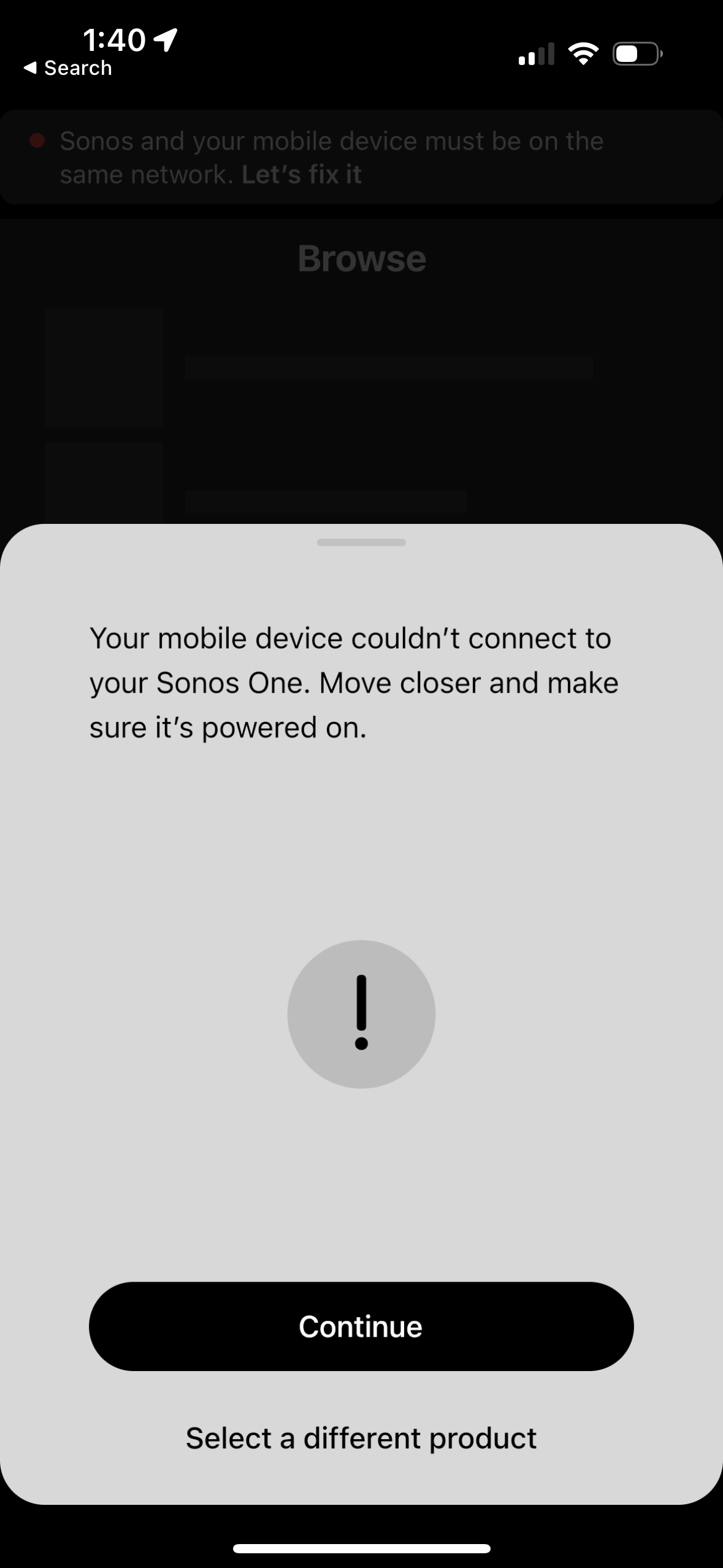
My laptop and phone tells me that these devices are on a different network than the hardware. Odd, as there’s only one network.

The on-screen prompt fixes are no help at all. It just gets to a point where it fails and gives me no recourse.

What else can I try?

I have four Sonos ones and a bridge. TP-Link - Deco AX4300 Pro Dual-Band Wi-Fi 6 Mesh Wi-Fi System (3-Pack) - White. The devices play music and take commands just fine.


This topic has been closed for further comments. You can use the search bar to find a similar topic, or create a new one by clicking Create Topic at the top of the page.
Stanley_4
Stanley_4Answer
Grand Maestro
Feb 26, 2023 3:39 AM UTC

I saw Bridge in your first post and was going to suggest removing it, looks like you have a Boost and that isn’t the issue.

Make sure your Boost is connected to the base unit, not an extender.

Make sure your 5 GHz and 2.4 GHz channels are merged. If not that connect your controller to the 2.4 GHz radio.


3 replies

jnettl2Author
Contributor I
Feb 25, 2023 8:51 PM UTC

Update: I fixed it, seems like. I plugged my Boost directly into the new router, and just kept plugging and unplugging *it* till it worked.

*Moderator Note: Modified in accordance with the Community Code of Conduct.*

Translate
Stanley_4
Stanley_4Answer
Grand Maestro
Feb 26, 2023 3:39 AM UTC

I saw Bridge in your first post and was going to suggest removing it, looks like you have a Boost and that isn’t the issue.

Make sure your Boost is connected to the base unit, not an extender.

Make sure your 5 GHz and 2.4 GHz channels are merged. If not that connect your controller to the 2.4 GHz radio.


Translate
106rallye
Feb 26, 2023 9:48 AM UTC

Update: I fixed it, seems like. I plugged my Boost directly into the new router, and just kept plugging and unplugging *it* till it worked.

That’s the right way to do it.


*Moderator Note: Modified in accordance with the Community Code of Conduct.*

Translate