Connecting Your Sonos App To Your Music Library On Your Windows PC

  • March 12, 2026
  • 1 reply
  • 25 views

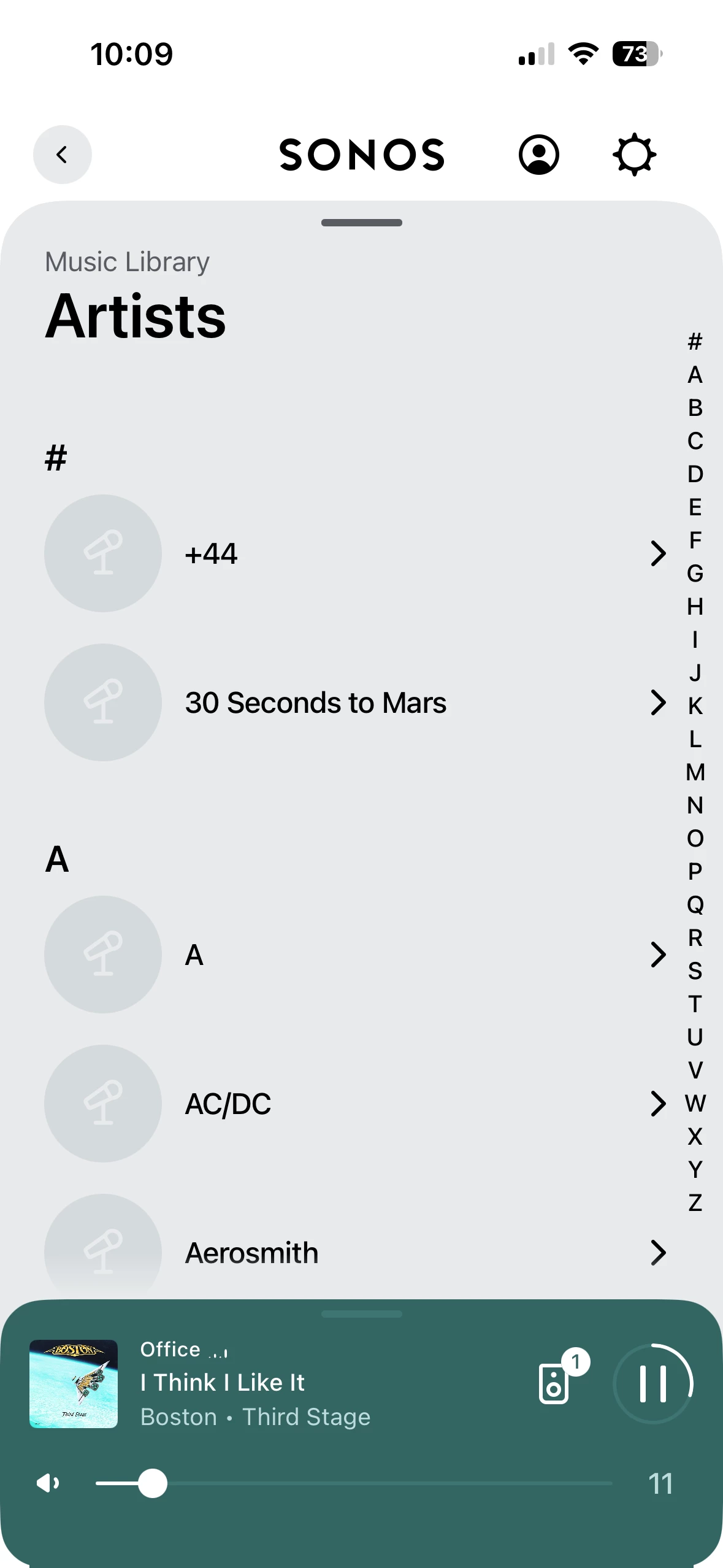
I am not sure where this topic now sits in terms of complaints, but I have now cracked connecting my Music Library to my Sonos app.

1 - Your music library must not be in a sub folder. I save my Library directly to the D drive on my computer

2 - Go to your Music Library and right click so that you can see the properties
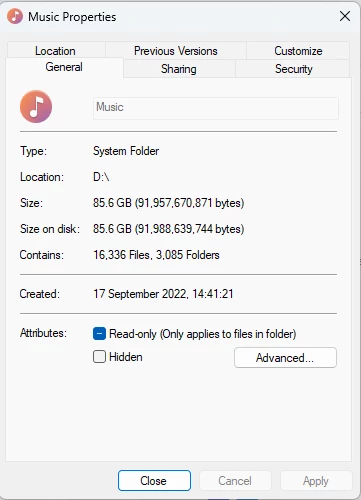
 

3 - Go to sharing
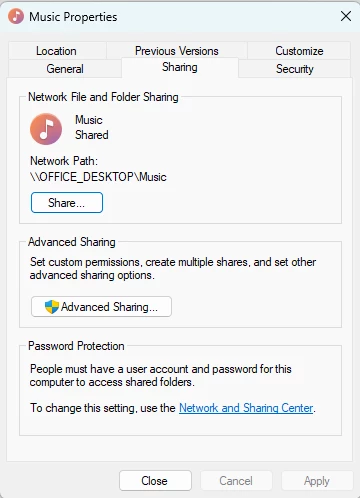


4 - Click on Share and ensure your system in “shared” and must be set to Read/Write - you will get a 913 error otherwise
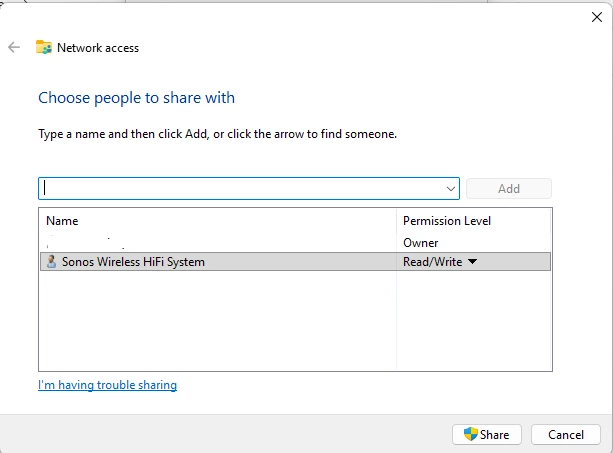
 

5 - Ensure or system is sharing Media
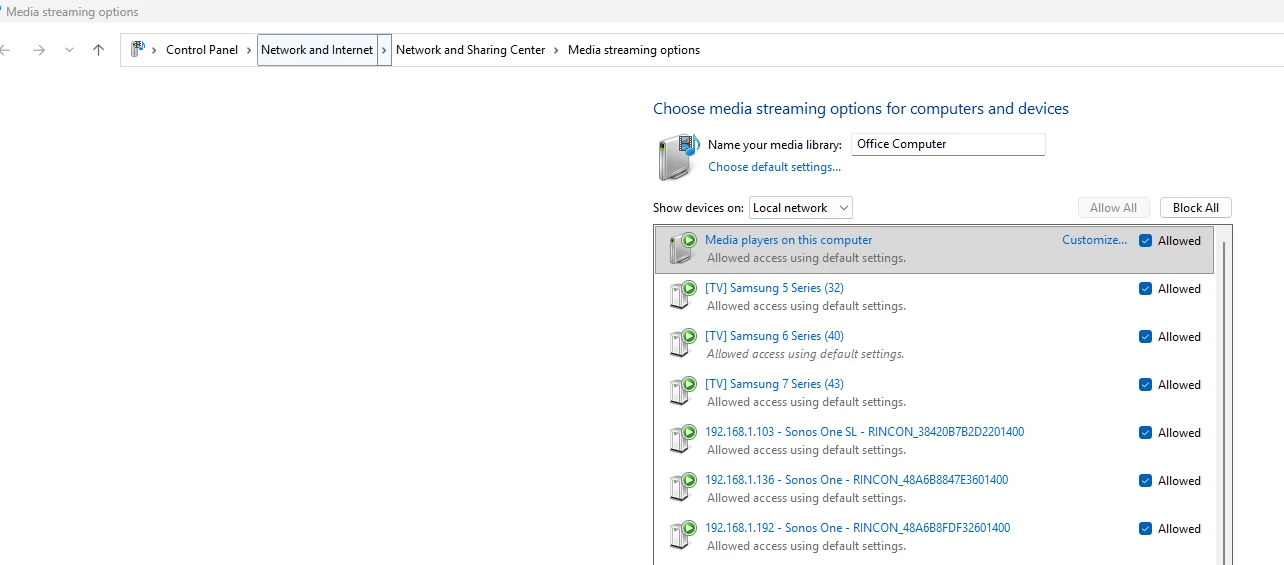


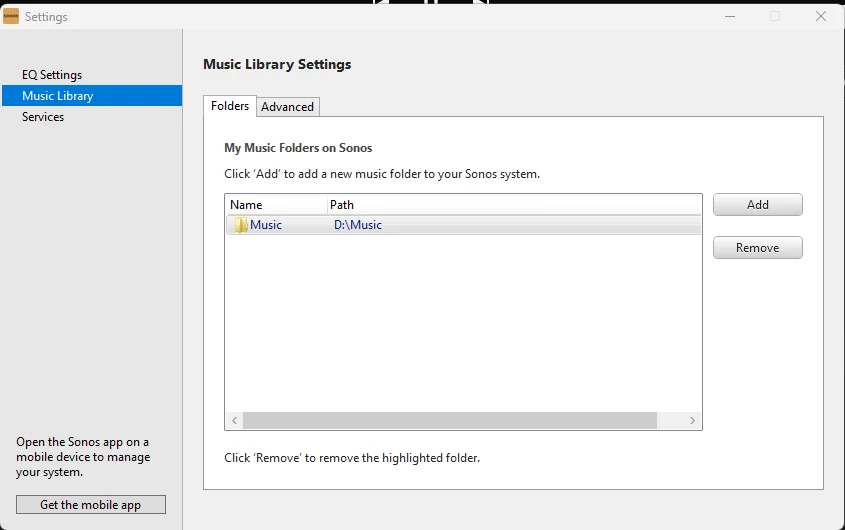
6 - You should now be able to add your Music Library to your Sonos app


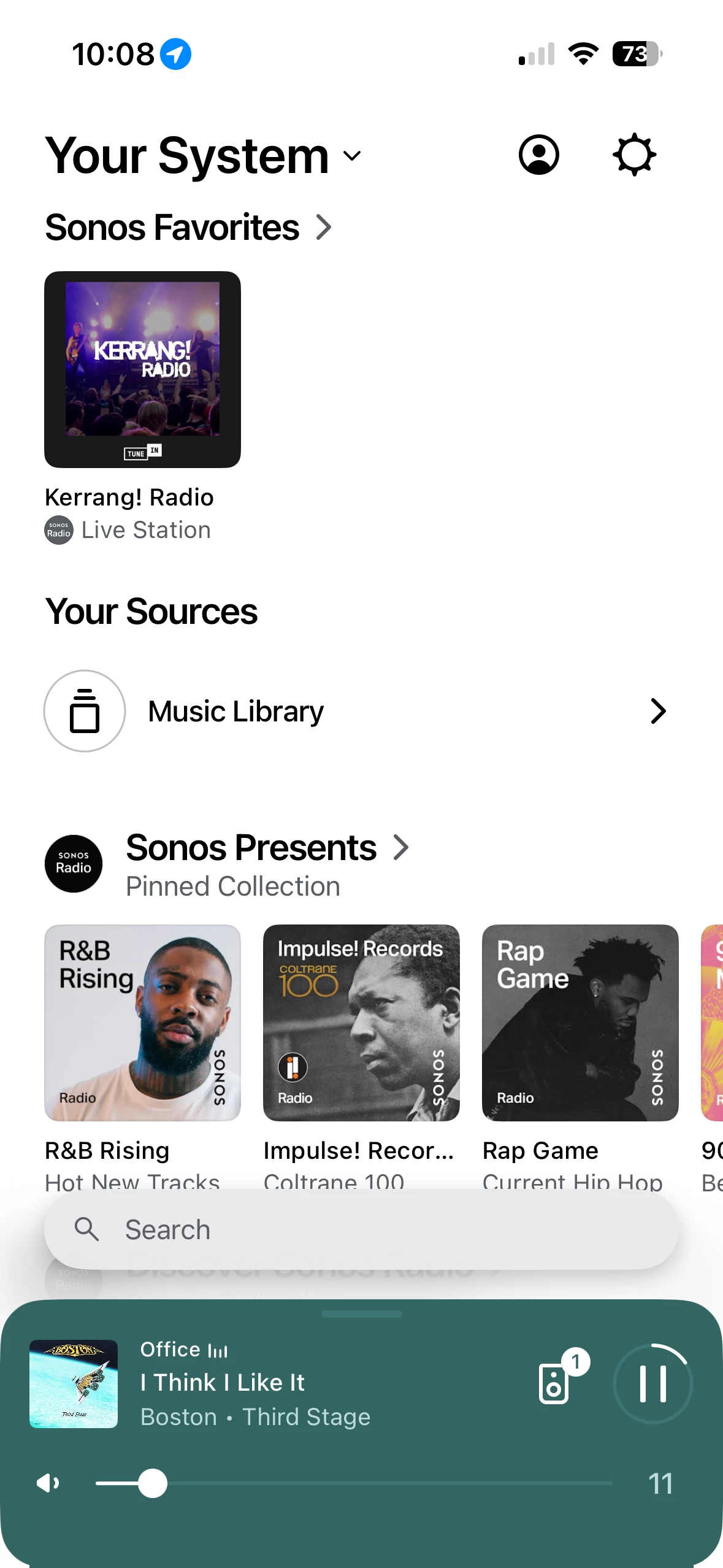
7 - Your Music Library should now be visible on your app


1 reply

jgatie
  • March 12, 2026

Correct.  However, these instructions were published shortly after the app rewrite back in May 2024:

https://support.sonos.com/en-us/article/add-your-music-library-to-sonos

With instructions on how to share a folder here:

https://support.sonos.com/en-us/article/share-your-windows-music-folder-with-sonos


So the need to enable a share and use the “Networked device (ex. NAS drive)” option (#3 on the PC app) to add it has been the official instructions for years and the subject of numerous threads.  Also, there’s no need to share from the root. If you enable the share on a sub-folder, you can then point Sonos to that shared subfolder.