
Contributor I
October 26, 2022
Answered

Controller update fails on macOS Ventura 13.0

I just updated to macOS Ventura 13.0.  The next day the Sonos Controller said I had an update.  Pressing the “Update Now” button started the update process normally.

After asking for my Admin credentials, I get an error saying “Sonos Update failed.  An unexpected error occurred.  Please try again.”
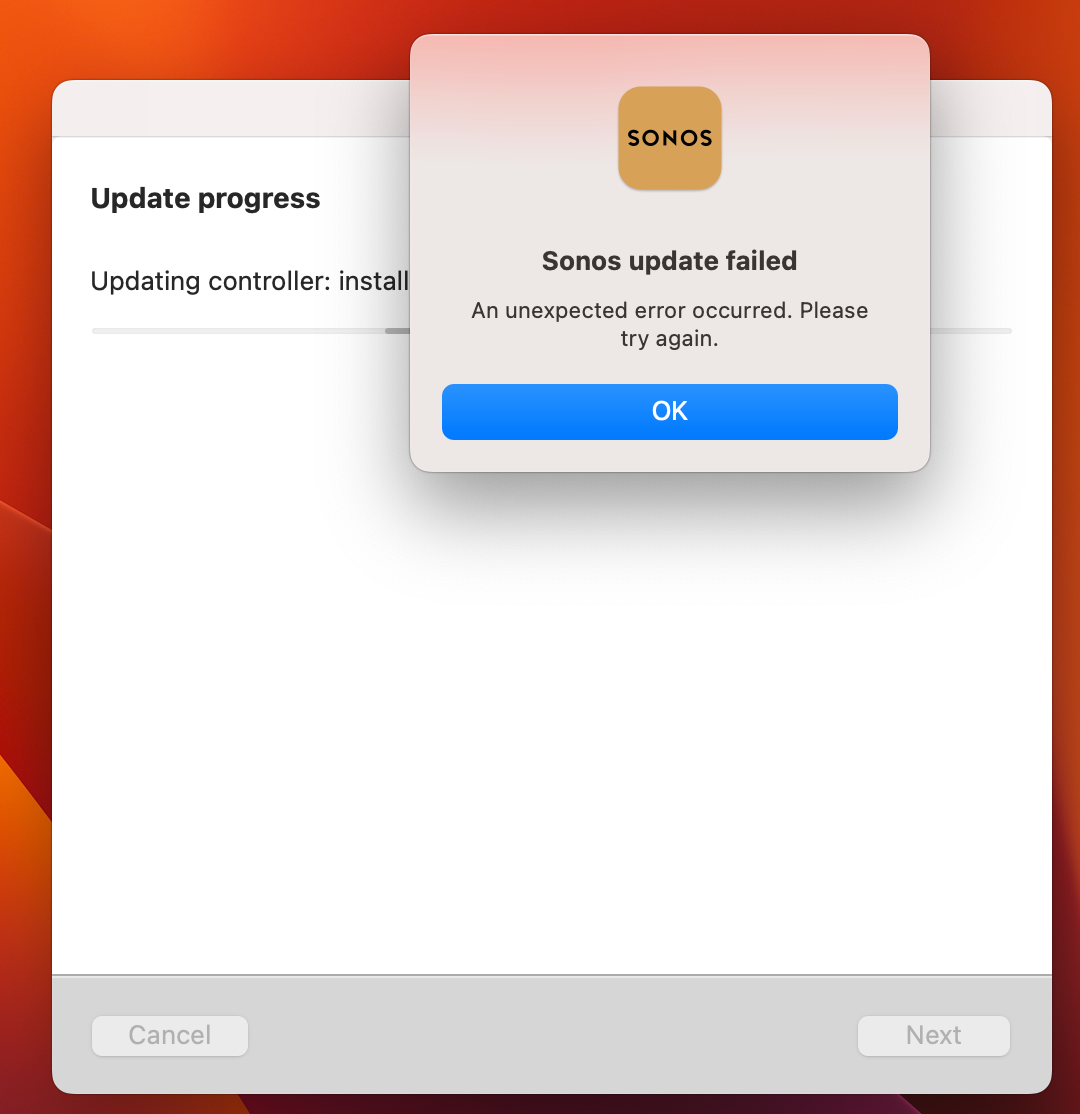
 

Is anyone else seeing this?

Dave


Info:

Sonos Controller for Mac

Version: 14.14

Sonos: OS S2

Build: 69123100
This topic has been closed for further comments. You can use the search bar to find a similar topic, or create a new one by clicking Create Topic at the top of the page.
Corry P
Corry PAnswer
Sonos Staff
October 26, 2022

Hi @Sperl & @hatchua 

Welcome to the Sonos Community!

We are aware of an issue whereby the Sonos Desktop Controller app on macOS 13 Ventura is unable to update itself.

If you do not already have app version 14.18 on your Mac, and if you are prompted to update, please take one of the following steps:

  • If you are not using a music library shared from the Mac, please uninstall the controller, download the newest version from https://support.sonos.com/s/downloads and install it.
  • If you are currently using a music library shared from the Mac you should skip the update and use the controller in limited compatibility mode for the time being.

Thanks for posting, and I hope this helps.


Edit: Edited for clarity

"Common sense is the collection of prejudices acquired by age eighteen." - Albert Einstein

28 replies

Lyricist I
December 8, 2022

The answer to the question is to go into System Settings, then Privacy & Security, then App Management, and ensure that ‘Sonos Installer’ is allowed to update or delete other applications, like so:

If you don’t see ‘Sonos Installer’ as an option, then uninstall, download (from https://support.sonos.com/en-gb/downloads ), and reinstall the latest version of the controller as described above. Once you’ve done that, then Sonos Installer should be visible in the list above.


This worked for me, problem solved! Thanks @Ringerrr

Contributor I
December 8, 2022

Sure. As I said, problem solved (probably) but potentially problem created (through creating a potential security weakness). Your call, of course!

For me carrying out a manual download of the App from the SONOS website is the only ‘safe’ way to go. 

Lyricist I
December 21, 2022

The answer to the question is to go into System Settings, then Privacy & Security, then App Management, and ensure that ‘Sonos Installer’ is allowed to update or delete other applications, like so:

If you don’t see ‘Sonos Installer’ as an option, then uninstall, download (from https://support.sonos.com/en-gb/downloads ), and reinstall the latest version of the controller as described above. Once you’ve done that, then Sonos Installer should be visible in the list above.


To echo this, you can go to the Finder > Applications > (right click on) Sonos > Show Package Contents > Search for Sonos Installer (making sure you select “Sonos” as the folder to search) --- Then Open Security & Privacy settings > App Management --- Finally, drag and drop Sonos Installer into the app management settings page. 

Choose “Sonos” to search the Sonos application for Sonos Installer


[Alternative 1] Using the uninstall menu option, then re-installing the latest DMG file automatically adds this to the App Management section. 


[Alternative 2 - NOT RECOMMENDED] You can also just download the newest DMG, drag to the Applications folder, choose “replace”, and it will update without the error. This option will NOT add the Sonos Installer to the App Management page under security & privacy...you may run into this problem again on the next update if you do it this way. 


This worked also for the Sonos S1 Controller on MacOS Ventura.


I really wonder why Sonos does not highlight that topic and solution in the general FAQ section for Updates - at least not in the German section - especially as no error code is given back from the program. I just found this solution by searching in the community by googling. Please add it to the FAQ. 

Lyricist II
December 22, 2022

Same issue, Ventura 13.1, I deleted desktop app and re-installed and resolved issue.

Lyricist I
December 28, 2022

Same issue, Ventura 13.1.

Deleted Sonos app (drag to bin) and downloaded new version from Sonos downloads. Installed (drag app to Applications) and now working.

Checked App Management but nothing added there during the install. Sharing security concerns I’ve not added it as it seems to be working without it.

Would be good if Sonos tech support had actually shared this with their customers, or at the very least put a notification on the main support page, rather than me having to Google for the answer. 

Trending Lyricist I
December 31, 2022

Thank you (all) for this.  I truly appreciate this.  I’m not a tech guru, but I was able to get Sonos back up  and running for my wife’s MacBook Air and my Macbook Pro.


I haven’t done a lot of study on it yet, but thought I”d ask: is there a similar process for iOS, as I have the same issues on my ipad and iphone.


Thanks

Airgetlam
December 31, 2022

You can, if you so choose, delete and reinstall, the effect would be the same. However, Apple hasn’t changed the way iOS updates apps, so just running the update from the Apple Store works as it always has, properly. No need to delete, unless you want to, or feel the need. 

Bruce
Lyricist I
January 14, 2023

I thank “Wintegrations” for that answer.  I am using Sonos S1 Controller on Ventura.  I went to Applications, found ‘Sonos S1 Controller.app’.  I right clicked and chose ‘Package Contents’.  It displayed a folder called Contents.  I opened that folder and saw another folder called MacOS.  In that folder I found ‘Sonos S1 Installer’. I dragged that file/app to the App Management within Privacy and Security.  I relaunched the Sonos Controller and updated Sonos like normal with no errors.

Thanks again!