
press250
Prodigy III
May 6, 2024

Adding a Windows SMB Share, Step-by-Step

  • May 6, 2024
  • 44 replies
  • 20965 views

For those who have been using the Sonos proprietary(ish) file sharing built into the about-to-be-deprecated Windows desktop client (SonosLibraryShare.exe), here are the steps to enable Windows 11 ‘native’ SMB file sharing (applies to Windows 10 with some nomenclature differences). Godspeed to all.

If you’re running an up-to-date version of Windows 10 or 11, you’ll automagically get SMBv2 which is forward-compatible with Sonos. (SMBv1 and SMBv2 discussed at length elsewhere in these forums).


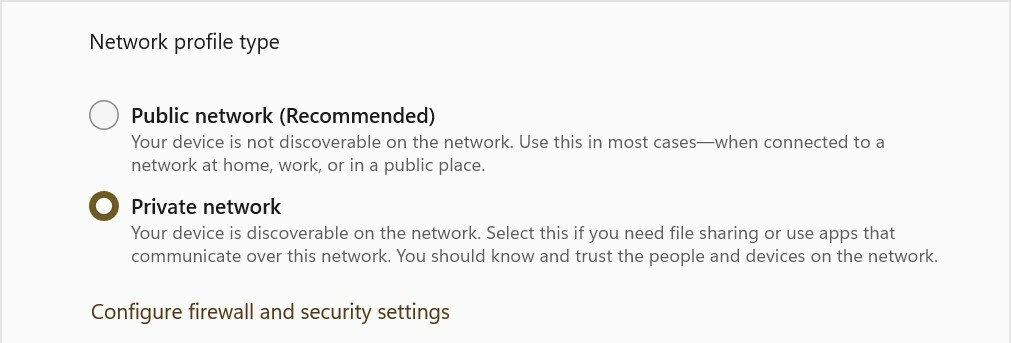
1. Switch your LAN to “Private Network”
Settings > Network & internet > Ethernet/WiFi
- Select “Private Network” radio button

2. Enable file sharing
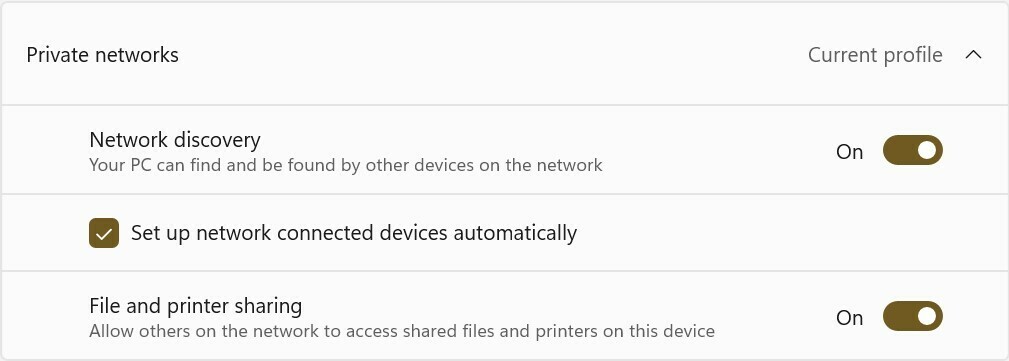
Settings > Network & internet > Advanced sharing settings
- Under “Private networks” (current profile) section
    - Set “Network discovery” On
    - Set “Setup network connected devices automatically” checked
    - Set “File and printer sharing” On

3. Setup local account specifically for music file sharing
Oh man, I can’t tackle the whole “local account” gauntlet here, so you’ll need to Google/ChatGPT it yourself. This step might not be strictly required, tho’ it is highly recommended from a security standpoint. I’m going to name this user ‘MusicShare’.

4. Share your music folder (or drive)
- Right-click on your music folder (or drive) and select Properties from the pop-up
    - Select the “Sharing” tab, and click the “Advanced Sharing” button
    - Check the “Share this folder” checkbox
    - Set “Share name” to ‘SonosLibrary’ (no quotes)
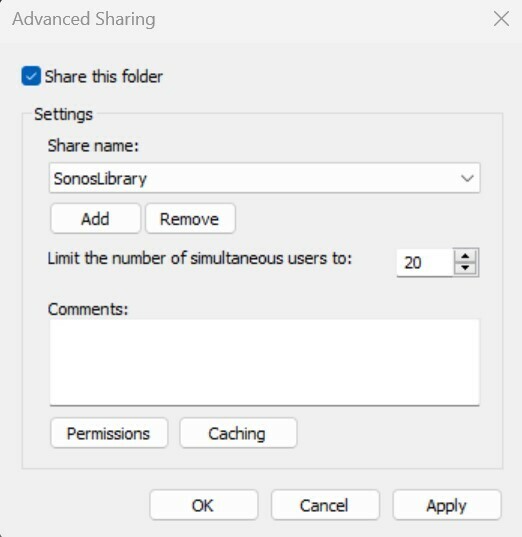

    - Click the “Permissions” button
    - In the pop-up under “Enter the object names to select” type ‘MusicShare’ (no quotes)
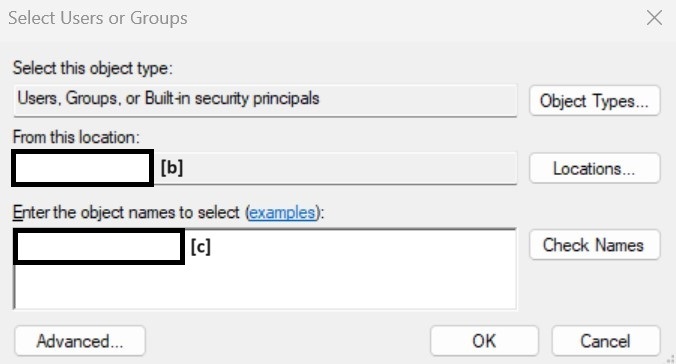
 

[b] auto-populates your machine name, [c] type ‘MusicShare’ here


- click the “Check names” button to validate, and click the “OK” and/or “Apply” buttons to close the nest dialog boxes
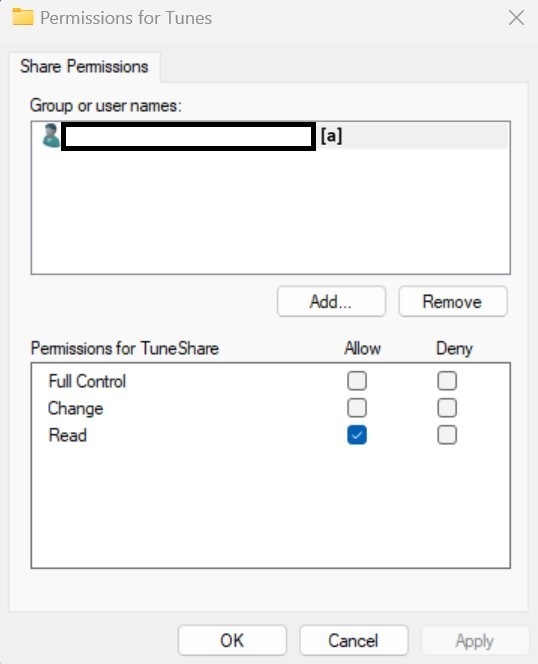
[a] auto-populates the full share name


5. Sonos Music Library Setup
- In the Sonos iOS or Android client, navigate to “Music Library Setup”
- Select “Add Shared Music Folder”
- Path = \\[your machine name]\SonosLibrary
- User name = MusicShare
- Password = [from Step 3]
- Cross your fingers (seriously) and wait for Music Index to build

This topic has been closed for further comments. You can use the search bar to find a similar topic, or create a new one by clicking Create Topic at the top of the page.

44 replies

Ken_Griffiths
July 11, 2024

hey, thanks for continually helping out -- I’m on Windows 11 Home, will these steps apply?

Yes - particularly the public/private network setting will need to be switched (if relevant to your LAN connection). It needs to be a ‘Private’ connection to enable sharing for Microsoft networks. It’s usually set to ‘Public’ by default. 

MoPac
Headliner III
July 25, 2024

 My music is on a NAS which works well, by I wanted to try a test with my Windows 10 PC.  I created a folder on the desktop and dropped one album into it.  Then I created a Local Account and shared it to the folder I created on the desktop.  Next I opened the Sonos PC app Music Library Settings and used the third option to Browse to the folder on the desktop.  The index worked so the music I put in the folder showed.

 Sonos takes care of the Microsoft security settings & sets the Power and Sleep settings to “Never” for PC sleep.  I don’t want my computer on 24/7 so I deleted that share and put the sleep back where it was.  Was a test after all.

 YouTube has lots of info on how to add a Local Account and Sonos has info on how to share it in your music folder.


Lyricist II
July 29, 2024

 My music is on a NAS which works well, by I wanted to try a test with my Windows 10 PC.  I created a folder on the desktop and dropped one album into it.  Then I created a Local Account and shared it to the folder I created on the desktop.  Next I opened the Sonos PC app Music Library Settings and used the third option to Browse to the folder on the desktop.  The index worked so the music I put in the folder showed.

 Sonos takes care of the Microsoft security settings & sets the Power and Sleep settings to “Never” for PC sleep.  I don’t want my computer on 24/7 so I deleted that share and put the sleep back where it was.  Was a test after all.

 YouTube has lots of info on how to add a Local Account and Sonos has info on how to share it in your music folder.


Links please? Can’t find what you suggested. 

Ken_Griffiths
July 29, 2024

 My music is on a NAS which works well, by I wanted to try a test with my Windows 10 PC.  I created a folder on the desktop and dropped one album into it.  Then I created a Local Account and shared it to the folder I created on the desktop.  Next I opened the Sonos PC app Music Library Settings and used the third option to Browse to the folder on the desktop.  The index worked so the music I put in the folder showed.

 Sonos takes care of the Microsoft security settings & sets the Power and Sleep settings to “Never” for PC sleep.  I don’t want my computer on 24/7 so I deleted that share and put the sleep back where it was.  Was a test after all.

 YouTube has lots of info on how to add a Local Account and Sonos has info on how to share it in your music folder.


Links please? Can’t find what you suggested. 

Here’s a few links (including the first post in this thread)…

https://support.sonos.com/en-us/article/add-your-music-library-to-sonos

https://support.sonos.com/en-us/article/share-your-windows-music-folder-with-sonos

https://en.community.sonos.com/controllers%2Dand%2Dmusic%2Dservices%2D229131/adding%2Da%2Dwindows%2Dsmb%2Dshare%2Dstep%2Dby%2Dstep%2D6892060