
Answer

Change speaker IP number to meaningful name on *computer*

  • July 30, 2017
  • 6 replies
  • 490 views

Using Windows Media Player. Want to 'cast' music to a Sonos speaker from my laptop. How do I change speaker IP number to a more useful name?

Best answer by Smilja

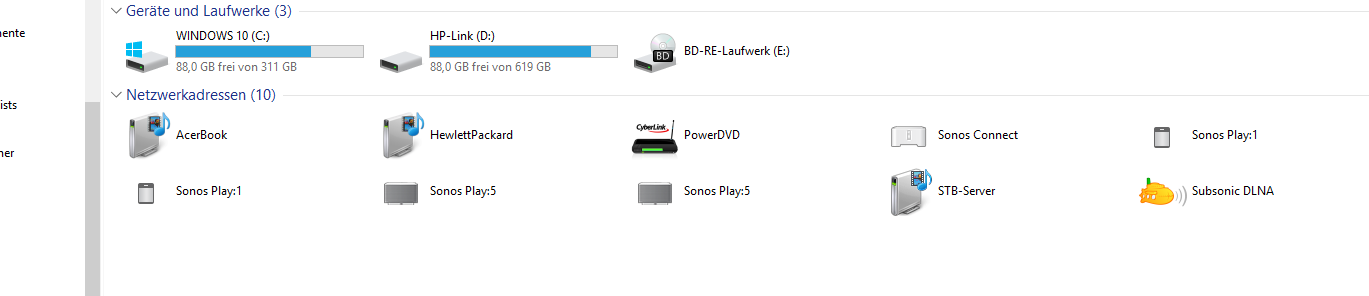
A Double-click on the 'My Computer" icon on the desktop will open the File Explorer and you will see something like this:


Right-click the icon of a Sonos player to rename the unit.
This topic has been closed for further comments. You can use the search bar to find a similar topic, or create a new one by clicking Create Topic at the top of the page.

6 replies

Smilja
  • Answer
  • July 30, 2017
A Double-click on the 'My Computer" icon on the desktop will open the File Explorer and you will see something like this:


Right-click the icon of a Sonos player to rename the unit.

  • Author
  • Contributor III
  • July 30, 2017
That seems to have worked. Thank you! 🙂

Smilja
  • July 30, 2017
You're welcome. 😃

  • Author
  • Contributor III
  • August 2, 2017
Ah, correction: It worked in File Explorer, but the names aren't updated in Windows Media Player.

Anyone know how to get the updated names to carry over?

Stanley_4
  • Lead Maestro
  • August 3, 2017
Maybe assign them static IP addresses and names using your DHCP server?

Smilja
  • August 3, 2017
Ah, correction: It worked in File Explorer, but the names aren't updated in Windows Media Player.
Sorry to hear. I don't make use of WMP anymore, thus I didn't verify. Perhaps you'll get some assistance on the Microsoft Community.