Trending Lyricist I
December 2, 2022
Answered

S1 controller unable to add linkstation NAS with error: Reason: The Computer "SONOSZP80_1TB" cannot be found

  • December 2, 2022
  • 32 replies
  • 641 views

Hardware/Software:    Windows 11 with all updates installed, S1 controller, Sonos ZP80, Buffalo Linkstation live 1TB NAS

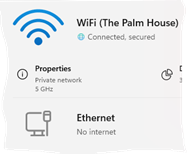
Network Profile Type: Private (VPN via high-speed Wi-Fi - No ethernet access to router)

Connectivity:              ZP80 connects to my VPN via Wi-Fi and the two ports from the ZP80 run ethernet cables to a desktop mini and NAS


I was able to play music from my NAS, with the above connectivity till about Sept/Oct 2022, when a windows 11 update caused the NAS to disappear.  This has now been fixed and I'm once again able to see my ancient 2010 Buffalo Linkstation Live (LS-CHL-V2 series) NAS. 


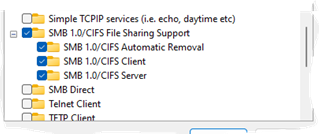
Advanced sharing settings and SMB settings under windows features have all been checked by Sonos and all look fine and I’ve also posted screen grabs below.


When I try and add my NAS share in the S1 Controller I get the following error:

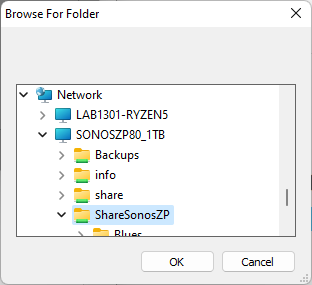
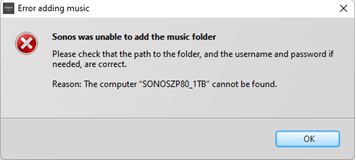
S1 -> Manage tab -> Music Library Settings -> Add -> Networked device -> Browse and select NAS and share from Network tab -> OK -> Next > admin/password -> Error message is - Reason: The Computer "SONOSZP80_1TB" cannot be found


If I manually add the NAS via IP I get the error:

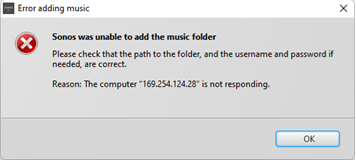
Reason: The Computer "169.XXX.XXX.28" is not responding


Hopefully the screenshots will be more descriptive than the text above:


1) The SONOSZP80_1TB NAS and the ShareSonosZP share are detected by the Sonos S1 app as shown below:
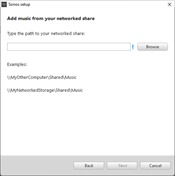


2) NAS added via previous screen
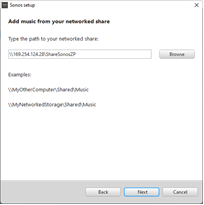
 

3) Why am I getting the following error when the NAS is detected by S1? 
 

4) Via IP address of NAS the error message is different!


Windows 11 firewall settings

SMB Settings


Wi Fi is a private network


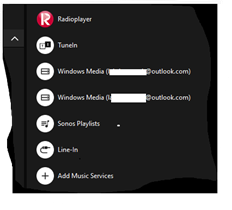
5)  Another thing I noticed, after being able to access the NAS again is that the S1 controller has two entries for Windows Media (xxxx@outlook.com) even though I’ve removed the NAS library.  Previously the NAS was not Windows Media.  I’m tempted to do a clean install of S1 to resolve this particular issue.  Or maybe the two rogue entries will disappear when I add the NAS and update the music library? Any thoughts would be most welcome on this front.


Mod edit: removed case number

This topic has been closed for further comments. You can use the search bar to find a similar topic, or create a new one by clicking Create Topic at the top of the page.
Best answer by Corry P

Hi @Belly M 

You are correct - I forgot about that detail!

There probably is a way to bridge the connections on the PC, but I sure don’t know what it is.

@lab1301, I think it might be best to just buy a router that will provide you with your own subnet. Some routers do allow you to use another WiFi for internet access, while still creating a subnet for you.

32 replies

lab1301Author
Trending Lyricist I
December 12, 2022

Hi @lab1301 

There might be something useful in the logs - please submit a support diagnostic and reply here with the number given, and I’ll take a look. The problem is that they will probably tell us that a connection could not be made, but not why. It is worth checking, however.


Diagnostics submitted as per screenshot below 977543576.  I tried adding the NAS share just before submitting the diagnostics just in case…


Also, I tried disabling DHCP on the NAS and manually entered the following as shown in the screenshot but the NAS was not accessible after the change.  If you can spot what I did wrong do please let me know.  It is rather easy to recover the NAS by restoring the settings back to default.


Wireless LAN adapter WiFi:

   Connection-specific DNS Suffix  . :
   Link-local IPv6 Address . . . . . : fe80::3XXXXXXX
   IPv4 Address. . . . . . . . . . . : 172.17.3.218
   Subnet Mask . . . . . . . . . . . : 255.255.240.0
   Default Gateway . . . . . . . . . : 172.17.0.1
 

Same subnet mask and gateway as the PC as detailed just above:


lab1301Author
Trending Lyricist I
December 12, 2022

@lab1301,

Looking at the left panel in your screenshot, it looks to me like you ‘may’ have a DHCP server running on the NAS (if I’m reading it correctly?) - if that is the case, you need to disable that server within the NAS configuration, let it use the routers DHCP server to acquire its network connection.


The settings screenshot is as below.  I’ve just responded to Corry P with more information on how I tried changing the IP here and ended up losing access to teh NAS.


lab1301Author
Trending Lyricist I
December 12, 2022

Just to reiterate what Corry is saying a 169….. network address gets assigned by the device itself when it cannot reach a DHCP server, this needs to be fixed as in its current state is not fully routable without having the gateway and DNS entries. 

As the NAS is wired to the LAN. might it just be a faulty Ethernet connection? Maybe wire PC/laptop to the LAN using the same cable and see if that acquires an IP address from the router, just to check the cable is okay.

Just to reiterate what Corry is saying a 169….. network address gets assigned by the device itself when it cannot reach a DHCP server, this needs to be fixed as in its current state is not fully routable without having the gateway and DNS entries. 


If the cable was faulty then it is unlikely that you will be able to see the NAS from the S1 app or WINDOWS.  There is no internet connection via the ethernet adapter but all the devices that I want to access are on a local wired network.  The NAS is accessible from WINDOWS and the S1 controller.  If the DHCP server is fixed on the router, then, I would be able to bridge the Wi Fi and Ethernet adapters and there would be an internet connection via the ethernet adapter as well but I can’t see that making a difference to this problem unless I’m missing something.

lab1301Author
Trending Lyricist I
December 12, 2022

Just to reiterate what Corry is saying a 169….. network address gets assigned by the device itself when it cannot reach a DHCP server, this needs to be fixed as in its current state is not fully routable without having the gateway and DNS entries. 


Thanks Belly M.  This could indeed be a routing issue caused by the NAS not being able to obtain a valid IP from the router DHCP server.  But having said that the NAS is on the local network and I’m able to log into it from windows.  S1 controller  also sees the NAS share and allows me to select the relevant share but then encounters the error.  I’m able to ping the NAS and arp also lists it.


C:\Windows\System32>arp -a

Interface: 169.254.225.160 --- 0x9
  Internet Address      Physical Address      Type
  169.254.124.28        00-XX-XX-XX-XX-cc     dynamic
  169.254.255.255       ff-ff-ff-ff-ff-ff     static

The connectivity is as follows 

NAS is connected via ethernet cable to ZP80. Second port from ZP80 is connected via cable to PC.  If the DHCP server on the router is enabled, then, I would be able to bridge the ethernet and Wi Fi adapters. 

Belly M
December 12, 2022

all becomes clear… but it’s totally the incorrect way. 
 

The ZP80 needs to connect to the Router by Ethernet and NOT the PC (NAS can then stay connected to the ZP80) BUT you have said no Ethernet connection available.


You need to know how to create a bridge between the Wi-Fi card and the Ethernet card in the PC.

Corry P
Sonos Staff
December 13, 2022

Hi @lab1301 

NAS is connected via ethernet cable to ZP80. Second port from ZP80 is connected via cable to PC.  If the DHCP server on the router is enabled, then, I would be able to bridge the ethernet and Wi Fi adapters. 

I was about to look at your diagnostics when I saw this.

I agree, in part, with @Belly M - we don’t recommend you connect your NAS to a Sonos device, but it should work without issue (a Sonos device with 2 ethernet ports will act as a switch, in part). However, connecting a Sonos device to a PC via ethernet is a definite no-no.

Rather than create a bridge between WiFi and ethernet on the PC, however, I recommend you simply do not wire Sonos to your PC with an ethernet cable - both Sonos and the NAS should have their own ethernet connections directly (or via a switch) to the router. If, after doing this, you still have access issues, by all means please submit another diagnostic and I’ll take a look for you, but with the current, unsupported configuration, there’s not much point in me doing so - it’s not actually expected to work.

If the NAS stores nothing but music, connecting it to a router-connected Sonos device is acceptable. I still don’t recommend it though. If you have, for example, movies stored there too, please connect it directly to the router.

This does explain why you have a 169 IP address though - the DHCP server on the router has no idea the NAS drive exists. The PC is an effective firewall.

"Common sense is the collection of prejudices acquired by age eighteen." - Albert Einstein
Belly M
December 13, 2022

The OP has stated he has no physical access to the Router’s Ethernet ports which is a requirement to get the NAS working correctly.


In the current config the PC would need to be a DHCP server and some form of bridge or network sharing enabled. As it stands the the Wi-Fi card in the PC does not pass anything to the Ethernet NIC. The ZP80 has no means of routing IP back to the NAS but the PC can see the devices on the Ethernet interface due to self assigned IP addressing.


Edit, I have not done any routing on a desktop PC between interfaces for about 25 years. There must have been something configured to enable this before the updates but in all honesty as @Corry P says it’s unsupported.


Corry P
Corry PAnswer
Sonos Staff
December 13, 2022

Hi @Belly M 

You are correct - I forgot about that detail!

There probably is a way to bridge the connections on the PC, but I sure don’t know what it is.

@lab1301, I think it might be best to just buy a router that will provide you with your own subnet. Some routers do allow you to use another WiFi for internet access, while still creating a subnet for you.

"Common sense is the collection of prejudices acquired by age eighteen." - Albert Einstein
December 13, 2022
lab1301Author
Trending Lyricist I
December 13, 2022

Hi @Belly M 

You are correct - I forgot about that detail!

There probably is a way to bridge the connections on the PC, but I sure don’t know what it is.

@lab1301, I think it might be best to just buy a router that will provide you with your own subnet. Some routers do allow you to use another WiFi for internet access, while still creating a subnet for you.


Sometime yesterday I posted the following:

June to September, I bridged the WiFi with the ethernet adapter and that was when I was last able to use the NAS with  Sonos.  Now when I try and create a network bridge I get “The network bridge doesn't have a valid IP configuration" and I lose all internet connectivity and the S1.

You bridge two networks by highlighting the two adapters, right clicking and selecting the bridge option.

And the bridge is created as below:


But unlike in September, the problem is the DHCP server is timing out and that means there is no internet connectivity on the bridge.  My laptop has a valid IP and so has the ZP80 as I’m streaming radio but for some reason the NAS, connected via ethernet to my windows 11 mini, is not getting a valid IP. 

C:\Windows\System32>ipconfig /renew

Windows IP Configuration

No operation can be performed on Local Area Connection* 1 while it has its media disconnected.
No operation can be performed on Local Area Connection* 12 while it has its media disconnected.
An error occurred while renewing interface Ethernet : unable to contact your DHCP server. Request has timed out.