Answered

Issue with Reconnecting Alexa on Sonos Arc (after Amazon outage) can I get some help?

  • December 6, 2025
  • 2 replies
  • 33 views

Hi,

I have a Sonos Arc which I already had voice assistant setup with Amazon Alexa. I received an email from Amazon, “Reconnect Alexa on your Sonos speaker.” I followed the directions from the email which I provided below to reconnect Amazon Alex to my Sonos Arc but it has been unsuccessful and I have been having issues.

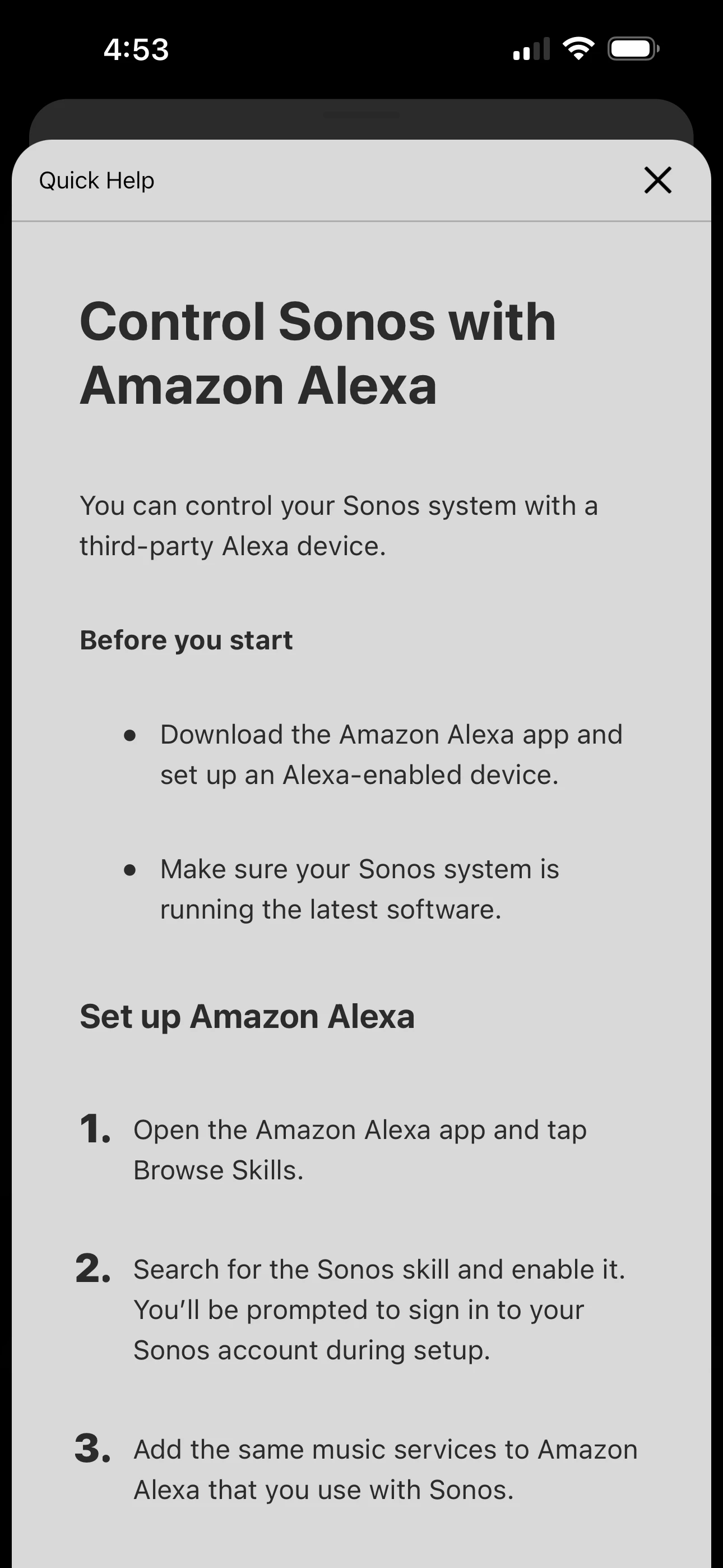
I followed the below directions but the first issue that I am having is in the Sonos App after I removed “Amazon Alex” in the “Voice Assistant” and tried to re-add it I get a new window that pops up, “Control Sonos with Amazon Alexa.” I followed the directions in the article, “Set up Amazon Alexa with a voice-enabled Sonos speaker.” But the problem is that after I click on Voice Assistants and then choose Amazon Alexa. It does not give me an option to choose my Sonos Arc and instead a quick help box shows up, “Control Sonos with Amazon Alexa.” I have provided a screenshot for reference.

I tried searching online and the Sonos community on how to troubleshoot this but I have not been able to find anything helpful. My Sonos App and Sonos Arc is update to date as well as my Amazon Alexa app.

I am not sure what is wrong or what I am doing wrong.


Restore Alexa hands-free control of music, smart home, timers and more


Due to a recent service outage your Sonos device got disconnected from Alexa. Let’s help you fix that. Follow these steps so you can get back to controlling your music, setting reminders, and managing your smart home — with just your voice.
First, update your Sonos App:

1. Download the Sonos App on your phone for iOS or Android in the App Store.
2. Open the Sonos App and go to Settings.
3. Tap "General Settings" and then select "Voice Assistants".
4. Select "Amazon Alexa" from the list of voice services or remove it and then re-add.

Then, update your Alexa App and relink the Sonos Skill:

1. Download the Amazon Alexa App on your phone for iOS or Android in the App Store.
2. Open the Alexa App.
3. Go to More > Skills & Games.
4. Search for "Sonos" and select it.
5. Tap Disable to turn the skill off, then tap Enable to re-link the skill.
6. Follow the on-screen instructions to sign in to your Sonos account.

You did it, your Sonos speaker is ready to rock again with Alexa!


Best answer by UKMedia

Best to start from scratch.  

1/ Disable the Sonos skill within the Alexa App and then Re-Enable

2/ Open the Sonos App and select the cog wheel in the top right of the screen on your phone

3/ Scroll down and select General Settings then Voice Assistants

4/ Select Amazon Alexa and check that your Arc is listed - if not select Add to another product

5/ Select your Arc when it’s displayed.


If you experience any issues then please let us know at which step above.

2 replies

UKMedia
  • Answer
  • December 6, 2025

Best to start from scratch.  

1/ Disable the Sonos skill within the Alexa App and then Re-Enable

2/ Open the Sonos App and select the cog wheel in the top right of the screen on your phone

3/ Scroll down and select General Settings then Voice Assistants

4/ Select Amazon Alexa and check that your Arc is listed - if not select Add to another product

5/ Select your Arc when it’s displayed.


If you experience any issues then please let us know at which step above.


  • Author
  • Contributor I
  • December 8, 2025

@UKMedia, thank you so much for these steps! I just tried these steps and now it works.