Tutorial

Sonos + UniFi: Best Practices & Recommended Settings

  • April 8, 2026
  • 13 replies
  • 517 views

Forum|alt.badge.img+1

Hello, everyone! I want to share some insights regarding Sonos setups in Ubiquiti UniFi environments. We see common questions and suggestions around how best to use Sonos with UniFi networks, and I wanted to give you the inside scoop on how we approach this troubleshooting. Unifi already has a solid guide on Sonos that we recommend checking out here, but we wanted to expand upon this.

We know that UniFi gear is incredibly popular among our power users (and many of us internally!). While Sonos is designed to work on standard home networks out of the box, managed networks like UniFi offer a level of control that can sometimes inadvertently block the communication Sonos needs to keep your system in sync.

To be clear, home networking is complex and every environment is unique. However, based on our internal documentation and successful troubleshooting sessions, here are the configurations we recommend to keep your music playing without interruption.

Disclaimer. This article is up to date through April 2026. Some settings might have changed since we first made this article.


The "Golden Rule": Wired vs. Wireless


One of the most common causes of network storms/loops is a mixed environment where some Sonos players are wired and others are wireless, combined with conflicting Spanning Tree Protocol (STP) settings.

For the most stability, we generally recommend one of two approaches:

  • Fully Wireless: All Sonos products connect directly to your UniFi WiFi. 
    • This is often the easiest setup for modern Sonos products like Era 100/300, Move, and Roam.
  • Fully Wired: All capable Sonos products are Ethernet-wired.
    • WiFi is manually disabled on each player via the Sonos app.

If you are using a "Mixed" setup (some wired, some wireless using SonosNet), you must configure your STP settings correctly on your switches to avoid packet storms. (See the "Spanning Tree" section below).


Troubleshooting: "Missing Rooms" or Grouping Issues


If you are seeing speakers disappear from the Sonos app, or if you group rooms but audio only plays from one speaker, check that Multicast traffic is not being blocked or filtered and IGMP snooping is enabled.

Here are the settings we recommend checking in your UniFi Network Controller. Note: Menus may vary slightly depending on your Controller version.

  1. Check the basics: Ensure the controller (your phone) and the system are on the same subnet/VLAN.
  2. Verify the "Disable" list: Go back to the WiFi settings above and triple-check that Multicast and Broadcast Control and Multicast Enhancement are turned off. 
  3. Re-Provision: After changing these settings, allow a minute for the Access Points to re-provision. It is often helpful to reboot the Sonos players after the network settings have been applied to clear any stale connection states.

Unifi WiFi & Network Settings for Sonos


TL;DR: Disable Multicast Enhancement, Broadcast Control, and Client Isolation

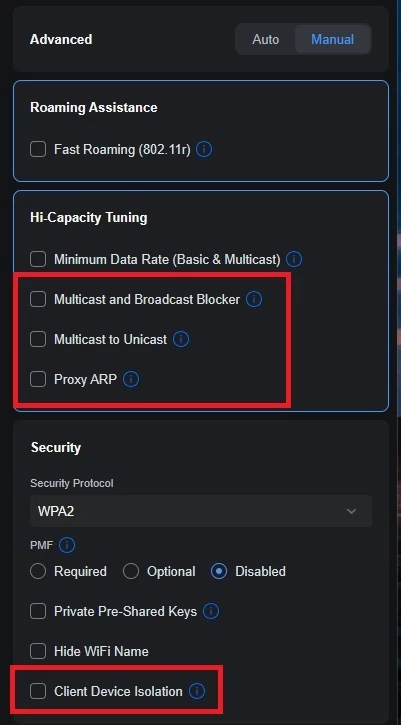
Go to Settings > WiFi and select your WiFi name. Change Advanced Configuration to Manual to verify the following:

  • Hotspot 2.0: Set to Off
  • Multicast to Unicast (previously called “Multicast Enhancement”): Disabled (unchecked). Note: While this sounds like something you’d want on, it converts multicast to unicast, which can cause issues with Sonos grouping.
  • Multicast and Broadcast Control: Disabled (unchecked). This blocks multicast traffic for non-listed devices and is a common culprit for missing players.
  • Client Device Isolation: Disabled (unchecked). This prevents devices on the same AP from talking to each other.
  • Proxy ARP: Disabled (unchecked).

Global Network Settings


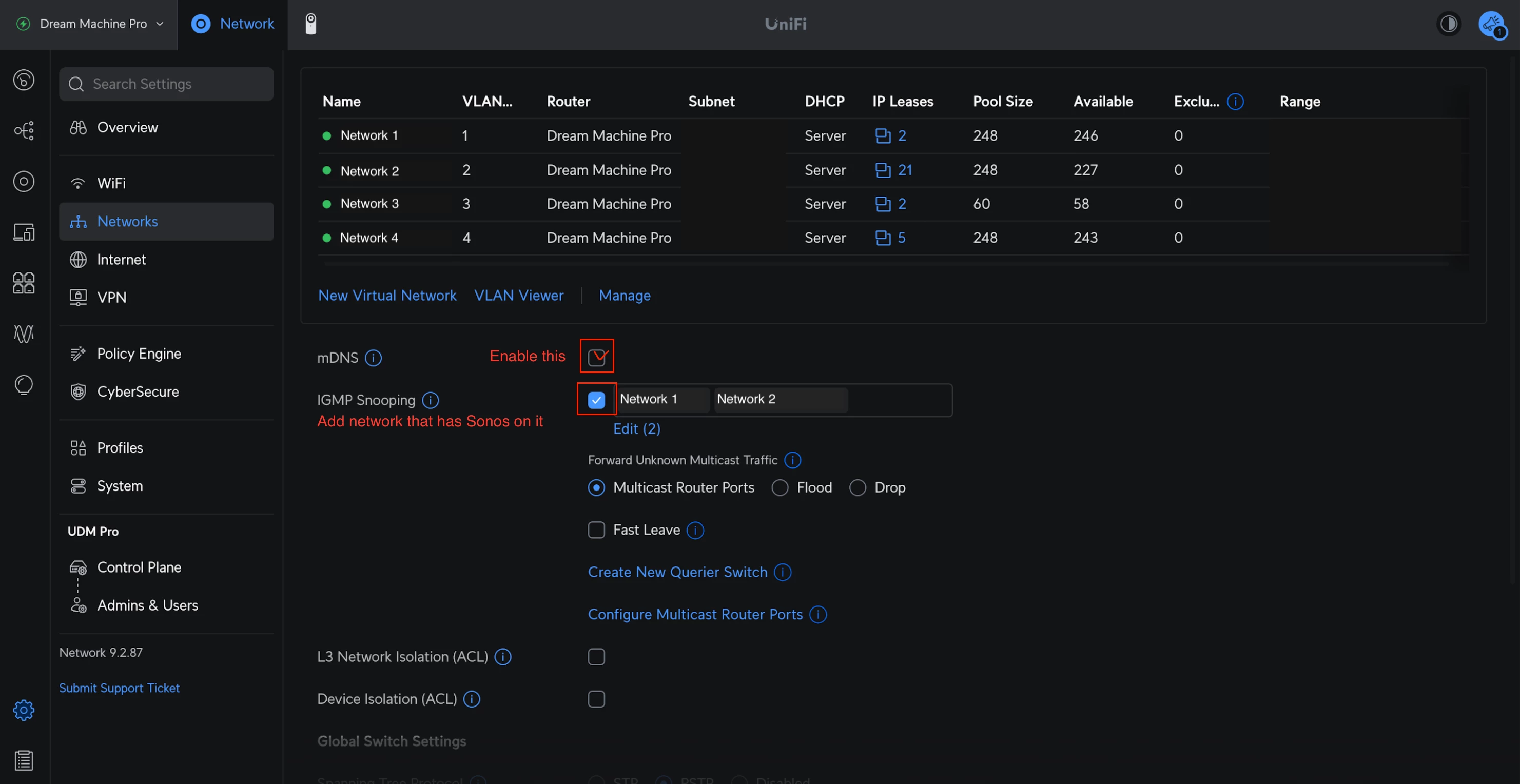
TL;DR: mDNS: Enabled, IGMP Snooping: Enabled

Go to Settings > Networks and select the network Sonos uses:

  • IGMP Snooping: Enabled. This helps reduce unnecessary multicast traffic while ensuring the right packets get to your speakers.
  • mDNS: Enabled. Technically speaking, this helps with device discovery. However, if you are running a complex setup with separate Sonos systems on different VLANs, mDNS might actually need to be disabled—but for 99% of home users, keep this ON.
Spanning Tree Protocol (STP) Settings


If you have any Sonos devices wired to your network (without disabling WiFi), you must configure STP on your UniFi switches to prevent network loops. Sonos uses STP (802.1d) to figure out the best path for data.


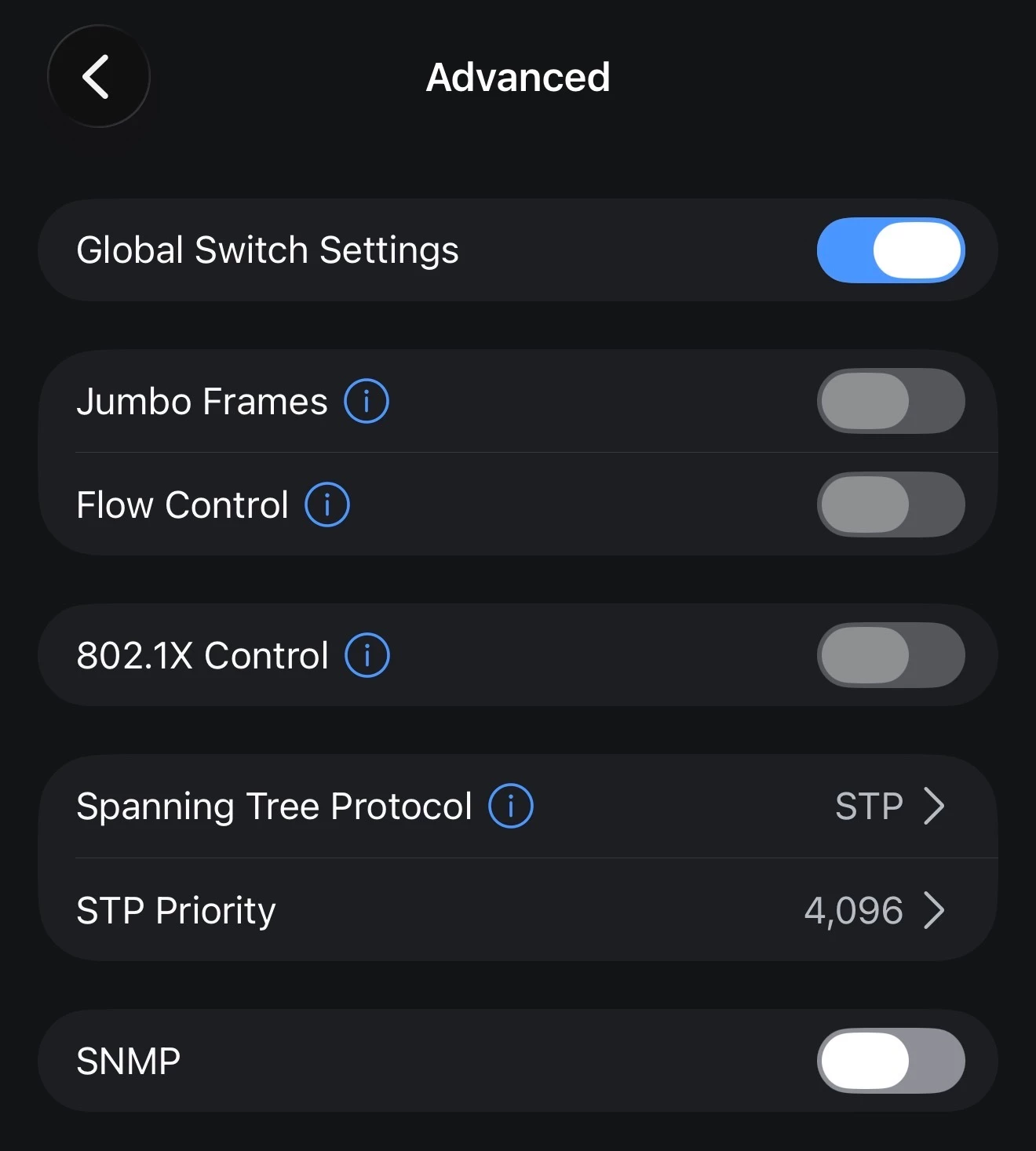
Global Switch Settings


TL;DR: STP switch priority 4096/8192/12288.

  • Spanning Tree: Select STP (not RSTP).
  • Priority: Set your core/main switch to 4096.
    • If you have secondary switches daisy-chained, set them to 8192.
    • Tertiary switches should be set to 12288.

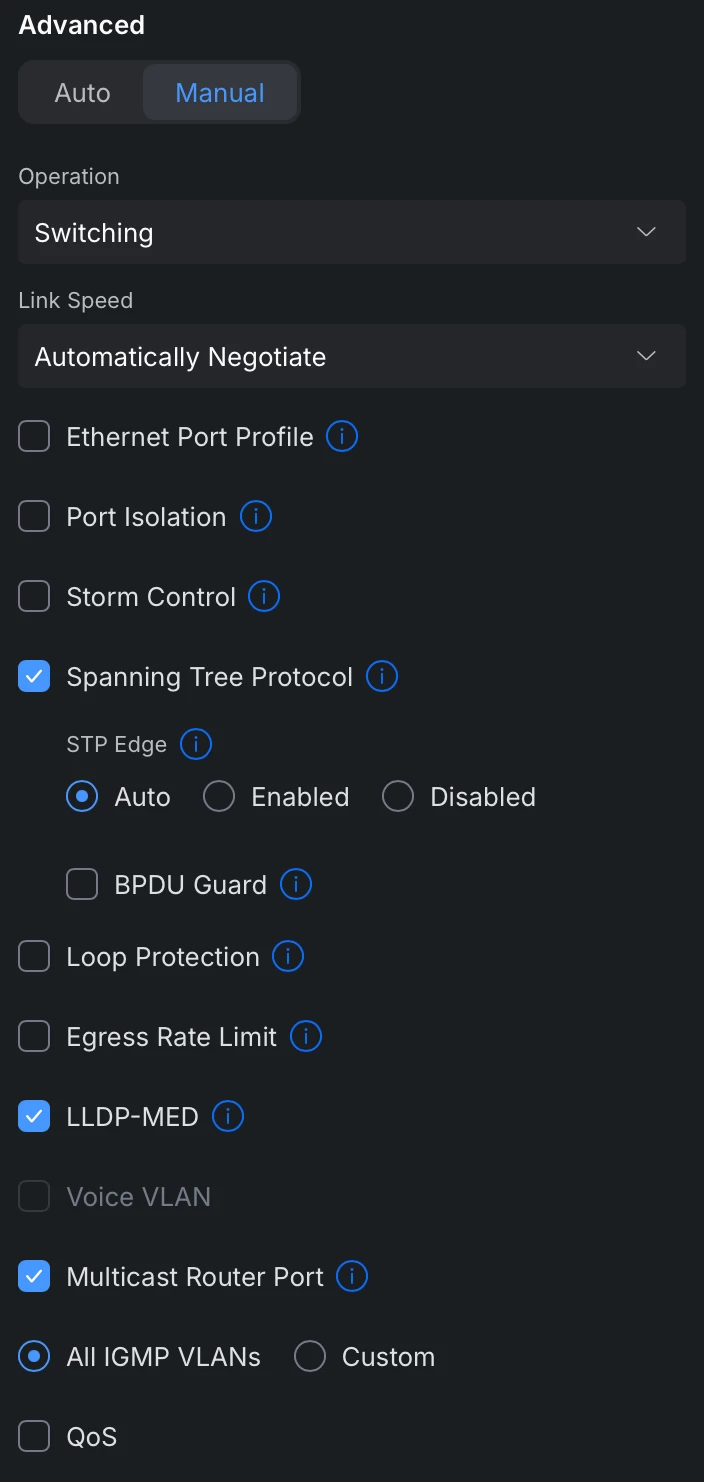
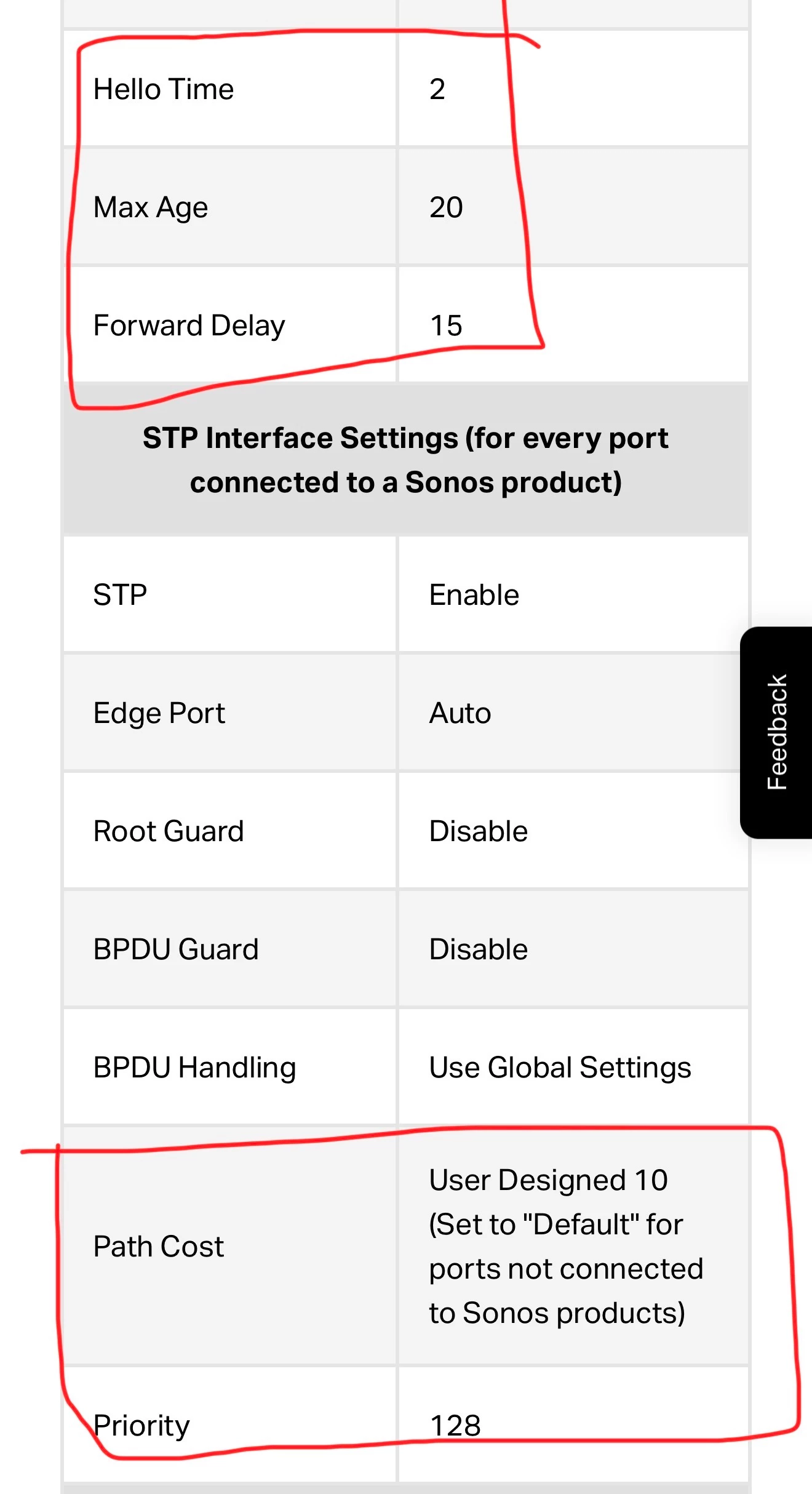
Port Specific Settings: For the specific ports where a Sonos device is plugged in:

  • STP: Enabled
  • Edge Port: Auto or Enabled
  • BPDU Guard: Disabled
  • Root Guard: Disabled
  • Path Cost: 10
  • Port Priority: 128

Final Thoughts


I hope this helps clarify the best way to harmonize Sonos with UniFi gear. We know some of you have sophisticated home networks, and we want to ensure our products play nicely with them.

I'm happy to answer questions about these specific settings to the best of my ability. If you have a specific topology that defies these rules, let us know in the comments—we love seeing how you all set things up!

13 replies

  • Lyricist I
  • April 10, 2026

Can you please explain "why" IGMP snooping is required for the Sonos to work? It should not help with discovery so why does it help to enable?


Smilja
  • April 10, 2026
  • IGMP Snooping: Enabled. This helps reduce unnecessary multicast traffic while ensuring the right packets get to your speakers.


What’s your concern?

Enhancing Multicast Performance: A Guide to IGMPv3 on UniFi - Blog of Cody Deluisio


  • Lyricist I
  • April 10, 2026
  • IGMP Snooping: Enabled. This helps reduce unnecessary multicast traffic while ensuring the right packets get to your speakers.


What’s your concern?

Enhancing Multicast Performance: A Guide to IGMPv3 on UniFi - Blog of Cody Deluisio

My concern is that it introduces latency into the network. And the network is fine without it. Only thing that happens is the speakers disappear from the controller. It should not be related to the traffic if there’s not a lot of it. 


So I’m adding latency to my network and the reason is not clear enough.


Stanley_4
  • Grand Maestro
  • April 10, 2026

How many microseconds of latency is it adding?

What difficulty is the additional latency causing you?


Forum|alt.badge.img+18
  • Local Superstar
  • April 11, 2026

TL;DR: mDNS: Enabled, IGMP Snooping: Enabled

Go to Settings > Networks and select the network Sonos uses:

  • mDNS: Enabled. Technically speaking, this helps with device discovery. However, if you are running a complex setup with separate Sonos systems on different VLANs, mDNS might actually need to be disabled—but for 99% of home users, keep this ON.

I'm happy to answer questions about these specific settings to the best of my ability. If you have a specific topology that defies these rules, let us know in the comments—we love seeing how you all set things up!

mDNS only needs to be enabled if there are multiple VLANs and the controller(s) are on separate VLAN than the player(s).

Also keep an eye on the UI release notes:

https://community.ui.com/RELEASES

eg the latest switch firmware has some fixes that may help specific configuration for wired/mixed Sonos setup, with regard to IGMP, STP and PTP:

https://community.ui.com/releases/UniFi-Switch-7-4-1/6d6aed12-f95d-4ca9-affa-4f1bf3954208

If I was Sonos, I would include some FAQ on network setup as part of adding the first Sonos device to network in App. Sonos App can detect the network vendor (by MAC prefix) and point the user to a web page specific to that network, for users unfamiliar with network and Sonos setup.

Also have the network vendor specific help page link/FAQ in the Sonos App Settings » Network section.


Stanley_4
  • Grand Maestro
  • April 11, 2026

If I was Sonos, I would include some FAQ on network setup as part of adding the first Sonos device to network in App. Sonos App can detect the network vendor (by MAC prefix) and point the user to a web page specific to that network, for users unfamiliar with network and Sonos setup.

Also have the network vendor specific help page link/FAQ in the Sonos App Settings » Network section.

That would be invaluable, have the app recognize a router's MAC as being on the Incompatible Hardware list and pop up a warning and a solution.

Same sort of thing for any other hardware that requires tweaks to the default settings for basic Sonos operation.

Anything Sonos can do to stop the user frustrations in setting up a new Sonos that results in a returned unit will increase both profits and word-of-mouth promotion. Nothing kills a sale like your buddy saying, "I bought one, fought it for days and barely got it back in the free return window."


Smilja
  • April 11, 2026

Why has Sonos not thought of this yet – after all, there are only few hundreds of vendors / providers to incorporate.


Stanley_4
  • Grand Maestro
  • April 11, 2026

Even just the 13 Sonos lists as incompatible would help.

Add the 17 with-workaround suggestions to the following release. 

https://support.sonos.com/en-us/article/incompatible-network-hardware

Then go on to the rest of the problem devices.


  • Lyricist I
  • April 13, 2026

My switch settings look different. Can someone tell me if these are correct?


Forum|alt.badge.img+18
  • Local Superstar
  • April 13, 2026

My switch settings look different. Can someone tell me if these are correct?

Your screenshot shows the port settings, not switch settings. Review the STP section in the Tutorial for Global switch settings if you have 1 or more Sonos devices connected to switch(es), and ensure STP priority is set correctly.


  • Lyricist I
  • April 13, 2026

My switch settings look different. Can someone tell me if these are correct?

Your screenshot shows the port settings, not switch settings. Review the STP section in the Tutorial for Global switch settings if you have 1 or more Sonos devices connected to switch(es), and ensure STP priority is set correctly.

Ok. Do the port settings look correct? Screen of switch settings below.


Smilja
  • April 13, 2026

@Supercat82, These are the recommended STP settings:

Configure STP settings to work with Sonos | Sonos


  • Lyricist I
  • April 13, 2026

@Supercat82, These are the recommended STP settings:

Configure STP settings to work with Sonos | Sonos

Thanks, I’m having trouble finding some of the settings. I’m def not a network expert, but I’ve gone through (I think) every menu in the Unifi pages and can’t find these. Maybe they’re called something else or are included in others?