

jTemplar
Collaborator II
August 27, 2023
Answered

Airplay unable to connect to Play:5

Hi,


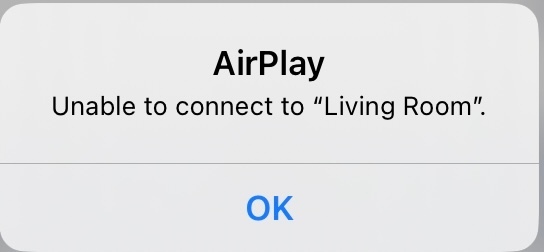
My Play:5 keeps getting the error message ‘Unable to connect to "Living Room”’.


I have:

  • Restarted all devices and tried to AirPlay again
  • Switched-off Bluetooth and tried with BT on
  • Turned off Cellular Data on iPhone but same on non-cellular iPad 
  • I am not connected to any Bluetooth devices 
  • I am connected to the same WiFi
  • Reset my network settings on my iDevices
  • Reset Network Settings
  • Disabled ‘Private Address’ in the iOS Network connection 
  • Disabled WiFi calling
  • I am on latest iOS, Sonos app and speaker firmware/software
  • Tried both hard wire (CAT 5) and Wi-Fi 
  • Rebooted the router and all Sonos speakers
  • Disabled VPN software on the sending device

I have even reset the Play:5 to factory settings and reinstalled on system which does work and I can use AirPlay for a day or two then back to ‘Unable to connect to "Living Room”’.

I can AirPlay to Apple HomePod no problem. I can use Spotify connect to Play:5 no problem. 

My submitted diagnostic confirmation number is 1692353740.

Any help gratefully received. 

This topic has been closed for further comments. You can use the search bar to find a similar topic, or create a new one by clicking Create Topic at the top of the page.
jTemplar
jTemplarAnswer
Collaborator II
September 15, 2023

Following advice from Sonos tech experts I have removed my Play:5 2nd Gen from my S1 home wide system and placed it in a room closer to the router on its own S2 system by itself and there have been no further issues with unable to connect to Airplay.

Therefore the issue appears to be resolved so thanks to all who replied here.

24 replies

Ken_Griffiths
August 28, 2023

I think the above, was where the two ‘Moves’ were left in HomeKit, registered Home accessories, but their room names had been swapped/exchanged by the user …and that caused an issue with them sometimes being unable to be targeted for Airplay playback. Anyhow I’m not sure if the information here will help to resolve your issue, but it might be worthy of some further research with your Play:5 speaker, perhaps🤔?

jTemplar
jTemplarAuthor
Collaborator II
August 29, 2023

I quickly read through the thread here and may have missed it @jTemplar, but have you tried the speaker in different locations around the home too, just to see if that might make any difference.

As you use iOS, you perhaps could also install the free ‘Discovery App’


Hope you can get it sorted. 👍

Hi Ken

Thanks for taking the time to reply and offer your thoughts. 🙏

I have tried the Play:5 2nd gen in different locations around my home to no avail. 
 

I’ve searched on the Apple App Store ‘Discovery App’ and get these results:

I’m in the UK so maybe the app you’re referring to is not available here. 
 

I don’t use HomeKit.


jTemplar
jTemplarAuthor
Collaborator II
August 29, 2023

I’m unclear as to why this thread has a claimed ‘Best Answer’ from @Corry P which says “unable to find your case - only one from 2019”?

I did not select that post as best answer but given my search of this forum which reveals others with this issue I’m expecting the thread to be closed to any further replies soon as Sonos doesn’t seem to like perceived ‘negative’ comments.  

Corry P
Sonos Staff
August 29, 2023

Hi @jTemplar 

I don’t know why that post was marked either, but it’s undone now.

We don’t close threads until they have had no activity for 3 months, or unless they are duplicates of other threads, regardless of how negative they are.

"Common sense is the collection of prejudices acquired by age eighteen." - Albert Einstein
jTemplar
jTemplarAuthor
Collaborator II
August 29, 2023

@Corry P Thanks for removing that BA. 👍

Just to update this thread I followed the advice of @Ken_Griffiths to try my Play:5 2nd Gen in more different locations around my home and here are the results:

  • In kitchen in external building next to existing Sonos One
  • In ground floor bedroom in external building at furthest point from router next to existing SYMFONISK 
  • In Den in external building alongside Sonos Ray
  • In upstairs bedroom at highest point in building
  • In living room on ground floor 
  • In main kitchen close to router

In all those locations the Play:5 2nd Gen works fine for normal use but is unable to use AirPlay presenting the error as mentioned in original post.

The ONE, SYMFONISK, and Ray all work fine for normal use and work as expected when using AirPlay.


Corry P
Sonos Staff
August 29, 2023

Hi @jTemplar 

The next time your Play:5 does not show as available in the AirPlay connection list, please try the following:

  1. Open the Sonos app
  2. Go to Settings » System » About my System
  3. Find the IP address of your Play:5 (Gen 2)
  4. Open a browser on a device connected to your local network
  5. In the address bar, type http://[IP address of Play:5]:1400/tools.htm (the whole thing should look something like “http://192.168.0.125:1400/tools.htm”, but the four numbers will/may vary). You may want to bookmark this page
  6. Click the “mDNS Announce” button at the bottom of the page.
  7. You should see a simple page with nothing but “Success”. You can now close the browser
  8. You should now see the Play:5 appear in the AirPlay list of devices to connect to

Please also note that if you use macOS, iOS or ipadOS to initiate the connection, then you are using AirPlay v1 which is unsupported by Sonos. If, instead, you initiate the AirPlay connection from within an app (Apple Music app, or Spotify app, for example), then you are using AirPlay v2 which is supported by Sonos.

I hope this helps.

"Common sense is the collection of prejudices acquired by age eighteen." - Albert Einstein
Ken_Griffiths
August 29, 2023

Hi Ken

Thanks for taking the time to reply and offer your thoughts. 🙏

I have tried the Play:5 2nd gen in different locations around my home to no avail. 
 

I’ve searched on the Apple App Store ‘Discovery App’ and get these results:

I’m in the UK so maybe the app you’re referring to is not available here. 
 

I don’t use HomeKit.

I’m from the UK - it’s in the UK iOS App store . See attached @jTemplar. HT`H

Ken_Griffiths
August 29, 2023

Sorry I can’t get images to upload to this thread for some reason, but anyway the App is called ‘Discovery DNS-SD Browser’ and the developer is shown as Lily Ballard. (I’m not in any way associated to the App other than I occasionally use it myself).

edit: @jTemplar, the way forward is to follow the Sonos Staff advice above.. and see if the speaker works with Airplay v2 and either the Apple Music, or Spotify Apps.
Hope you sort it.👍

jTemplar
jTemplarAuthor
Collaborator II
August 29, 2023

@Corry P My Play:5 2nd Gen always shows as available in the AirPlay connection list but when selected keeps getting the error message ‘Unable to connect to "Living Room”’. Thanks for the suggestion though which I did try a couple of days ago after seeing it in one of your previous posts. After following your instructions as above my Play:5 2nd Gen then does not show as available in the AirPlay connection list but returns after a restart of the iOS device. Nothing else. 
 

@Ken_Griffiths Thanks, after searching for ‘Discovery DNS’ the app shows up in the App Store so I’ll give it a look once I get through troubleshooting with support. 
 

Thank you both. 

Corry P
Sonos Staff
August 30, 2023

Hi @jTemplar 

Ah yes - apologies. I see now that the mDNS Announce would not in fact help with your situation. It’s just the last thing I usually try with AirPlay issues.

I did find the following, but it seems in order for it to work, the speaker would have had to have been restricted in the first place:

  1. From the iPhone or iPad that has the Home Accessories setup, launch Apple Home app.

    • This will need to be the same iPhone or iPad that was used to restrict access to the Sonos Players. Using a different mobile device that is not a member of the Apple System Share Home will be unable to accomplish this.​​​​

    • If the customer does not have the mobile device that restricted the Speakers or is not part of the Home Sharing users, please skip to Step 2.
  2. Go to the Home Settings by tapping on the three dot icon in the top right and select Home Settings. IMG_6722.jpg

  3. Tap on Speakers & TV.
  4. image (3).png
  5. Enable the Anyone On the Same Network option.
  6. IMG_6724.jpg

    Note: Be sure that the "Require Password" option is disabled.

  7. Confirm if we are now able to Airplay to the compatible Sonos products.

I hope this helps.

"Common sense is the collection of prejudices acquired by age eighteen." - Albert Einstein