
Ryan S
Retired Sonos Staff
October 2, 2017

Now Available, the New Sonos App
Related content:Software


Sonos version 8.0 is introducing a brand new controller for iOS and Android. The new Sonos app makes it even easier to navigate, access, and control your music throughout your home. This new app comes side by side with voice control through Alexa devices, more about that here.

Check out our blog for the Remastered Sonos App. Full details on the new apps can be found here on their respective product guide pages. Let’s take a look at the new app:


Introducing Navigation with Tabs:


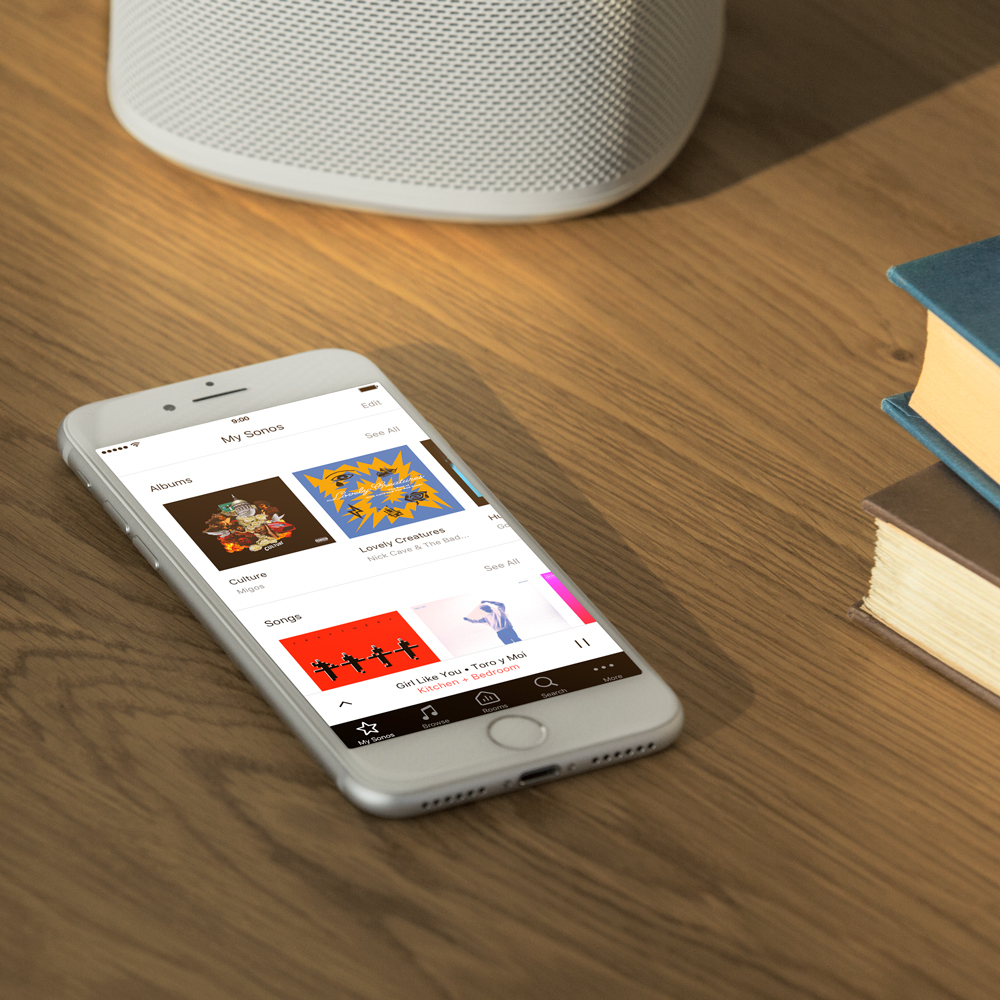
The Sonos app now has five tabs visible at the bottom when not in the full playing screen. The tabs are My Sonos, Browse, Rooms, Search, and More. See here:



Now your most used options are available with just one click, and Now Playing is always just one tap away.

My Sonos
We’ve consolidated all your personally curated Sonos Playlists, music service playlists, and Sonos Favorites into one, easy to use page on the Sonos app. You can edit fields to move around the order, or delete them entirely. You can now have up to 40 favorites total, up from 32.

Browse
Browsing your music is even easier as it no longer hides your other options. You can browse and move to different rooms all while keeping your place in the browsing menu. There’s also a dock on the bottom of the app that gives you easy access to the navigation tabs. You can swipe it up to reveal it at any time, then back down. We’ve separated browsing your music and the menu for Settings, so it’s even easier to find what you’re looking for.

Rooms
The menu starts highlighted on the active room, featured right on the app so that it’s even easier to see what’s playing in each room. There’s now an icon on that screen to show you where the music is coming from too. That includes if it was started by Alexa. The active room has a Group button to have it add others to the party.

Search
It hasn’t changed, just moved to an easy to find spot.

More...
All the settings and options are in here. You can add services, make alarms, get some help, and access all your settings. We think this will make it a lot easier to find what you’re looking for. And speaking of settings…


Explicit Language Filtering


Within Settings > Parental Controls, you can set a system-wide setting to filter songs with explicit content. Right now, this is working for Apple Music, and we’re hoping to add it for more services soon. Once the setting is on, Apple Music songs with the explicit tag will no longer play on your system.

Long Press to Group


Making it even easier to play music. With 8.0, you can press and hold the Play/Pause button (or mute on older players) to have your player join the most recently active player as a group. First, you have to start playing music on a player, (it can be from an alarm or any other source), and then just hold the button for a few seconds on another player. That second player will join the first one’s group and start playing the same music in sync.

There's another function of the long press, and that's being able to move recently stopped music to another room. First, stop playing music in any of your rooms. Then, press and hold the play/pause on another player for a few seconds. (Make sure that you don't start playing music anywhere else.) The queue or source will move to the unit you held the button for and start playing. The players won't group together and any existing queue will get whiped out in place of the new one.

iOS 11 and Android O Support


Lastly, version 8.0 has support for the latest operating systems from Android and iOS. This includes iOS 11 support for Trueplay on Sonos. Trueplay isn’t available on Android at this time.
This topic has been closed for further comments. You can use the search bar to find a similar topic, or create a new one by clicking Create Topic at the top of the page.

527 replies

roscopeacoltrane
Lyricist I
December 4, 2017
I have never, ever posted on a forum like this. I have 5 speakers including my sound bar that up until now I have been very pleased with. Things just aren't working well on my Sonos anymore. (1) The new user interface is terrible to use. (2) I keep having music go away and sometimes never come back on. (3) Today I downloaded the windows app for my new laptop and for the life of me I cannot get it to find my system. I may be doing something wrong as I am not the most techie guy around. When I got things originally I could contact Sonos for help. Is that even possible anymore?
Ryan S
Ryan SAuthor
Retired Sonos Staff
December 5, 2017
Thanks for sharing everyone! We're still reading and sharing all of your feedback with the development team so they know what you're looking for and would like to see improved.

We're continuing to work on the Sonos app to try and include your feedback and make it the best it can be.

@deezz, thanks for the detailed write up! I'm sorry you felt it necessary to move somewhere else, but I really hope you're happy where ever you wind up, and that you can still enjoy your music. While we do have an extensive beta and alpha test program, we don't have a regularly running public beta for the next versions. I'll pass your suggestion on to the team that handles betas.

After update to the latest Sonos app (8.2.1), my iPhone app is unable to find and connect to my system - is there anyway to fix this other than do a complete reset of everything? I had to do that at our beach house upon updating the app, and now back home I am experiencing the same problem?
This is likely unrelated to the app itself and likely network related. We'd be happy to help if you give us a call on our support line. I'd suggest starting with rebooting your wireless router and toggling the wireless on your mobile device. Usually, that'll sort out any connection issues.
Mark good posts by pressing the like button, and select the best answer on questions you've asked to help others find solutions.
Prodigy I
December 5, 2017
Thanks for checking back on this, Ryan.

I initially thought that the new tab navigation was not that bad. Since that I've noticed it's now easier than before to accidentally replace the whole queue because of the all white modality. I remember the change in 6.4 and the initial feedback which was understandable as with almost every change in people's lives:
https://en.community.sonos.com/announcements-228985/new-play-commands-with-version-6-4-6739302
I don't have a problem with that immediately replacing an unedited queue, it makes sense, but this new UI leads to too many accidental replacements.

I strongly urge you to consider making the full playing screen dark again. It's not just an aesthetic feature. See below for the problem it introduces now.

I guess it was decided to make it white to make it stand out from the dark bottom Tab(?)

I'd like to try if the new navigation could work better for me if:
+ the full playing screen is dark and others are white like they used to be
+ the bottom tabs are always visible (the blog mentioned: "We realized our hidden side menu wasn’t doing you any favors there, so we got rid of it." That should have said "and we replaced it with a hidden bottom menu" :)

If the above can't be done then re-introduce a prompt when changing and unedited queue (i.e. remove immediate replacement without prompting).

My thoughts when comparing to an older dark UI version shown e.g. in this useful video:
https://youtu.be/GnVU7Ulzeb0

Problem now: Easier to accidentally replace the whole queue mid-song - partly due to the full playing screen being white, and new navigation mode:

1. I have music playing, and I have added albums A to the queue from Spotify via Search (Artists), and the focus on the tab has remained on that last album "A" I've added

2. Swipe up to show the full playing screen -> it's playing and showing the queue for about 9 songs from album "A" as those fit on the screen on the UI on landscape iPad

3. Later, I swipe down to reveal the hidden bottom menu tabs to go add another album -> focus will be in Search tab on that album "A" and shows its songs - there's animation on the song that is currently playing.

Now comes my mistake which I've made a few times now: I accidentally tap on one of the songs as _while the UI looks different it has a list of songs as in the full playing screen but is similar all white_ instead of tapping again on Search at the bottom or the "
Prodigy II
December 5, 2017
Things are only accidental until you learn to stop doing them.
That and Sonos sorting the long standing queue problems out.

In the UK, booking a train journey would make the task impossible for many of the complainants here as they have switched from a confusing intuitive interrogation to a logical one. Took some time to get used to but, screen layout aside, it is much better than the old intuitive version.
December 6, 2017
I don't usually use the native Apple Music app since it does not cast to Sonos as the Google one does, so I opened it after many days yesterdays and immediately saw how Sonos has just copied the Apple UI in many ways. Down to the disappearing black tab that would work a lot better if it did not; since it isn't important in the Apple UI means that there, it does not matter much that it does.

Of course, the present My Sonos arrangement is a confusing knee jerk kludge that is a Sonos creation alone, and will hopefully also get sorted soon.
Enthusiast I
December 6, 2017
I've been a big complainer about the new app on here mainly due to the blinding white background. I haven't had a chance to use the app much due to that..until now. We both got new phones so I was forced to use the new app. And now I can list all the reasons that I do not like this new version at all. But first, Sonos, why not just apologize, put the old app back and start over? YouTube on my Roku recently did this (horrible updated, then suddenly they reverted back to the prior one). All I hear is that you're giving them feedback. Yet NOTHING gets done. You released a Beta version that has made most of your user base unhappy. This thread is now 18 pages and going strong. Anyway...

1. The white as been mentioned a zillion times. Pretty easy to patch it with a dark theme considering that was the norm before.
2. "My Sonos". What a dumb name. Go back to "Favorites". And since it's two of us using Sonos, it's not really My Sonos, it's Our Sonos.
3. Allow us to re-order the Favorites, er My Sonos. I don't want it in alphabetical order.
4. The icons. My goodness, we all have large phone screens and I get four to a page and have to keep scrolling? I believe the old app had six.
5. Rooms. What a mess. I can't even describe how poorly this works. It is so frustrating to change rooms yet have the Sonos app still list the old room as being used even though the music is playing in the new room. (Example: Playing music in the ktichen. I go to Rooms, select "Bedroom", unselect "Kitchen". Music plays in Bedroom, Sonos app show it is playing in the Kitchen. Go to Rooms, "Kitchen" is still checked, "Bedroom" is not yet it's playing there.
6. The widget says I'm not connected to Sonos when I'm on my WiFi. Happens every time I leave the house and come back.

I have more issues but six is good for now.

What a shame. Great speakers, horrific customer service. Yeah, yeah, I know, you've submitted it for feedback. How about an apology saying you're sorry for releasing a beta app and ticking off your customers who are clearly not happy with the app or the company right now?

Steve
pwt
Virtuoso
December 6, 2017

5. Rooms. What a mess. I can't even describe how poorly this works. It is so frustrating to change rooms yet have the Sonos app still list the old room as being used even though the music is playing in the new room. (Example: Playing music in the ktichen. I go to Rooms, select "Bedroom", unselect "Kitchen". Music plays in Bedroom, Sonos app show it is playing in the Kitchen. Go to Rooms, "Kitchen" is still checked, "Bedroom" is not yet it's playing there.

I hate to say this, but you're still using Rooms incorrectly.
4 x P:5 | Sub | 4 x P:1 | 3 x Connect | 2 x Boost | Connect:Amp | 2 x One | Amp | Move | Port | Era 300
Enthusiast I
December 6, 2017
How am I using them incorrectly? I've even tried selecting "Kitchen" and "Bedroom" at the same time and then, say, unchecking "Kitchen" but the app still would show it as "Kitchen". That's what I did in the old app and never had an issue.

If you could give me more detail that would be great, thanks. I'm not adverse to change as I'm in IT and I adapt pretty quickly to new technologies but I hate changes for the sake of change.

Steve
Prodigy I
December 6, 2017

I hate to say this, but you're still using Rooms incorrectly.


Errmm.. can you remind us what you mean - what is the correct way?

I have this same error with the UI (discussed in another thread in Controllers) and it is thought to be inteference related (like many problems with the latest app it seems) - I'll try to get to test my setup with both players wired. But for now I'd like to know how that is using Rooms incorrectly, and how I should use it so I can test properly.
pwt
Virtuoso
December 6, 2017
.How am I using them incorrectly? I've even tried selecting "Kitchen" and "Bedroom" at the same time and then, say, unchecking "Kitchen" but the app still would show it as "Kitchen". That's what I did in the old app and never had an issue.

If you could give me more detail that would be great, thanks. I'm not adverse to change as I'm in IT and I adapt pretty quickly to new technologies but I hate changes for the sake of change.

Steve

I can have a go 🙂 The primary purpose of the Rooms tab is to select the room which you want to control:

If I want to control the music in the Kitchen, I click on the bottom (black) Rooms tab, tap 'Kitchen' from the list of room tiles, then all subsequent UI actions apply to the Kitchen. I don't need to click on any other rooms. I can use the My Sonos, Browse and Search tabs, and start playback from any of these -- which then apply to the Kitchen because it's the selected room.

If I want to stop music in the Bedroom, I click on the bottom Rooms tab, click on 'Bedroom', tap the square stop icon. And so on.

The Rooms tab can also be used for grouping, by clicking the Group button on the display tile of each room.
4 x P:5 | Sub | 4 x P:1 | 3 x Connect | 2 x Boost | Connect:Amp | 2 x One | Amp | Move | Port | Era 300