Contributor I
Dec 23, 2024 9:45 PM UTC
Answered

Move 2 button location?

Where on Sonos 2 do I press the button when the app says ”Make sure the light on your Move 2 is flashing white and green, then press the buttons on it to continue.”


Another user asked this same question months ago, but there was no clear answer - only a link to User Guides I had already reviewed.  


WHERE is the button?

This topic has been closed for further comments. You can use the search bar to find a similar topic, or create a new one by clicking Create Topic at the top of the page.
Ken_Griffiths
Dec 24, 2024 8:10 PM UTC

You are correct: the LED light is a light, not a button. So from the guide, you do know where the buttons are. Which button(s) have you tried pressing, and what happened when you did so? 

 I have pressed these buttons:

“Volume Control” - does not satisfy the app.

“Play/Pause” - does not satisfy the app.

“Next/Previous” - does not satisfy the app.

“Voice Services On/Off” - does not satisfy the app.

“Status Light” - it is what is blinking white/green but it is not a button.

“Battery Light” - it is not a button.

“Power Button” - it puts the speaker to sleep or turns off the speaker.

“Bluetooth Button” - it does not satisfy the app.

“Universal Microphone Switch” - it does not satisfy the app.

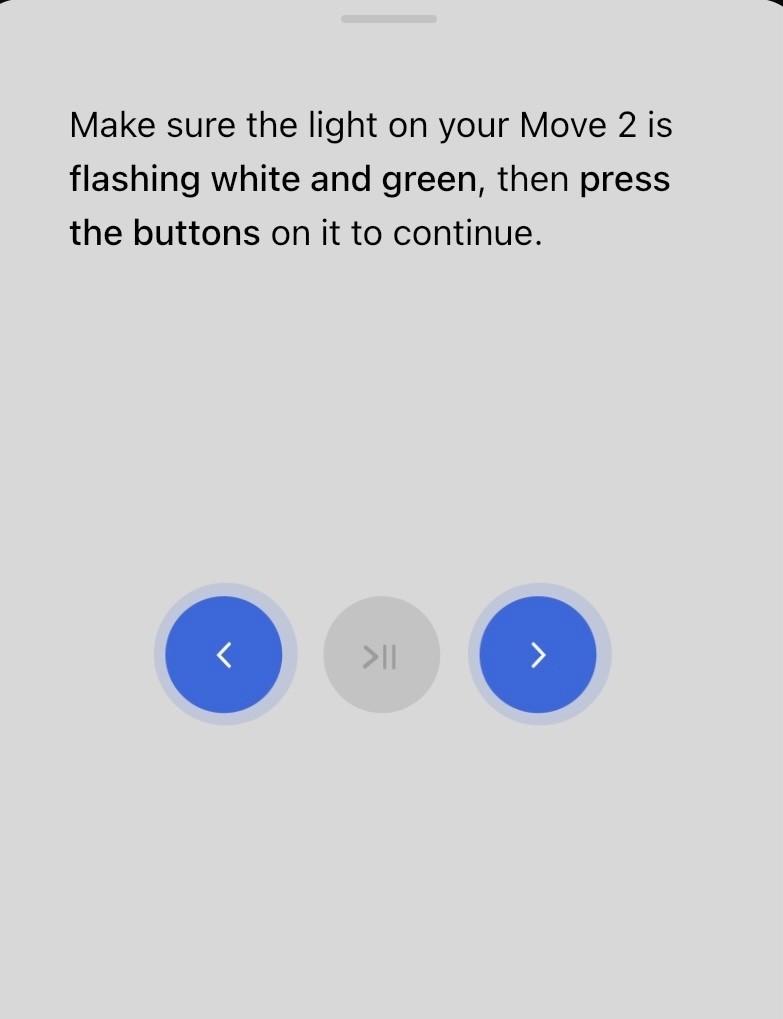
IIRC you should be prompted to press the skip forward/backward buttons (either side of the play/pause button) - press both at the same time - see screenshot attached… so maybe give that a try. 


10 replies

Senior Virtuoso
Dec 23, 2024 11:27 PM UTC

Have you looked at the product guide?

https://www.sonos.com/en-us/guides/move2

Which button do you want? How can the location be shown any more clearly? 

Translate
Contributor I
Dec 24, 2024 2:32 AM UTC

Yes, I looked at the pocket guide.

Please tell me which button to push when the app says ”Make sure the light on your Move 2 is flashing white and green, then press the buttons on it to continue.”

I really don’t know which button is referenced. There doesn’t seem to be a button that is part of the tiny light that flashes white and green. And nothing in the pocket guide helps.

Translate
Contributor I
Dec 24, 2024 2:49 AM UTC

To provide more context...this message appears on the Sonos iOS app. I was in the “Help Center” and clicked on “Update Network.” The first message is “Update the network settings for your products so they can connect to your WiFi. Then, after 2 “Continue” screens I get “Select a product to update its network settings.” I select my Move 2, then “Continue.” It plays a chime on the Move 2 then we get this message…


“Make sure the light on your Move 2 is flashing white and green, then press the buttons on it to continue.”


But the flashing green and white light is not a button. And none of the other buttons satisfy the app. Eventually the app replies “We didn’t detect a button press from your Move 2. Let’s try again.”


And nothing works...

Translate
Contributor I
Dec 24, 2024 3:00 AM UTC

Here is the Status light that blinks white and green. It is NOT a button.

And here is the web link if you click “Learn More” about the status light. This link does not mention a case of the status light blinking white and green. And it does not mention the light is a button.

https://support.sonos.com/en-us/article/sonos-led-lights?utm_source=doc-care&utm_medium=led&utm_campaign=en-us-doc-care-led

Translate
Senior Virtuoso
Dec 24, 2024 5:40 AM UTC

You are correct: the LED light is a light, not a button. So from the guide, you do know where the buttons are. Which button(s) have you tried pressing, and what happened when you did so? 

Translate
Contributor I
Dec 24, 2024 6:33 PM UTC

You are correct: the LED light is a light, not a button. So from the guide, you do know where the buttons are. Which button(s) have you tried pressing, and what happened when you did so? 

 I have pressed these buttons:

“Volume Control” - does not satisfy the app.

“Play/Pause” - does not satisfy the app.

“Next/Previous” - does not satisfy the app.

“Voice Services On/Off” - does not satisfy the app.

“Status Light” - it is what is blinking white/green but it is not a button.

“Battery Light” - it is not a button.

“Power Button” - it puts the speaker to sleep or turns off the speaker.

“Bluetooth Button” - it does not satisfy the app.

“Universal Microphone Switch” - it does not satisfy the app.

Translate
Senior Virtuoso
Dec 24, 2024 7:35 PM UTC

Have you set it up on your wifi yet? 
 

Try pressing Next and Previous buttons together. If no joy there, try press-and-hold for 15 seconds. 
 

Translate
Senior Virtuoso
Dec 24, 2024 7:41 PM UTC

If that doesn’t work, try a reset and reinstall it. Scroll down to the Move2 instructions:

https://support.sonos.com/en-us/article/reset-your-sonos-product

Translate
Ken_Griffiths
Dec 24, 2024 8:10 PM UTC

You are correct: the LED light is a light, not a button. So from the guide, you do know where the buttons are. Which button(s) have you tried pressing, and what happened when you did so? 

 I have pressed these buttons:

“Volume Control” - does not satisfy the app.

“Play/Pause” - does not satisfy the app.

“Next/Previous” - does not satisfy the app.

“Voice Services On/Off” - does not satisfy the app.

“Status Light” - it is what is blinking white/green but it is not a button.

“Battery Light” - it is not a button.

“Power Button” - it puts the speaker to sleep or turns off the speaker.

“Bluetooth Button” - it does not satisfy the app.

“Universal Microphone Switch” - it does not satisfy the app.

IIRC you should be prompted to press the skip forward/backward buttons (either side of the play/pause button) - press both at the same time - see screenshot attached… so maybe give that a try. 


Translate
Contributor I
Dec 25, 2024 9:27 PM UTC

Two people provided the solution. First, nik9669a suggested

Try pressing Next and Previous buttons together. If no joy there, try press-and-hold for 15 seconds. 

I didn’t get around to trying it because I was convinced that the Sonos app had an error.

Then, Ken-Griffiths wrote

you should be prompted to press the skip forward/backward buttons (either side of the play/pause button) - press both at the same time - see screenshot attached… so maybe give that a try. 

Bingo! I finally understood what buttons to push!

The Sonos app has a graphic showing the buttons but I thought that the graphic would change AFTER I pushed the correct button. But the graphics was actually showing what buttons to push - I didn’t realize that.

I think the Sonos app wording is bad:

”Make sure the light on your Move 2 is flashing white and green, then press the buttons on it to continue.”

I think a far better wording would be

”Make sure the light on your Move 2 is flashing white and green, then simultaneously press the Next/Previous buttons - press both at the same time.”

Thanks to both people for helping!


Translate