
Contributor II
November 26, 2021
Answered

ARC - PS5 - 4KUHD - LGCX - DolbyAtmos

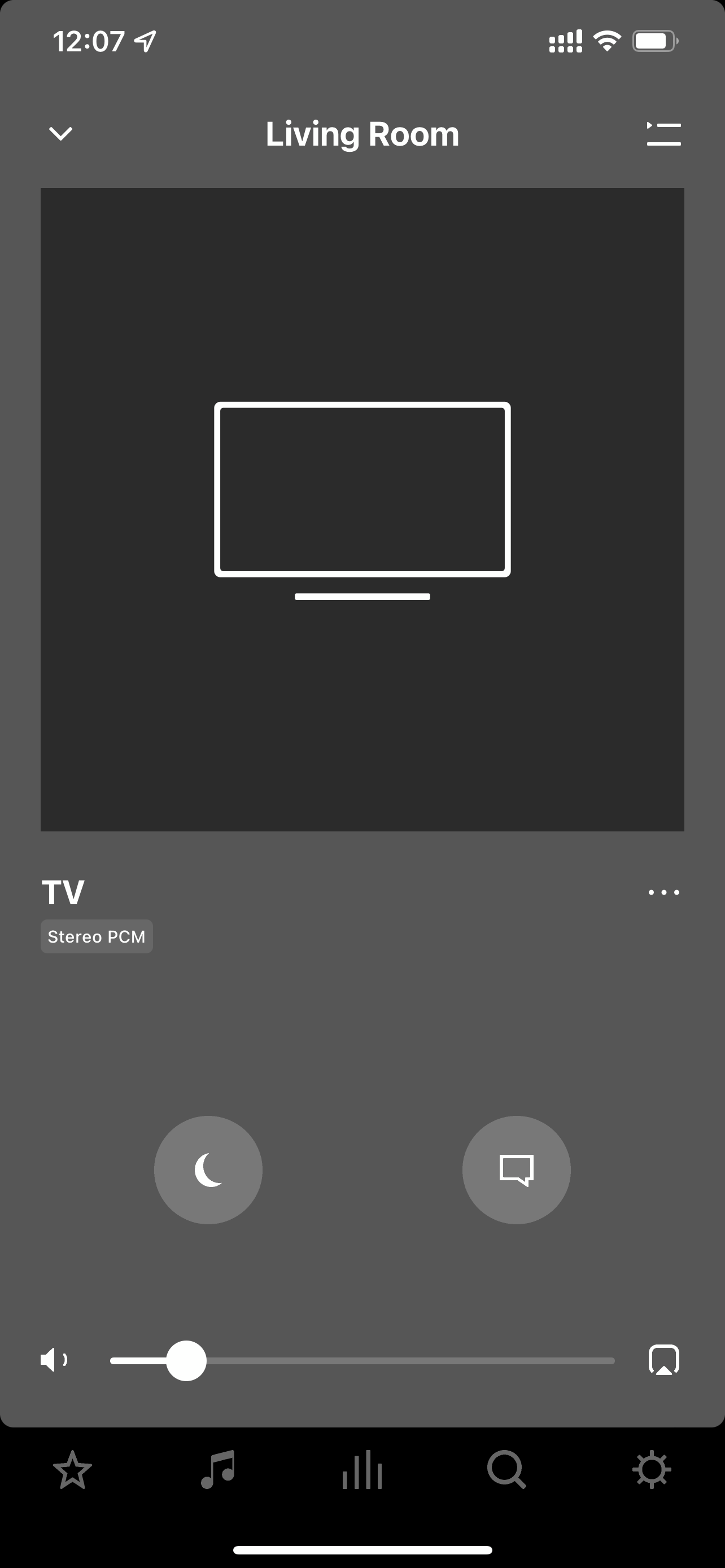
Problem - My Sonos app says I’m getting Stereo PMC audio only. It also sounds like that. 
 

Set up - LG CX (eArc) - Sonos Arc (part of a full 5.1 setup) - PS5 playing 4K UHD disc (Bladerunner 2049)


Expectation - Thought I should be getting Dolby 7.1 audio output. Any ideas why the app say PMC?


This topic has been closed for further comments. You can use the search bar to find a similar topic, or create a new one by clicking Create Topic at the top of the page.
Lead Maestro
November 26, 2021

Make sure your TV settings are set to this:

Digital Sound Out: Pass-through

HDMI Input Audio Format: Bitstream

eARC: On


And the PS5 settings are set to this:

Audio Format (Priority): Bitstream (Dolby)

Also, press the Options button on the PS5 joystick while playing the disc, then click the ‘three dots’ icon and choose the Bitstream option under Audio Format.

"Receive with simplicity everything that happens to you." - Rashi

5 replies

AjTrek1
November 26, 2021

I don’t own a PS5 but I’d suggest that you look for a setting in the PS5 sound output that reads as “Bitstream”. Also make sure in the sound menu of the LG that audio is set to “pass-through”. Hopefully someone with a PS5 will comment on this as well.

Together Everyone Achieves More = T.E.A.M.
Contributor II
November 26, 2021

I don’t own a PS5 but I’d suggest that you look for a setting in the PS5 sound output that reads as “Bitstream”. Also make sure in the sound menu of the LG that audio is set to “pass-through”. Hopefully someone with a PS5 will comment on this as well.

Thanks man. I’ve managed to get it to PCM 7.1 now which is a massive improvement. Still can’t figure out why it won’t give me Dolby Atmos 7.1 🤔

Lead Maestro
November 26, 2021

Make sure your TV settings are set to this:

Digital Sound Out: Pass-through

HDMI Input Audio Format: Bitstream

eARC: On


And the PS5 settings are set to this:

Audio Format (Priority): Bitstream (Dolby)

Also, press the Options button on the PS5 joystick while playing the disc, then click the ‘three dots’ icon and choose the Bitstream option under Audio Format.

"Receive with simplicity everything that happens to you." - Rashi
Contributor II
November 26, 2021

Make sure your TV settings are set to this:

Digital Sound Out: Pass-through

HDMI Input Audio Format: Bitstream

eARC: On


And the PS5 settings are set to this:

Audio Format (Priority): Bitstream (Dolby)

Also, press the Options button on the PS5 joystick while playing the disc, then click the ‘three dots’ icon and choose the Bitstream option under Audio Format.

Will give this a shot also 

Contributor II
November 26, 2021

Make sure your TV settings are set to this:

Digital Sound Out: Pass-through

HDMI Input Audio Format: Bitstream

eARC: On


And the PS5 settings are set to this:

Audio Format (Priority): Bitstream (Dolby)

Also, press the Options button on the PS5 joystick while playing the disc, then click the ‘three dots’ icon and choose the Bitstream option under Audio Format.

Will give this a shot also 

Thanks man. That worked perfectly 🙏👍