
Renowned Enthusiast I
May 16, 2024

Sonos Music Library Management Issues With Mac

  • May 16, 2024
  • 36 replies
  • 3008 views

I’m currently using an iMac with macOS Sonoma 14.4.1 with four Sonos Play 1 speakers using Sonos OS S2 version 16.2. After updating, the path to my Music folder no longer appears in the Sonos Music Library Settings nor am I able to reconnect to the Music folder:
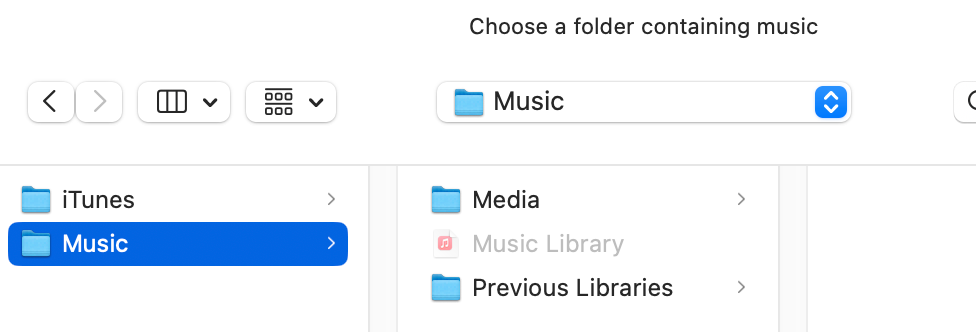
When I try the “Advanced” method, I get this - note that the Music Library folder is faded and cannot be selected.
After chatting with a Sonos Support Tech they confirmed that the access to the Mac’s Music Library was removed from the app and while Sonos has been made aware of the problem there is no estimated date as to when access will be restored. I now have a nice collection of Sonos paper weights.

Any other Mac users find the same thing?

This topic has been closed for further comments. You can use the search bar to find a similar topic, or create a new one by clicking Create Topic at the top of the page.

36 replies

Lyricist II
May 16, 2024

Same issue as well

and also a proud owner of Sonos paper Weights,or if I put all 4 speakers together and make a nice small boat anchor.

RadleyAuthor
Renowned Enthusiast I
May 16, 2024

Same issue as well

and also a proud owner of Sonos paper Weights,or if I put all 4 speakers together and make a nice small boat anchor.

I’ve got a matching set as well . . . and I put my Ultimate Ears Boom 3 speakers in front of them thinking I might be able to embarrass the Sonos speakers & system in to working. Apparently, Sonos is “courageous” but doesn’t embarrass easily.

CronoCX
Enthusiast II
May 16, 2024

Hey Radley,

So, that “faded” Music Library is not actually a folder, it’s the metadata file that Music.App uses. You might know it by another name: iTunes Library.xml. And since Apple removed access to USE that XML for things a while back, you need to point the Controller to where your music files actually live.

Your Music is actually located in the folder above, “Media.” (Unless you changed the default music location in the Preferences of Music.App, but most people don’t.)

So it would look like this: /HARD DRIVE NAME (eg Macintosh HD or in your case, maybe iMac)/Users (eg YOUR USER NAME)/Music/Music/Media (yes, the default really does Music twice)

I can’t guarantee this will work, but it’s worth a shot :)

--Brian

Lyricist I
May 16, 2024

Same for me, I only have two paperweights (small house) but stilled very p’d off. Even manually adjusting the folder location, I get the same error; I WFH a lot and have my music on in the background to help me drown out the white noise and focus will now have to search for some decent streaming music with no ads to get me through til this is fixed.

Lyricist II
May 16, 2024

Hey Radley,

So, that “faded” Music Library is not actually a folder, it’s the metadata file that Music.App uses. You might know it by another name: iTunes Library.xml. And since Apple removed access to USE that XML for things a while back, you need to point the Controller to where your music files actually live. I can’t guarantee this will work, but it’s worth a shot:

Your Music is actually located in the folder above, “Media.” (Unless you changed the default music location in the Preferences of Music.App, but most people don’t.)

So it would look like this: /HARD DRIVE NAME (eg Macintosh HD or in your case, maybe iMac)/Users (eg YOUR USER NAME)/Music/Music/Media (yes, the default really does Music twice)

--Brian

Doesn’t work for me , might be some sort of sharing issue.I have literally tried all folders related to media and different locations, and no luck, same result.

RadleyAuthor
Renowned Enthusiast I
May 16, 2024

Hey Radley,

So, that “faded” Music Library is not actually a folder, it’s the metadata file that Music.App uses. You might know it by another name: iTunes Library.xml. And since Apple removed access to USE that XML for things a while back, you need to point the Controller to where your music files actually live.

Your Music is actually located in the folder above, “Media.” (Unless you changed the default music location in the Preferences of Music.App, but most people don’t.)

So it would look like this: /HARD DRIVE NAME (eg Macintosh HD or in your case, maybe iMac)/Users (eg YOUR USER NAME)/Music/Music/Media (yes, the default really does Music twice)

I can’t guarantee this will work, but it’s worth a shot :)

--Brian

Brian . . . 

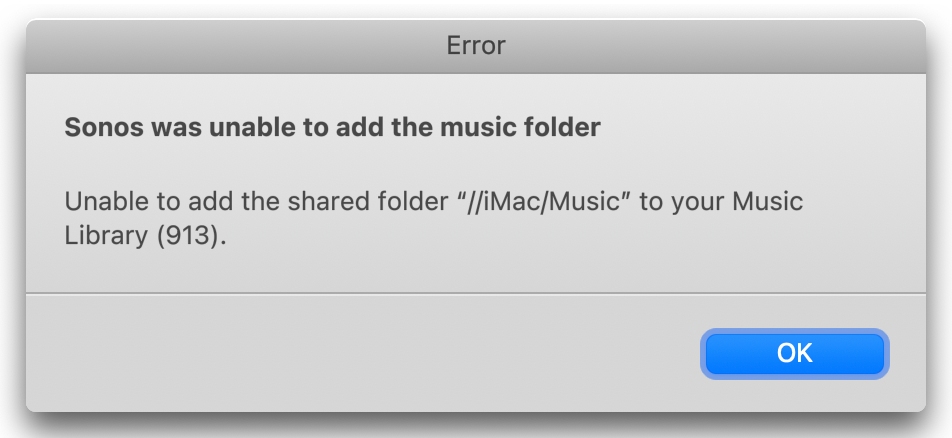
Thanks for the tip. I tried the path you suggested and it’s a no go. The message I get is:

While that path is clearly visible and not faded on my Mac:

. . . but it is when trying to connect with it on the Sonos app:

So to my luddite mind, it’s an app issue. Sonos had no problem pre-update connecting to the Mac Music Library; now - the speakers might become planter stands.

Thanks Brian - appreciate the advice,

Radley

CronoCX
Enthusiast II
May 17, 2024

Hey Radley,

So, that “faded” Music Library is not actually a folder, it’s the metadata file that Music.App uses. You might know it by another name: iTunes Library.xml. And since Apple removed access to USE that XML for things a while back, you need to point the Controller to where your music files actually live.

Your Music is actually located in the folder above, “Media.” (Unless you changed the default music location in the Preferences of Music.App, but most people don’t.)

So it would look like this: /HARD DRIVE NAME (eg Macintosh HD or in your case, maybe iMac)/Users (eg YOUR USER NAME)/Music/Music/Media (yes, the default really does Music twice)

I can’t guarantee this will work, but it’s worth a shot :)

--Brian

Brian . . . 

Thanks for the tip. I tried the path you suggested and it’s a no go. The message I get is:

While that path is clearly visible and not faded on my Mac:

. . . but it is when trying to connect with it on the Sonos app:

So to my luddite mind, it’s an app issue. Sonos had no problem pre-update connecting to the Mac Music Library; now - the speakers might become planter stands.

Thanks Brian - appreciate the advice,

Radley

Hey Radley,

Yeah, I do agree it’s the Sonos App. My parent’s system had a similar issue last year and I moved them over to a NAS to fix it. Not an option for everyone though. Sonos needs to fix this. This is why I got my parents on Sonos as they came from Bose, which did the same thing in their App. But now my mission is I wanna make sure you know where you music files are :)

I suspect it’s in “Automatically Add to Music.” Music.App sorts strangely for my taste. If you wanna know where your files are, open Music.App > Settings > Files and you’ll see this screen

That path is where your music files live. Good information to know for the future :)

--Brian

Lyricist III
May 20, 2024

Yes. Same problem. Pretty maddening, and will HOPEFULLY be fixed soon. I even tried moving all my music to my WD external HD, and had the same issues.

RadleyAuthor
Renowned Enthusiast I
May 20, 2024

This morning (5/20/24) the path to my music folder magically appeared in my Sonos Music Library Settings, although I can’t access any music within the library. I get a message saying “No Selections Are Available.” Nor can I separate the two rooms that the speakers are in - curiouser and curiouser.

Lyricist III
May 20, 2024

This morning (5/20/24) the path to my music folder magically appeared in my Sonos Music Library Settings, although I can’t access any music within the library. I get a message saying “No Selections Are Available.” Nor can I separate the two rooms that the speakers are in - curiouser and curiouser.

Yeah, I’ve encountered the “ghost” library that appears and disappears depending on who knows what…