
Avid Contributor I
July 22, 2023
Answered

Problems adding music library on Synology NAS

I’m trying to give my Android Pixel 6 phone access to my Synology 1522 music library. I believe the attached screenshot is where I do that. If so, I can’t get past inputting what I think is the required information. Hopefully one of you will know if that’s true. 

Regardless of whether what I’m entering is right or wrong, when I click OK, nothing happens. The only option is to click Cancel.
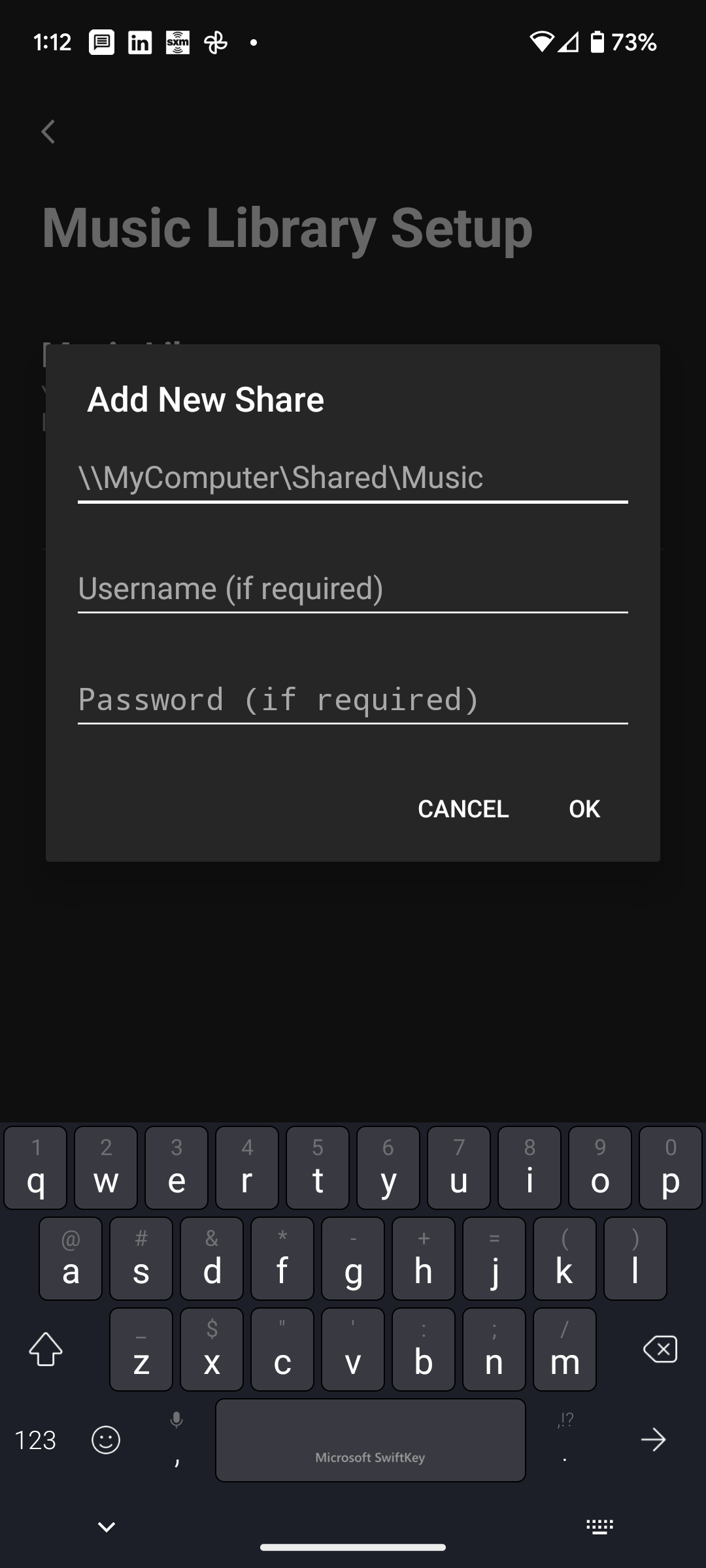
 

Suggestions?

This topic has been closed for further comments. You can use the search bar to find a similar topic, or create a new one by clicking Create Topic at the top of the page.
Ken_Griffiths
July 25, 2023

The playlists in iTunes are stored in library.xml file which once you’ve deleted them in iTunes can be exported…

File -> Library -> Export Library and get an XML file of your library metadata

Just replace the file on the NAS with the exported copy and see if that solves the indexing issue.🤞

23 replies

Airgetlam
July 22, 2023

So, some clarity, on both sides. First, you’re not giving access to your Pixel phone, you’re giving access to the Sonos system, which runs on the speakers and not on your phone. The controller is merely a ’window’ to the Sonos system.

Next, it would be helpful to know if you’re running S1 or S2 on your Sonos system, and we can’t tell from your screenshot. S1 requires SMB v1, which is off by default on Synology. There are several threads about how to get around this, if you are running S1. If you’re running S2, it should recognize either SMB v2 or v3. 
 

As an aside, your screenshot shows a windows share in the first line, it should be a share in your NAS (not on /MyComputer), it may help you to read https://support.sonos.com/en-us/article/use-a-nas-drive-with-sonos

Bruce
WaugustAuthor
Avid Contributor I
July 22, 2023

Thanks for the quick reply.

My Sonos are S2 and I have set SMB 2 and 3. 

The computer share in the screenshot is what comes up in my Sonos app on my phone when following these instructions for Android (the link you also sent.) As said above, no matter what I put in there, clicking OK doesn’t do anything. The only option is to cancel. I expected that right or wrong, clicking OK would at least produce an error message.

Ken_Griffiths
July 22, 2023

Thanks for the quick reply.

My Sonos are S2 and I have set SMB 2 and 3. 

The computer share in the screenshot is what comes up in my Sonos app on my phone when following these instructions for Android (the link you also sent.) As said above, no matter what I put in there, clicking OK doesn’t do anything. The only option is to cancel. I expected that right or wrong, clicking OK would at least produce an error message.

My thoughts are that you cannot continue and add the library, because you have not typed the path correctly - see the two attached screenshots (taken from an iPad controller App) - note the fact it’s not possible to continue and add the library if the information has been entered incorrectly.

Airgetlam
July 22, 2023

Sonos, since the system is running on your speakers, and trying to contact your NAS directly, will not recognize the ‘share’ set up in your local PC/Mac. You have to put in the location on the NAS, and not the ‘share’ location. 

Bruce
WaugustAuthor
Avid Contributor I
July 23, 2023

I copy/pasted the link address, Ken, so I don’t think that’s the problem. But thanks for the suggestion; a single character error could have been the issue. 

Bruce, you said, “You have to put in the location on the NAS, and not the ‘share’ location.” I’m not sure what you mean, can you explain a little more? 

Ken_Griffiths
July 23, 2023

I copy/pasted the link address, Ken, so I don’t think that’s the problem. But thanks for the suggestion; a single character error could have been the issue. 

Bruce, you said, “You have to put in the location on the NAS, and not the ‘share’ location.” I’m not sure what you mean, can you explain a little more? 

Note you will also need to insert the two forward slashes into the path. See example:

//NAS netbios name, or IP address/Path to the share (if required)/Shared Library Folder 

//NASBOX (or IP: 192.168.6.108)/Public Shares/Music

Obviously the above is just a fictitious example .. but ensure you add in the two forward slashes at the start of the path.

Oh and don’t forget to include any username and password that has access to the SMB share.

WaugustAuthor
Avid Contributor I
July 23, 2023

If I attempt to log in with an IP address do I use the forward slashes? Also, note that in the attached screenshot (within the Sonos app for Android) the slashes are backwards.

WaugustAuthor
Avid Contributor I
July 23, 2023

Either way (forward, backward, or no slashes) same outcome. Clicking OK doesn’t do anything, cancel is only option.

Forgot the screenshot.


Ken_Griffiths
July 23, 2023

The screenshot you’re showing in your last post @Waugust. does not relate to a NAS share? It’s a default computer share of its music folder - can you perhaps provide one with your actual NAS library path inserted?

WaugustAuthor
Avid Contributor I
July 24, 2023

@Ken_Griffiths, if you mean the screenshot is not the specific information I need to enter, you’re right. This is just the format of required information. Nothing I’ve entered works to the point of hitting OK and having something happen. That may be because what I’m putting in is not correct.

I’ve asked a Synology tech to specify what that should be. I hope to hear from them today. When they confirm what I should enter, if it still doesn’t work, I’ll reach out to Sonos to see what they suggest.

Thanks for your suggestions.