Question

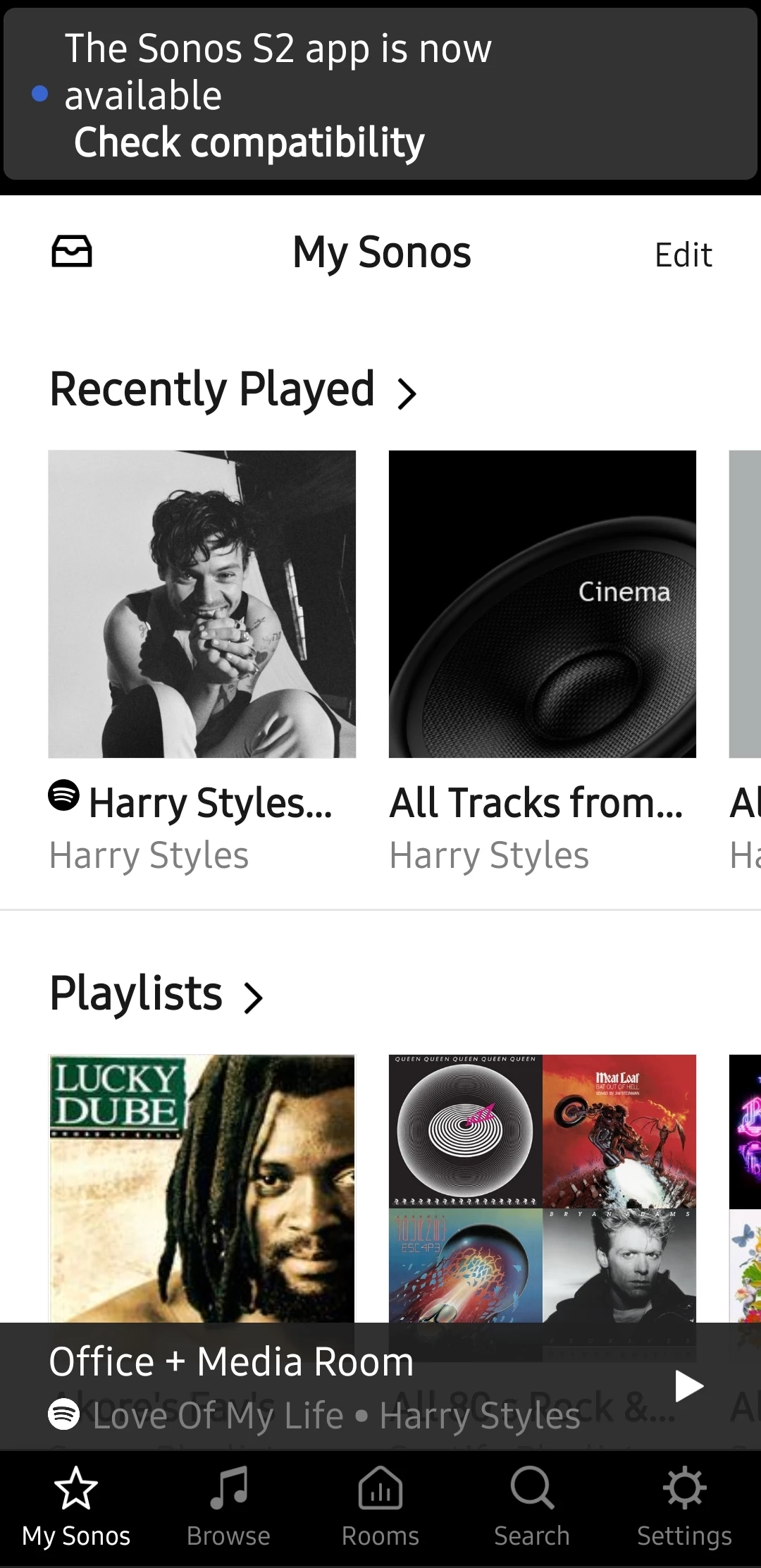
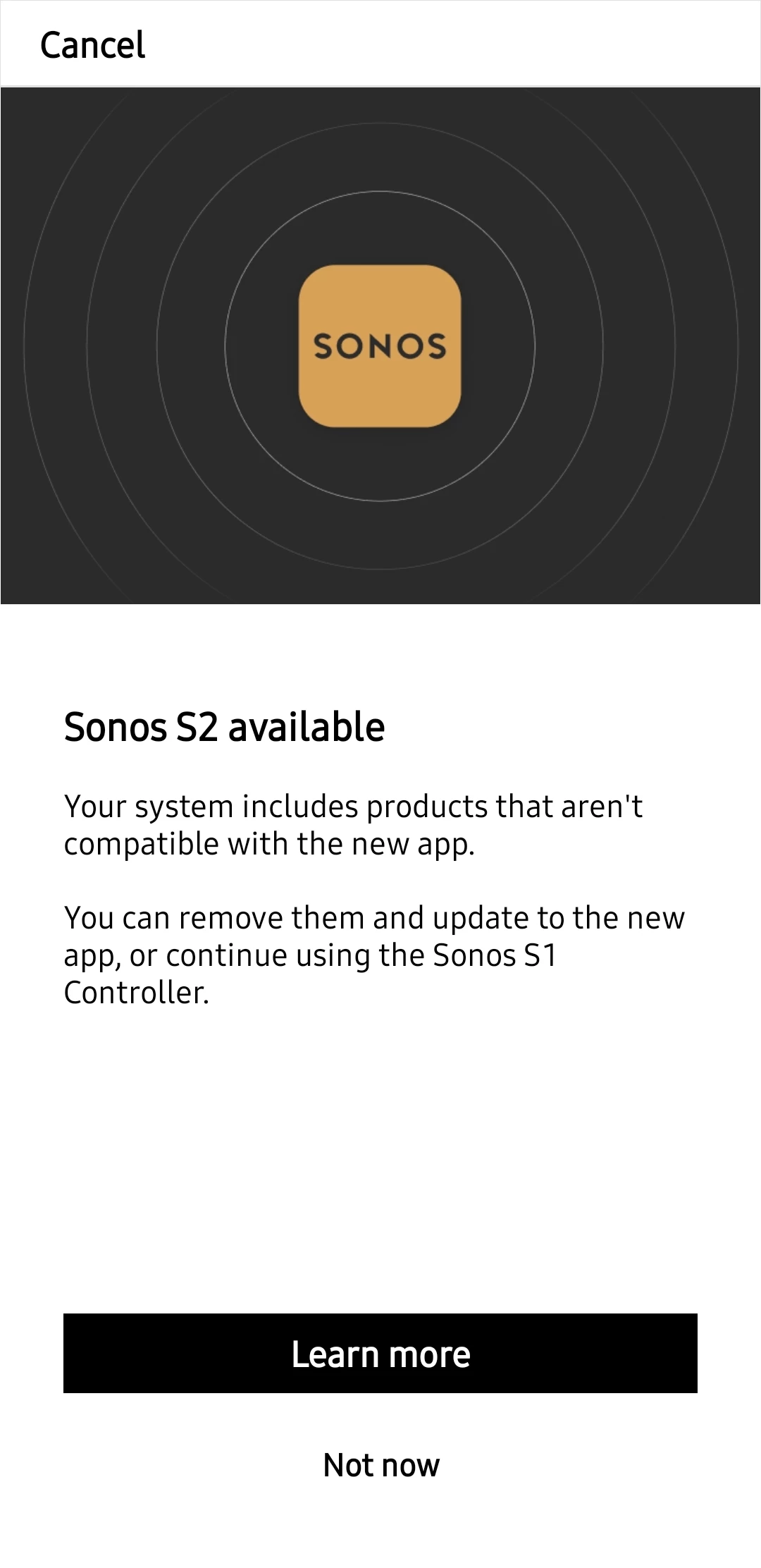
S2 app is now available, check compatibility

  • November 27, 2025
  • 20 replies
  • 186 views

SirDigitalKnight
Forum|alt.badge.img+5

How does one turn off this stupid prompt for good? 

20 replies

pwt
Forum|alt.badge.img+20
  • Virtuoso
  • November 28, 2025

+1 for a solution to this.

It appears repeatedly in the S1 mobile apps, for those wondering.


Jamie A
Forum|alt.badge.img+17
  • Sonos Staff
  • November 28, 2025

Hi ​@SirDigitalKnight and ​@pwt,

I’m sorry to hear that you keep getting this message in the S1 app.

I’ve had a look for a way to disable it and found that, if you perform the system compatibility check, there’s an option to stay on S1. Make sure your S1 app is running the latest version, then go to Settings → System → System Tools → System Compatibility Check and follow the prompts, selecting ‘Continue using S1’ when it shows up.

Once you’ve done that, try closing the app and re-opening it to see if the upgrade message returns, and let me know if it does.

I hope this helps.


pwt
Forum|alt.badge.img+20
  • Virtuoso
  • November 28, 2025

Thanks -- I’ll try that. I don’t recollect whether I’ve tried it before.

I rotate the app between two different S1 households, so that might be part of the issue.


SirDigitalKnight
Forum|alt.badge.img+5

Hi ​@SirDigitalKnight and ​@pwt,

I’m sorry to hear that you keep getting this message in the S1 app.

I’ve had a look for a way to disable it and found that, if you perform the system compatibility check, there’s an option to stay on S1. Make sure your S1 app is running the latest version, then go to Settings → System → System Tools → System Compatibility Check and follow the prompts, selecting ‘Continue using S1’ when it shows up.

Once you’ve done that, try closing the app and re-opening it to see if the upgrade message returns, and let me know if it does.

I hope this helps.

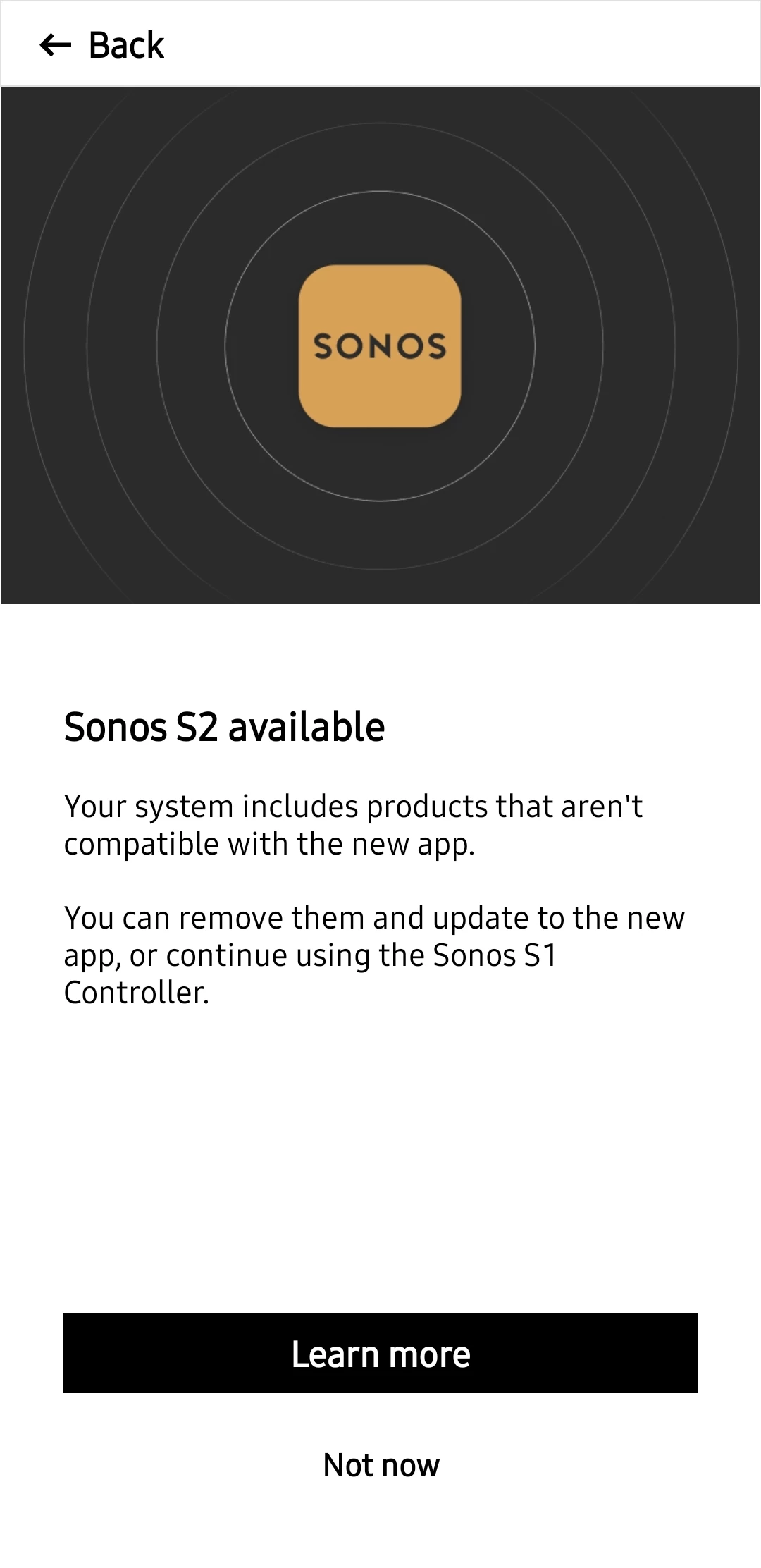
On Android that does not work. Below is the only option available on Android which will make the prompt go away for a day or two but then it pops back up again at the top of the app saying “S2 app is now available, check compatibility”


Jamie A
Forum|alt.badge.img+17
  • Sonos Staff
  • November 28, 2025

Hi ​@SirDigitalKnight and ​@pwt,

I’m sorry to hear that you keep getting this message in the S1 app.

I’ve had a look for a way to disable it and found that, if you perform the system compatibility check, there’s an option to stay on S1. Make sure your S1 app is running the latest version, then go to Settings → System → System Tools → System Compatibility Check and follow the prompts, selecting ‘Continue using S1’ when it shows up.

Once you’ve done that, try closing the app and re-opening it to see if the upgrade message returns, and let me know if it does.

I hope this helps.

On Android that does not work. Below is the only option available on Android which will make the prompt go away for a day or two but then it pops back up again at the top of the app saying “S2 app is now available, check compatibility”


From what I can see, the ‘stay on S1 option’ only shows if: you have no compatible Sonos App products in your system, or your system has one or more incompatible Sonos App products. If you have a system of compatible products, then it’s recommended to update and not stay on S1. You can view our support article for Sonos app version compatibility for more information.

If you tap ‘Learn more’ on that screen, you should get the option for staying on S1 if you meet the requirements above. If you do, and you’re still not seeing the option, can you submit a diagnostics and send it to me via private message?


SirDigitalKnight
Forum|alt.badge.img+5

I have 3 Sonos Connects. 2 of them are S2 capable (C100) and 1 is not (S100) so from what you are saying it should let me choose to stay on S1? If so then will send you the diag in PM. 


Jamie A
Forum|alt.badge.img+17
  • Sonos Staff
  • December 1, 2025

Hi ​@SirDigitalKnight, thanks for sharing the diagnostic.

I had a look into your system and see that you do have an S1 only product, so I followed up with the team. However, there was a change this year where you see the “Stay on S1” option if your system consists of only S1 compatible products, and not a mix like it would previously. Having a mix of compatible and incompatible will now cause the banner asking you to update to the newest version to show again after dismissing it.

I’m not sure why this was changed and I apologize for giving the wrong information earlier; I’ll forward this as feedback as well as a mark this thread as a feature request to, hopefully, allow mixed systems to stay on S1 like they could previously.


controlav
Forum|alt.badge.img+24
  • Lead Maestro
  • December 1, 2025

However, there was a change this year where you see the “Stay on S1” option if your system consists of only S1 compatible products, and not a mix like it would previously. Having a mix of compatible and incompatible will now cause the banner asking you to update to the newest version to show again after dismissing it.

Sometimes Engineering just LOVE to generate work for the Support folks, huh? Sigh.


pwt
Forum|alt.badge.img+20
  • Virtuoso
  • December 2, 2025

Well, this does seem to have worked for me (so far). I also have a mixture of S2 capable and non-capable devices in each of the two households.

I’ve had a look for a way to disable it and found that, if you perform the system compatibility check, there’s an option to stay on S1. Make sure your S1 app is running the latest version, then go to Settings → System → System Tools → System Compatibility Check and follow the prompts, selecting ‘Continue using S1’ when it shows up.


SirDigitalKnight
Forum|alt.badge.img+5

Well, this does seem to have worked for me (so far). I also have a mixture of S2 capable and non-capable devices in each of the two households.

I’ve had a look for a way to disable it and found that, if you perform the system compatibility check, there’s an option to stay on S1. Make sure your S1 app is running the latest version, then go to Settings → System → System Tools → System Compatibility Check and follow the prompts, selecting ‘Continue using S1’ when it shows up.


You on Android or IOS?


pwt
Forum|alt.badge.img+20
  • Virtuoso
  • December 3, 2025

iOS. 


SirDigitalKnight
Forum|alt.badge.img+5

Must be an Android app issue then. 

Hopefully Jamie A  has gotten the information over to the programming team and they are already working on a fix. ✌🏼


SirDigitalKnight
Forum|alt.badge.img+5

Looks like an update for the S1 app and firmware on my Connect units so now I wait and see if that pop-up message at the top of the app shows up again. 🤞🏼


buzz
  • December 4, 2025

I can’t try this at the moment, but one possibility would be to power down S2 units while you update S1 and then set the option.


Jamie A
Forum|alt.badge.img+17
  • Sonos Staff
  • December 5, 2025

Hi ​@SirDigitalKnight,

I spoke with the team, and they confirmed that the only way to ‘freeze’ your system to S1 is indeed by having only S1 compatible products. Either ​@pwt has only S1 products or the message will come back for them at some point.

It might be worth trying what ​@buzz suggested and seeing if that keeps the banner away, though I still believe it’ll come back. If it does prevent it, while unintended, you could turn off automatic updates on your Sonos system as updates would cause the banner to start showing again.


pwt
Forum|alt.badge.img+20
  • Virtuoso
  • December 5, 2025

Either ​@pwt has only S1 products or the message will come back for them at some point.

I definitely have a mixture. In fact, they’re all S2 compatible except the older Connects. I guess I’ll await the return of the message, but it’s still gone for now.

I spoke with the team, and they confirmed that the only way to ‘freeze’ your system to S1 is indeed by having only S1 compatible products.

The dev team could fix this, though, right?


Stanley_4
  • Lead Maestro
  • December 5, 2025

The dev team could fix this, though, right?

There has been some speculation on that, the consensus is leaning to, "The new dev team has a favorite Crayola flavor." 


SirDigitalKnight
Forum|alt.badge.img+5

New S1 update did not fix anything so not sure what the update was for. I also tried what ​@buzz suggested and that did not help. Shortly after plugging back in the S2 compatible Connects it popped up again with the message. 😠 


SirDigitalKnight
Forum|alt.badge.img+5

How hard is it to add a button under the “Not now” that says “Not ever!” 🙄


SirDigitalKnight
Forum|alt.badge.img+5

Still getting the Sonos S2 pop-up. How are they coming along with an update to be able to turn that off?