James L.
Retired Community Staff
March 3, 2021
Tutorial

Using Sonos as PC Speakers
  • March 3, 2021
  • 135 replies
  • 349368 views
Using Sonos as PC Speakers

Moderator note: This article was updated in December 2024 to account for new products.


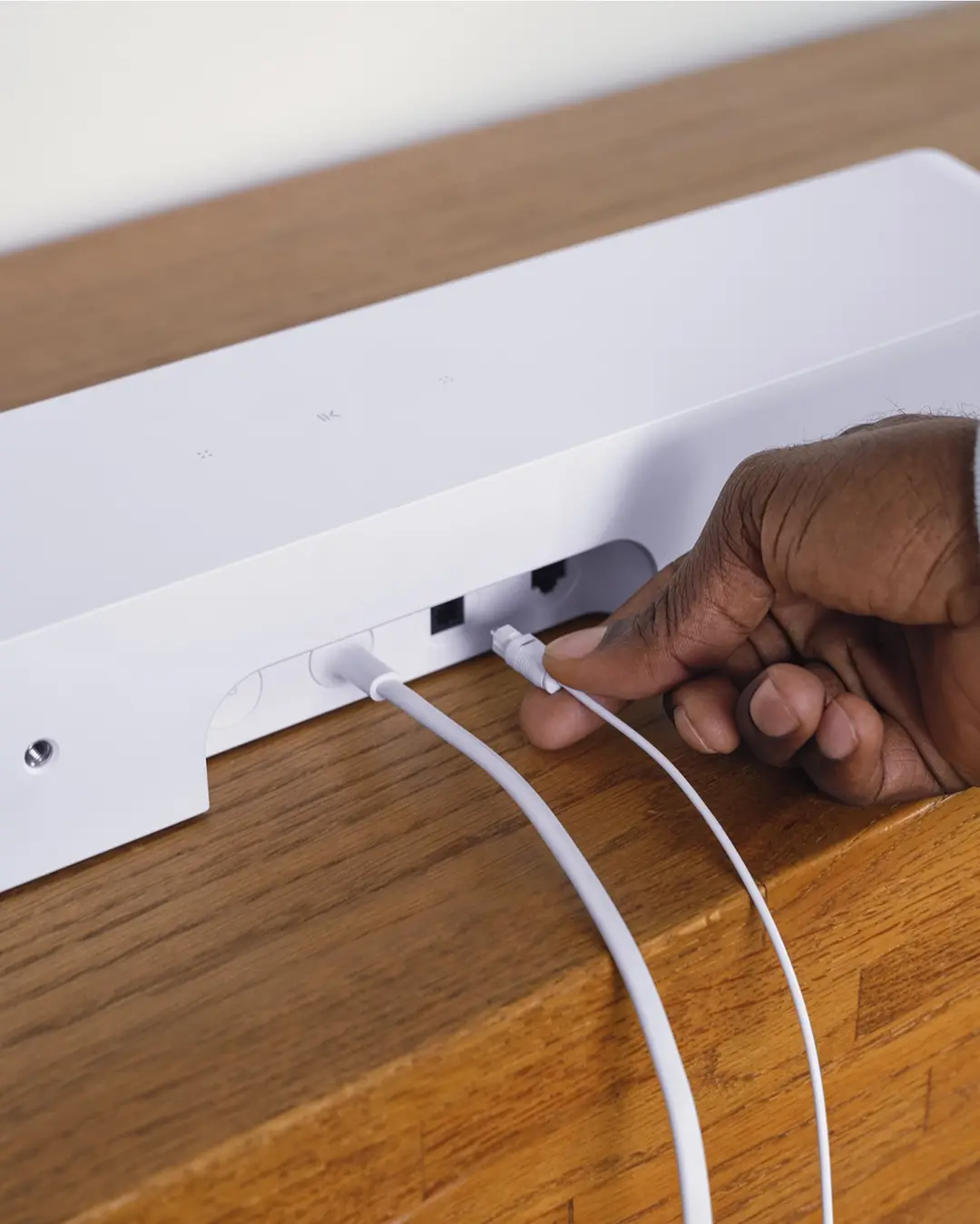
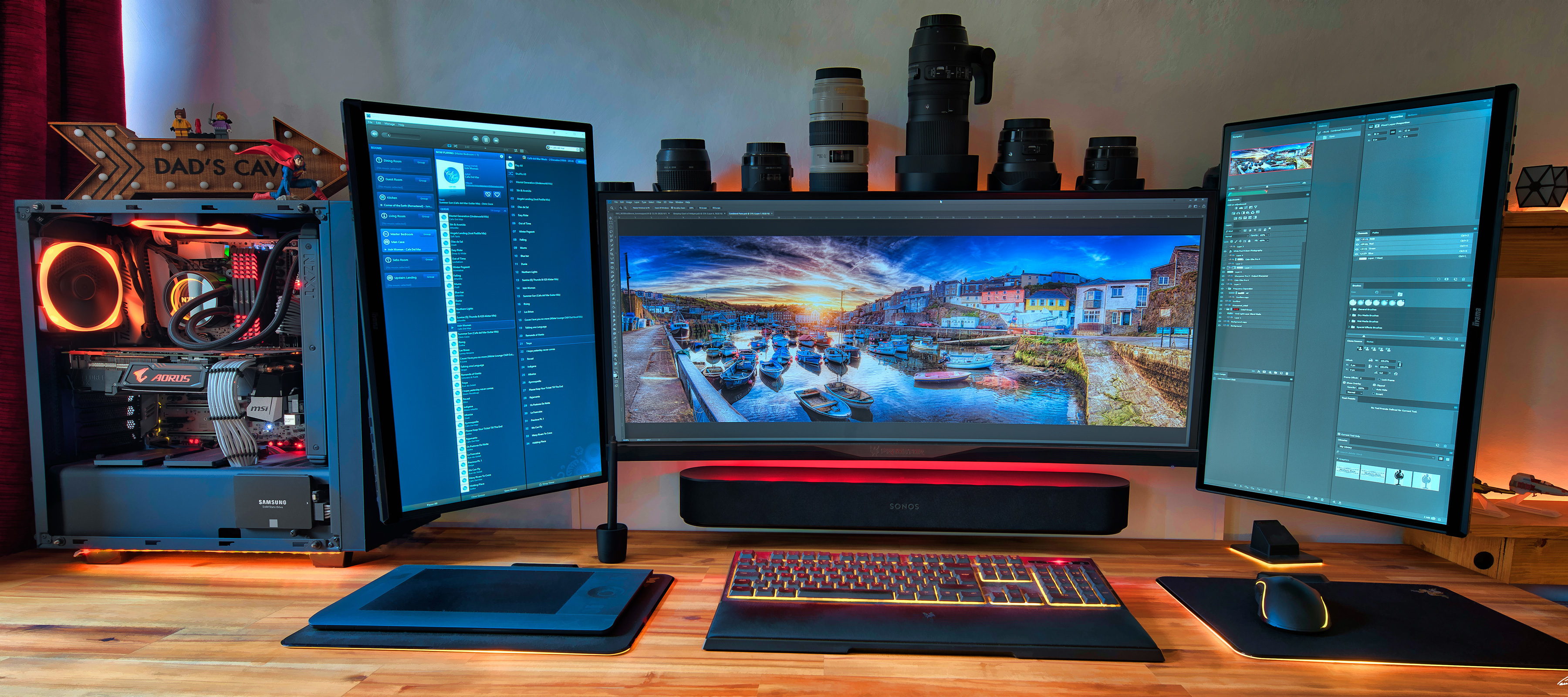
Image provided by PaulRBoon in this thread: Beam as computer speaker


At Sonos, we don’t make speakers specifically designed for your computer. However, if you are considering integrating your computer sound into your Sonos system, we want to help you get the most out of your products. With this being said, not all computers are built equal, so your mileage may vary, therefore it’s unfortunately not something Sonos can help or support you with setting up outside the general advice here.

In this article, we are going to be focusing on the best ways to get your computer audio coming through a Sonos Playbar, Playbase, Ray, Beam, Arc & Arc Ultra, Amp, Move & Move 2, Roam & Roam 2, Era 100 & Era 300. To get this to work, there are two things to look at: how to connect the products and the settings needed.


A quick note on Play:5, Five, Connect:Amp, Amp, Port, Connect, Era 100 & Era 300

While it is possible to use these players with a PC by connecting to their line-in ports (Era models will need the USB-C adaptor), this isn’t a recommended solution if you’re planning on doing something that requires audio/video synchronization. There will be a minimum of a 75ms delay on the audio due to the signal processing performed on the line-in side. If synchronization isn’t an issue for you, you can simply connect the device to your PCs headphone or line out jack like you would a pair of regular headphones.

Move, Move 2, Roam, Roam 2 & Era 100/300

Bluetooth links via these models will experience the same delay, as Bluetooth acts as a virtual line-in and also needs buffered for network play.


Connecting: 


Depending on the product you’re trying to connect, the method of connecting it to your computer will be slightly different. I’ll group the products with similar connections together to make things a bit easier to follow.


Playbar, Playbase & Ray

These products use a TOSLINK/Optical cable to receive audio, so if you’re looking to use these as PC speakers, your PC must be equipped with an Optical Out port. Most PCs don’t come with these built into the motherboard, though some higher end ones do. In most cases, you’ll likely need to use an internal sound card to provide that connection. Simply use an Optical cable to link your Playbar/Playbase/Ray to the Optical out port on your computer; just like you would to hook it up to a TV.
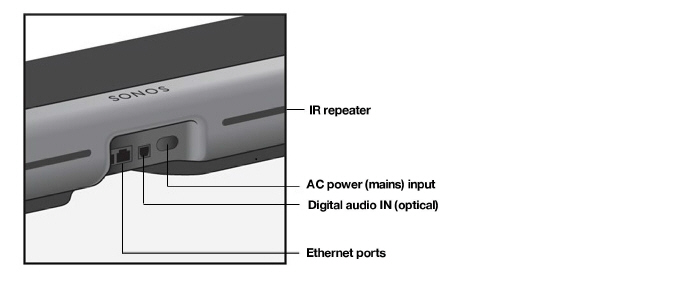
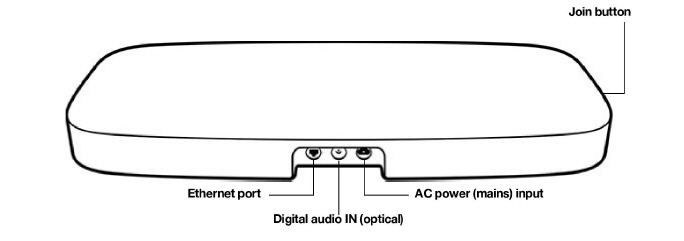
Playbar - use the Digital audio IN port
Playbase - use the Digital audio IN port
Ray - use the Digital audio IN port

Beam, Arc, Arc Ultra & Amp

If you’re using a Beam, Arc, Arc Ultra or Amp as computer speakers, there’s one extra step. You’ll need to make use of the Sonos Optical Audio Adapter that is included with your product (excluding Amp). Most computers send a regular HDMI audio stream over their HDMI ports, whereas these products require an HDMI-ARC audio signal. These are not the same. Unless you are using a TV equipped with HDMI-ARC as your monitor, connecting via HDMI-ARC won’t be possible. If that does apply to you, you can check this FAQ to find out how to set up your Beam, Arc or Amp.
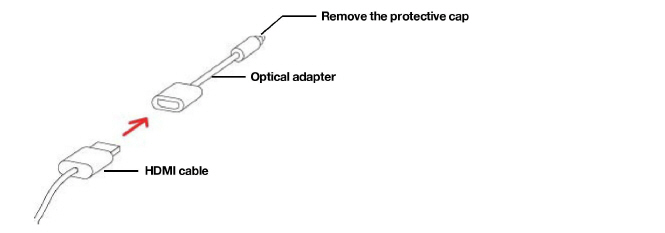
How to use the Sonos Optical Audio Adapter


With Amp, you also have the option to use the RCA Line-In ports, though you should be aware that there will be a minimum of 75ms delay due to the signal processing performed on this input. Therefore, it’s generally a better experience to use the HDMI ARC port with the optical adapter.
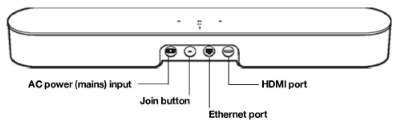
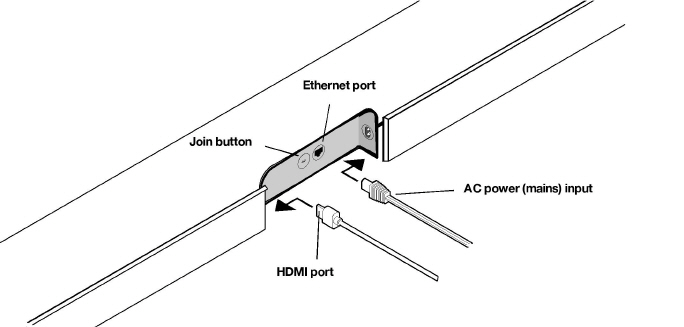
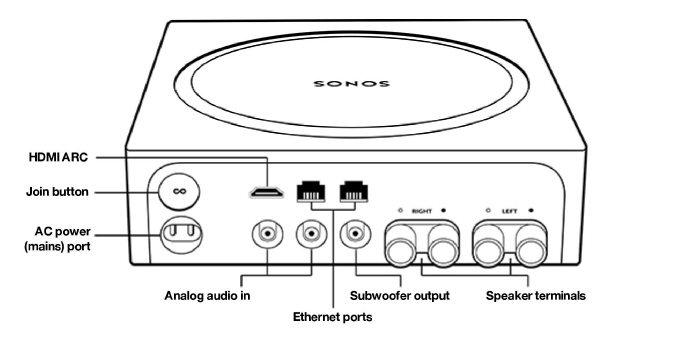
 

Beam - use the HDMI port with the Optical adapter
Arc & Arc Ultra - use the HDMI port with the Optical adapter
Amp - use either HDMI or Analog audio in connections


Move, Move 2, Roam & Roam 2, Era 100 & Era 300 (Bluetooth)

With Moves, Roam and Eras, things are a lot more simple. Hooking up these products is as easy as switching them over to Bluetooth mode, opening the Bluetooth settings of your PC and selecting them from the list, just like you would to connect a mobile device. We’ll show you how to do this in the next section.
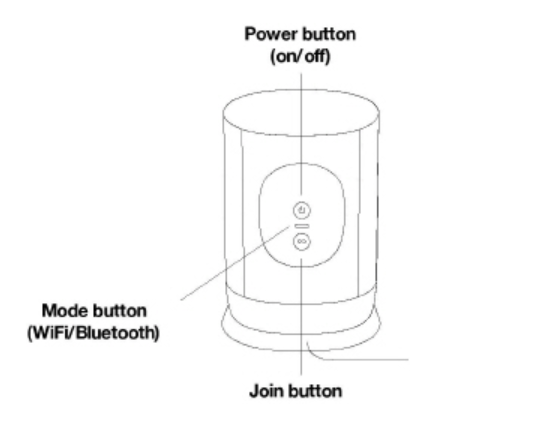
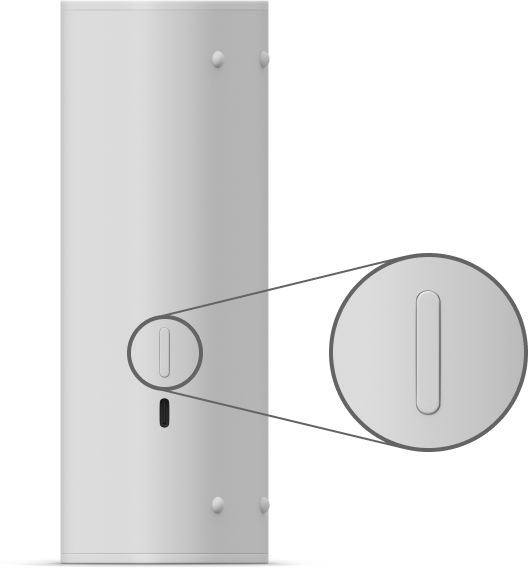
Move & Move 2 - push the Mode button to switch to Bluetooth
Roam & Roam 2 - push and hold the power button for 2 seconds to switch to Bluetooth
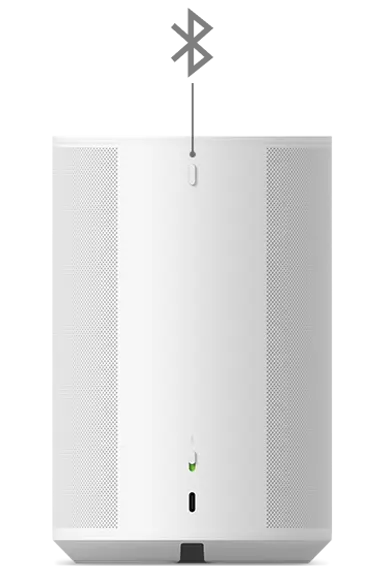
Era 100 - hold the Bluetooth button until you hear a chime to pair​​​​


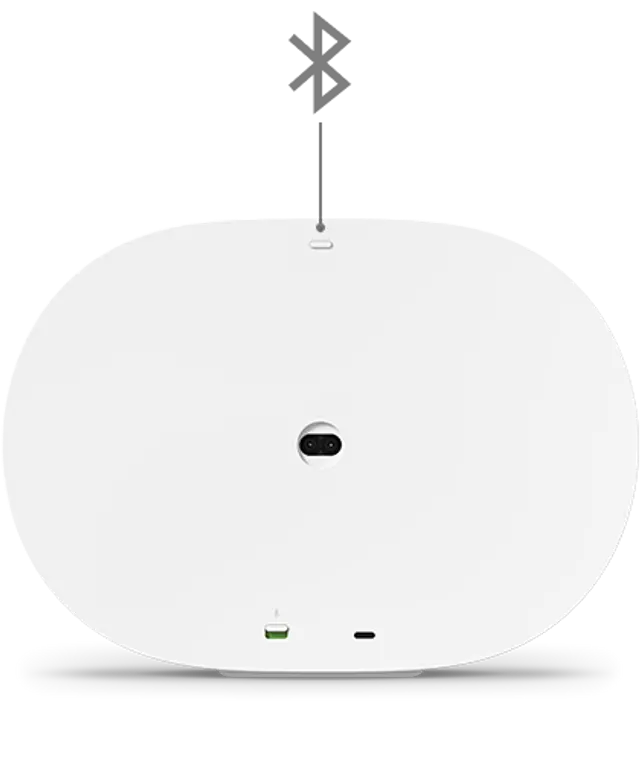
Era 300 - hold the Bluetooth button until you hear a chime to pair

Note that you only need pair a Sonos device to your PC once - from then on, you can use the computer to reinstate the link. 


Settings:
 

Connecting via optical cable or Sonos Optical Audio Adapter


Once you are connected with an optical cable, you may need to perform some steps to get everything running smoothly. It would be almost impossible for us to list specific settings for every sound card or motherboard that has an optical port built in, but we can provide some basic recommendations.


Once the optical cable is plugged in, click the speaker icon in the bottom-right corner of your Windows taskbar, then click the speaker name above the volume slider to see if an “Optical” or “Digital” sound output has shown up. If it has, just click to enable it. 
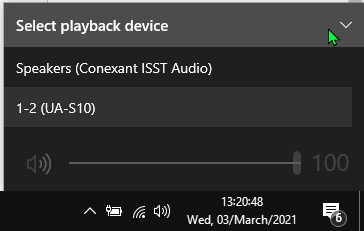
Look in this drop-down list for “Optical” or “Digital” sound output

If the speaker doesn’t show up there, right-click the speaker icon in the taskbar, click Open Sound Settings, Sound Control Panel and then the Playback tab.

Right-click anywhere in the list, then click “Show Disabled Devices.”
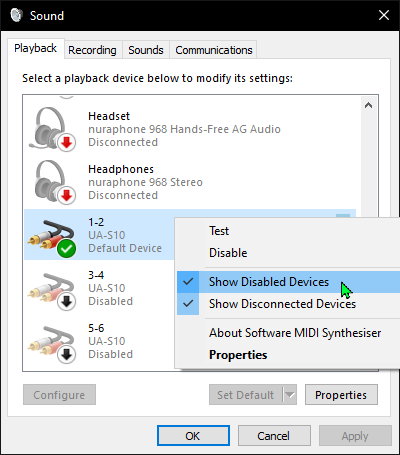
 

Make sure “Show Disabled Devices” is checked


Once you’ve done that, a device named “digital output” or “optical output” should show up. Right-click it and click “Enable” to switch it on. Once you’ve done that, right-click it again and click “Set as default device.” You should now have optical audio enabled and be able to listen to your PC audio through your Sonos player. You may need to open your Sonos app and select TV from the browse menu if TV Autoplay isn’t enabled.

If this doesn’t work for you, double-check the cable is properly seated in the optical port (it should have a gentle bump or click when fully inserted), and make sure the latest drivers are installed for your sound card or motherboard’s audio processor. If all this checks out, but you’re still not seeing the options show up, get in touch with the manufacturer of your device for further assistance.


Connecting through Bluetooth


Connecting to Moves, Roam or Eras through Bluetooth is relatively quick and easy. Take a look at the GIF below to see how it’s done in Windows 10. Note: not all desktop PCs have Bluetooth built in, so you may need to use an external adapter/dongle.
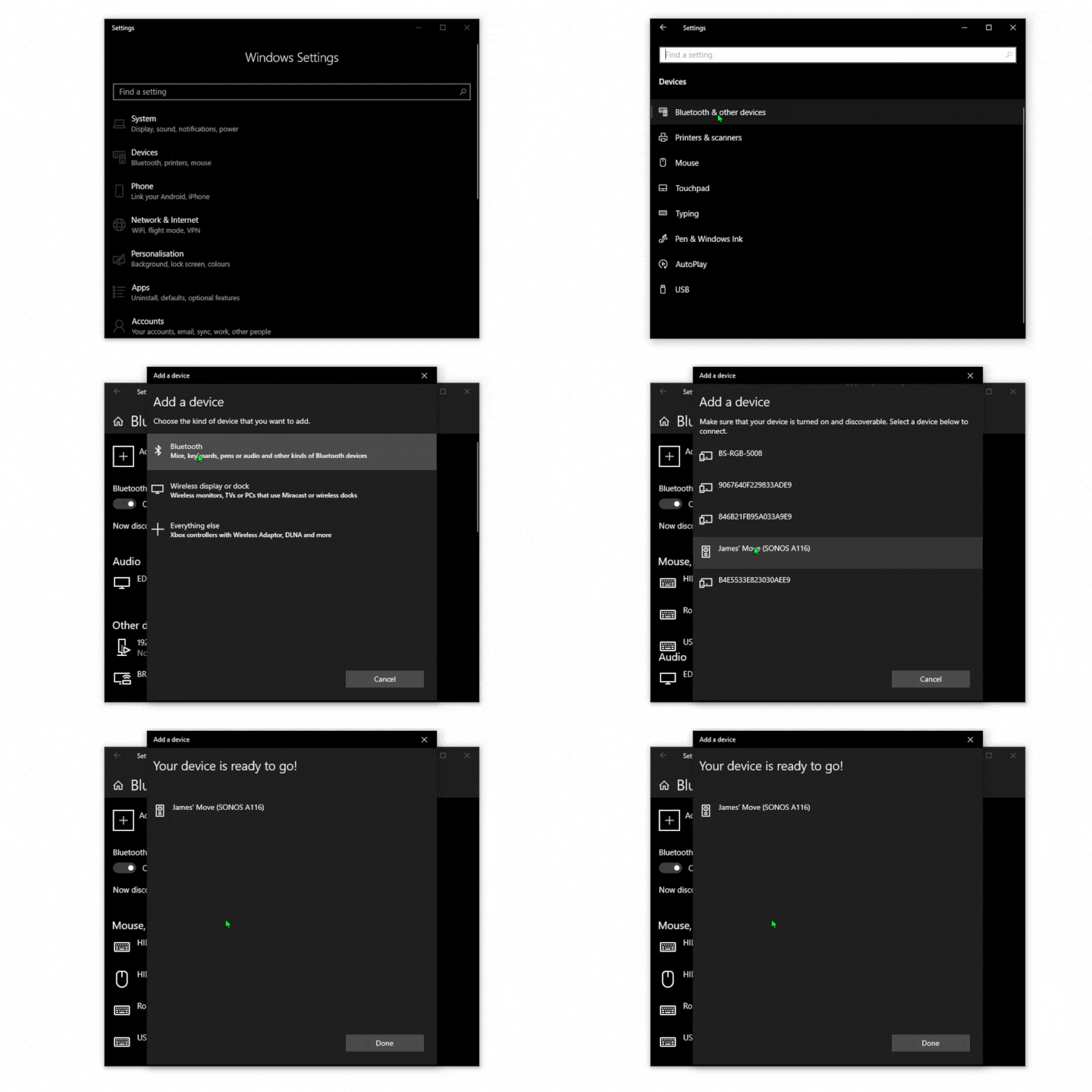
On Mac, the process is also fairly straightforward. You can use the same method for connecting to Sonos through Bluetooth, or you can establish an Airplay stream to any Airplay 2 capable speakers. Check out our FAQ on Streaming Airplay audio to Sonos.


And that’s it! Once you’re connected in either of these ways you’ll be able to enjoy your PC’s audio on your Sonos player. If you’re using the cabled method you’ll be able to group other wireless players in with your PC connected device and have that audio all around your home, just be aware that the players treat the incoming signal as TV audio, so a strong connection is required between players in order to enjoy uninterrupted sound on a large group.

We love to see what our users do with our products, so if you have your Sonos set up in an interesting way with your computer we’d love to see it! Feel free to post your images in this thread :smile:

This topic has been closed for further comments. You can use the search bar to find a similar topic, or create a new one by clicking Create Topic at the top of the page.

135 replies

jgatie
March 21, 2023

I get all that but please explain what is stopping Sonos from supporting zero-delay line-in on Era 100/300 (meaning just the delay of ADC) and then, to your point, add a 5GHz ad hoc private network for Left / Right direct connection?  How is this different to the ARC / Optical in + Surrounds that you describe?


The delay has absolutely nothing to do with the ADC.  ADC is instantaneous.  The delay is to build up the buffer which is necessary for multi-room grouping. Without the buffer, there is no way for the signal to self-correct if a packet is dropped or missed, so the audio will be full of dropouts and skips, making grouping impossible.  And the reason they can’t do what you describe using 5 GHz is because the low-latency 5 GHz connection cannot penetrate the walls/floors as well as the buffered 2.4 GHz signal, so once again, grouping is impossible.

So what it comes down to is you want dedicated computer speakers that cannot be grouped with the other Sonos speakers in your home.  There’s plenty of those around, go buy some.  

Lyricist III
March 21, 2023

And the reason they can’t do what you describe using 5 GHz is because the low-latency 5 GHz connection cannot penetrate the walls/floors as well as the buffered 2.4 GHz signal, so once again, grouping is impossible.

So what it comes down to is you want dedicated computer speakers that cannot be grouped with the other Sonos speakers in your home.  There’s plenty of those around, go buy some.  

What I am describing is two different modes:

  1. PC Mode: no delay, line-in mode where Left and Right speakers are connected over ad-hoc 5GHz (not grouped over walls/floors)
  2. Regular/Current Sonos Mode: 75ms+ delay, desktop pair can be grouped / ungrouped with the rest of Sonos ecosystem

I hope that makes sense

jgatie
March 21, 2023

What I am describing is two different modes:

  1. PC Mode: no delay, line-in mode where Left and Right speakers are connected over ad-hoc 5GHz (not grouped over walls/floors)
  2. Regular/Current Sonos Mode: 75ms+ delay, desktop pair can be grouped / ungrouped with the rest of Sonos ecosystem

I hope that makes sense


I highly doubt it is even possible, never mind probable.  The buffering circuitry is almost certainly baked into the line in/ADC.  Besides, this thread has a couple dozen replies over 2 years.  Sonos isn’t going to make their core functionality optional for a couple dozen replies.  

Also even if you could get rid of the buffer, reconfiguring surrounds to the 5 GHz private network is not an instantaneous switch.  It takes time to reconfigure the radios and do the handshaking necessary for a stable connection.  How popular is this feature going to be if you need to go through that process every time you wish to switch from PC speakers to Sonos speakers and back?

Once again - Sonos doesn’t make computer speakers.  Go buy computer speakers.  That’s what they are made for. 

melvimbe
March 21, 2023

And the reason they can’t do what you describe using 5 GHz is because the low-latency 5 GHz connection cannot penetrate the walls/floors as well as the buffered 2.4 GHz signal, so once again, grouping is impossible.

So what it comes down to is you want dedicated computer speakers that cannot be grouped with the other Sonos speakers in your home.  There’s plenty of those around, go buy some.  

What I am describing is two different modes:

  1. PC Mode: no delay, line-in mode where Left and Right speakers are connected over ad-hoc 5GHz (not grouped over walls/floors)
  2. Regular/Current Sonos Mode: 75ms+ delay, desktop pair can be grouped / ungrouped with the rest of Sonos ecosystem

I hope that makes sense


I can think of two related reasons why Sonos doesn’t offer both of these mode options for line aux sources.  One is that it allows users to connect Play:5, Port, and now the Era 100 and 300, to TVs for audio instead of the products specifically designed for TVs.  I think they would rather sell you a soundbar for that, that gives you the option of using home theatre audio channels, etc.

Second, and maybe more importantly, Sonos tries to keep their system simple, and this feature adds a lot of complications.  User would need to understand why the speaker isn’t playing in sync when grouped for turntable audio sometimes (because of the new mode switch).  Why the Era 300 plays atmos music, but not when connected to your TV...and you can’t connect surrounds. Why you can’t connect your rear Era 100 to a projector to get TV audio for the whole system. Why you have a switch for delay with aux input, but not for TV input (sounds nuts, but some would want that).  Yes, some of these are questions and points of confusion already, but not sure making a switch really helps.  Having flexibility can be great for the more power users who have a better understanding of what’s happening, but a lot of people don’t will just consider basic functionality (multiroom audio) as broken, when they just don’t have it set right for their needs.

A third point if I may, the aux input connection currently allows you to play the audio in any room in your system without playing it in the room that it’s actually connected to, unlike the digital/TV connection.  It’s not confusing when the lag is permanently in place, as the audio plays the same no matter what room you are listening in.  However, if you wanted to say have your TV connected to a Port, but play audio on a pair of Sonos Ones (separate room), there would be no way around the delay.  Something I don’t think would be easily understood by casual customers.


Honestly, a lot of people come in here with the expectation that the speakers can be used in any combination or method they imagine.  Want to have 12 Sonos Ones in a home theater, 4 of them strapped to the ceiling?  Why not.  Want to use 2 playbars for left and right front channels?  Sure.  Want to have a single sub play bass for every sonos room in the house?  You should be able to!  But all of these options need to be coded and tuned for, and Sonos wants them to sound good, easy to use, and not destroy their business.

Danny
Lyricist III
March 21, 2023

I can think of two related reasons why Sonos doesn’t offer both of these mode options for line aux sources.  One is that it allows users to connect Play:5, Port, and now the Era 100 and 300, to TVs for audio instead of the products specifically designed for TVs.  I think they would rather sell you a soundbar for that, that gives you the option of using home theatre audio channels, etc.

Second, and maybe more importantly, Sonos tries to keep their system simple, and this feature adds a lot of complications.  User would need to understand why the speaker isn’t playing in sync when grouped for turntable audio sometimes (because of the new mode switch).  Why the Era 300 plays atmos music, but not when connected to your TV...and you can’t connect surrounds. Why you can’t connect your rear Era 100 to a projector to get TV audio for the whole system. Why you have a switch for delay with aux input, but not for TV input (sounds nuts, but some would want that).  Yes, some of these are questions and points of confusion already, but not sure making a switch really helps.  Having flexibility can be great for the more power users who have a better understanding of what’s happening, but a lot of people don’t will just consider basic functionality (multiroom audio) as broken, when they just don’t have it set right for their needs.

A third point if I may, the aux input connection currently allows you to play the audio in any room in your system without playing it in the room that it’s actually connected to, unlike the digital/TV connection.  It’s not confusing when the lag is permanently in place, as the audio plays the same no matter what room you are listening in.  However, if you wanted to say have your TV connected to a Port, but play audio on a pair of Sonos Ones (separate room), there would be no way around the delay.  Something I don’t think would be easily understood by casual customers.

Honestly, a lot of people come in here with the expectation that the speakers can be used in any combination or method they imagine.  Want to have 12 Sonos Ones in a home theater, 4 of them strapped to the ceiling?  Why not.  Want to use 2 playbars for left and right front channels?  Sure.  Want to have a single sub play bass for every sonos room in the house?  You should be able to!  But all of these options need to be coded and tuned for, and Sonos wants them to sound good, easy to use, and not destroy their business.

I hear you and these are all great points.  The fact that this official post exists, proves that Sonos has heard by a lot of people about the PC speaker use-case.  That said, I feel that a Ray/Beam as the only low-latency option in 2023 is limiting and I wish Sonos would and give us better options.

melvimbe
March 22, 2023

I hear you and these are all great points.  The fact that this official post exists, proves that Sonos has heard by a lot of people about the PC speaker use-case.  That said, I feel that a Ray/Beam as the only low-latency option in 2023 is limiting and I wish Sonos would and give us better options.


It’s a little bit of a stretch to call it ‘official’.  Yes, Sonos staff created it, but the fact that it’s not referenced in support documents or on any product page, doesn’t give a lot of weight to it.  As well, it’s not like this thread has a ton of traffic for being created 2 years ago.  It really says ‘pet project’ more than ‘Sonos official stance’ on the matter.  I have no idea what level of importance a feature like this sits with Sonos.  I’d guess it’s far from the bottom, but maybe not in the top 20 either.  As comparison, people want the ability to have separate front speakers in a home theatre (w/atmos) as Sonos CEO acknowledged that in a recent interview.  I would think that’s a much higher demand than this, but I don’t think Sonos is doing that soon either.

That’s not to say I don’t want the feature myself.  I do, and I would use it.  Likely not with a TV, but to connect an Era speaker for TV audio.  I have a room or two where I want going music, and only care for stereo TV audio.

Also, Ray and Beam are not the only options with out latency.  You also have the Arc and Amp, not to mention playbar and playbase if we include retired products.  

Danny
buzz
Grand Maestro
March 22, 2023

I prefer to describe the soundbar connections as “low latency” rather than “no latency”. There will always be some processing latency, but perhaps not enough to annoy the human in some cases. Plus, annoyance thresholds vary between listeners. There is also the issue created by poor lip sync at the TV station.

Even with no processing there is the physics of sound propagation. Sound is pokey at about one foot per millisecond. Consider two speakers, ‘A’ and ‘B’ directly wired to the same source and placed 30 feet apart with listeners near each speaker. Listener ‘A’ will claim speaker ‘B’ is 30ms late. Likewise listener ‘B’ will claim speaker ‘A’ is 30ms late. Now consider listener ‘C’ listening from the midpoint between the speakers. Listener ‘C’ will claim that there is no delay. All three observers will be correct.

melvimbe
March 22, 2023

I prefer to describe the soundbar connections as “low latency” rather than “no latency”. There will always be some processing latency, but perhaps not enough to annoy the human in some cases. Plus, annoyance thresholds vary between listeners. There is also the issue created by poor lip sync at the TV station.

Even with no processing there is the physics of sound propagation. Sound is pokey at about one foot per millisecond. Consider two speakers, ‘A’ and ‘B’ directly wired to the same source and placed 30 feet apart with listeners near each speaker. Listener ‘A’ will claim speaker ‘B’ is 30ms late. Likewise listener ‘B’ will claim speaker ‘A’ is 30ms late. Now consider listener ‘C’ listening from the midpoint between the speakers. Listener ‘C’ will claim that there is no delay. All three observers will be correct.


Reminds me of an event my family attended when I was a kid.  There was a fireworks/lightshow downtown that was supposed to be synced to music.  The audience was to listen to pick a random site to sit, maybe even a mile way from the actual show, then turn their portable radio to the right station to hear the ‘synced’ music.  So you had whatever delays occured at the source that was producing the fireworks/light show and accompany audio, transmission to radio station, transmission of the signal from station to portable radios, whatever processing occurred in the radios themselves, plus the speed of sound in the air...with at least 50 radios (all the other groups watching the show)  in hearing range of me.  It was an utter mess.  And of course, people would just turn up their radio in hopes of drowning out all the other radios that were out of sync with their own, which just made it worse.

If such an event were done today, you might be able to make it work by having the audience download the audio in advance and synced to start at the same time...effectively a huge latency.  Even then, you want people to wear headphones to avoid hearing the audio out if sync from nearby sources.


Danny
Lyricist I
March 28, 2023

Hi!
What can you say about delay using the Era 100’s as PC speakers, connected via Bluetooth?
The youtube channel Smart Home Sounds claims there’s no delay, very interesting

Corry P
Sonos Staff
March 28, 2023

Hi @yorkiepork 

Bluetooth 5.2 does have lower latency than the earlier versions (Era speakers use 5.2), but there will certainly still be a delay. I don’t however have any figures I can quote for you, as of yet.


"Common sense is the collection of prejudices acquired by age eighteen." - Albert Einstein