James L.
Retired Community Staff
March 3, 2021
Tutorial

Using Sonos as PC Speakers
  • March 3, 2021
  • 135 replies
  • 349364 views
Using Sonos as PC Speakers

Moderator note: This article was updated in December 2024 to account for new products.


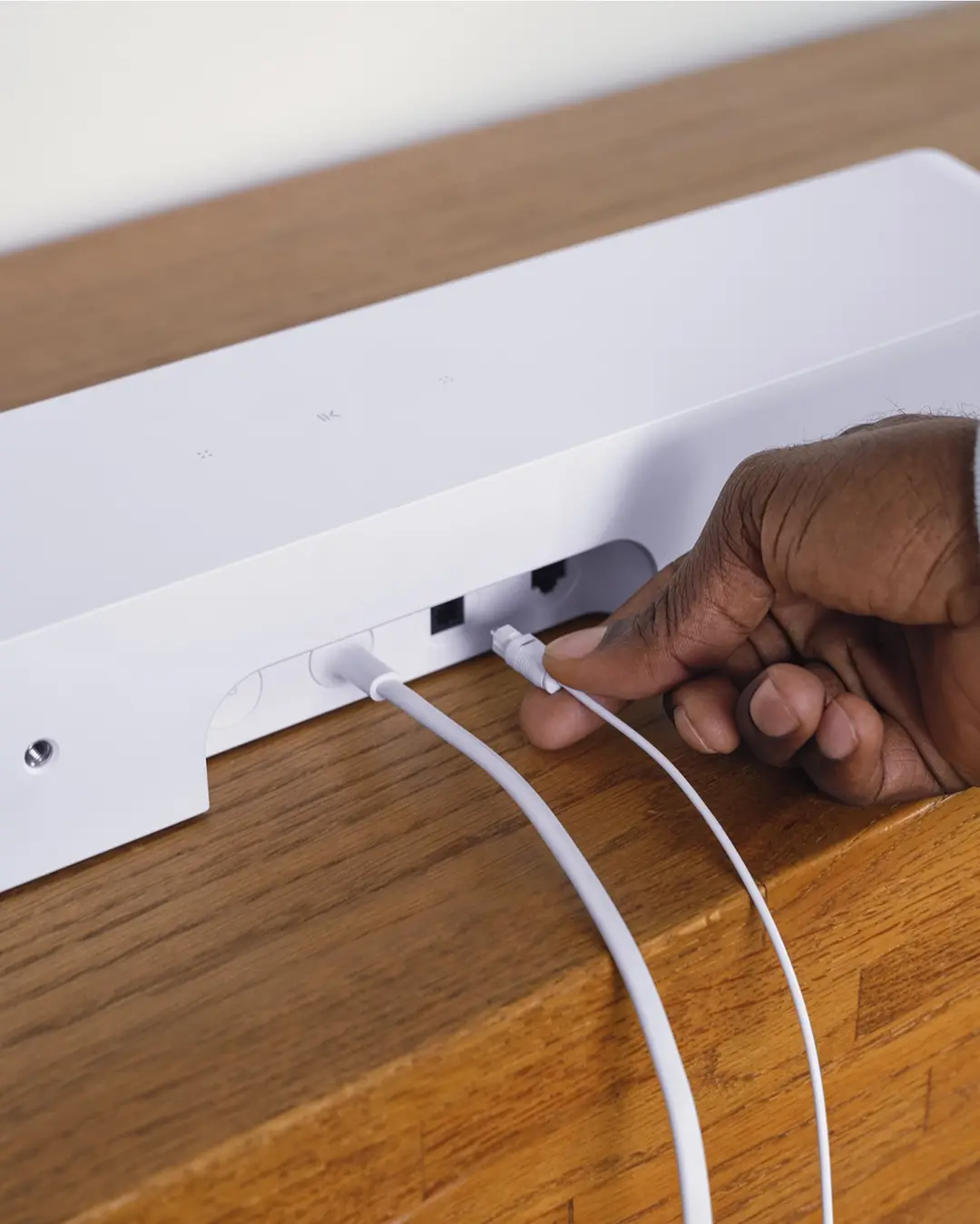
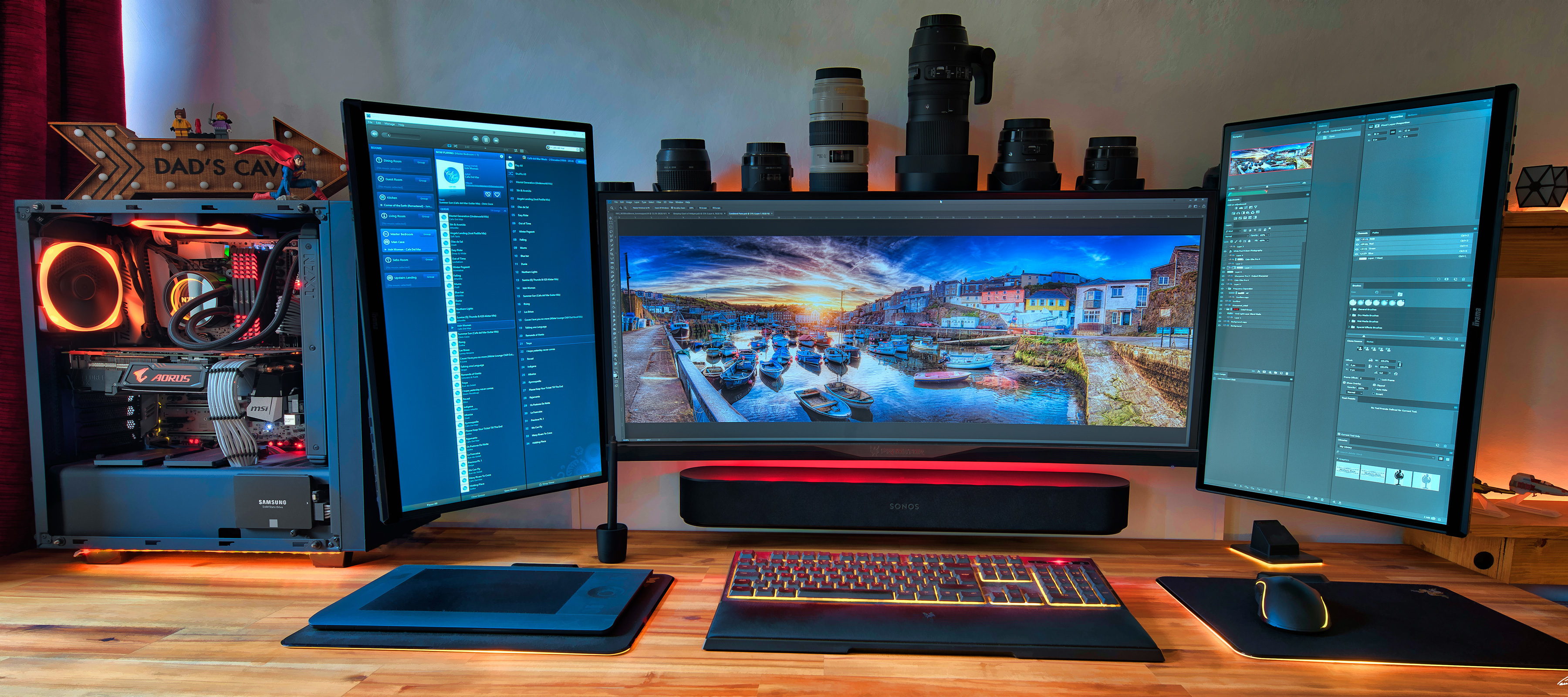
Image provided by PaulRBoon in this thread: Beam as computer speaker


At Sonos, we don’t make speakers specifically designed for your computer. However, if you are considering integrating your computer sound into your Sonos system, we want to help you get the most out of your products. With this being said, not all computers are built equal, so your mileage may vary, therefore it’s unfortunately not something Sonos can help or support you with setting up outside the general advice here.

In this article, we are going to be focusing on the best ways to get your computer audio coming through a Sonos Playbar, Playbase, Ray, Beam, Arc & Arc Ultra, Amp, Move & Move 2, Roam & Roam 2, Era 100 & Era 300. To get this to work, there are two things to look at: how to connect the products and the settings needed.


A quick note on Play:5, Five, Connect:Amp, Amp, Port, Connect, Era 100 & Era 300

While it is possible to use these players with a PC by connecting to their line-in ports (Era models will need the USB-C adaptor), this isn’t a recommended solution if you’re planning on doing something that requires audio/video synchronization. There will be a minimum of a 75ms delay on the audio due to the signal processing performed on the line-in side. If synchronization isn’t an issue for you, you can simply connect the device to your PCs headphone or line out jack like you would a pair of regular headphones.

Move, Move 2, Roam, Roam 2 & Era 100/300

Bluetooth links via these models will experience the same delay, as Bluetooth acts as a virtual line-in and also needs buffered for network play.


Connecting: 


Depending on the product you’re trying to connect, the method of connecting it to your computer will be slightly different. I’ll group the products with similar connections together to make things a bit easier to follow.


Playbar, Playbase & Ray

These products use a TOSLINK/Optical cable to receive audio, so if you’re looking to use these as PC speakers, your PC must be equipped with an Optical Out port. Most PCs don’t come with these built into the motherboard, though some higher end ones do. In most cases, you’ll likely need to use an internal sound card to provide that connection. Simply use an Optical cable to link your Playbar/Playbase/Ray to the Optical out port on your computer; just like you would to hook it up to a TV.
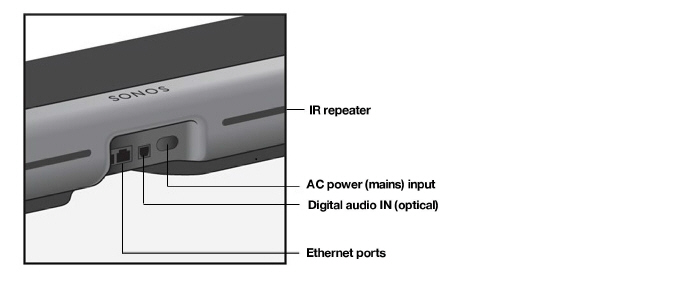
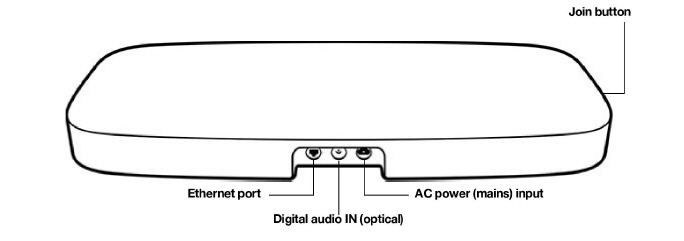
Playbar - use the Digital audio IN port
Playbase - use the Digital audio IN port
Ray - use the Digital audio IN port

Beam, Arc, Arc Ultra & Amp

If you’re using a Beam, Arc, Arc Ultra or Amp as computer speakers, there’s one extra step. You’ll need to make use of the Sonos Optical Audio Adapter that is included with your product (excluding Amp). Most computers send a regular HDMI audio stream over their HDMI ports, whereas these products require an HDMI-ARC audio signal. These are not the same. Unless you are using a TV equipped with HDMI-ARC as your monitor, connecting via HDMI-ARC won’t be possible. If that does apply to you, you can check this FAQ to find out how to set up your Beam, Arc or Amp.
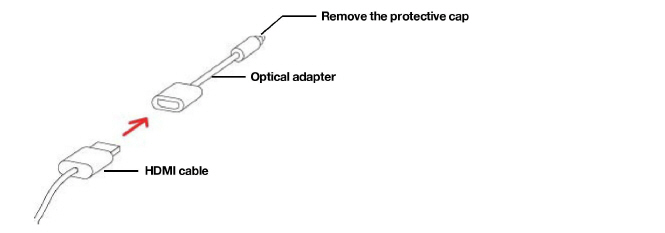
How to use the Sonos Optical Audio Adapter


With Amp, you also have the option to use the RCA Line-In ports, though you should be aware that there will be a minimum of 75ms delay due to the signal processing performed on this input. Therefore, it’s generally a better experience to use the HDMI ARC port with the optical adapter.
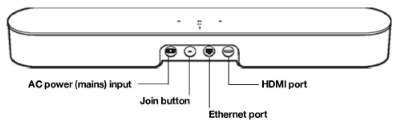
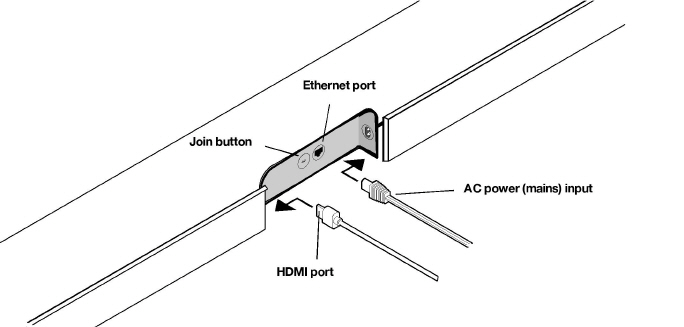
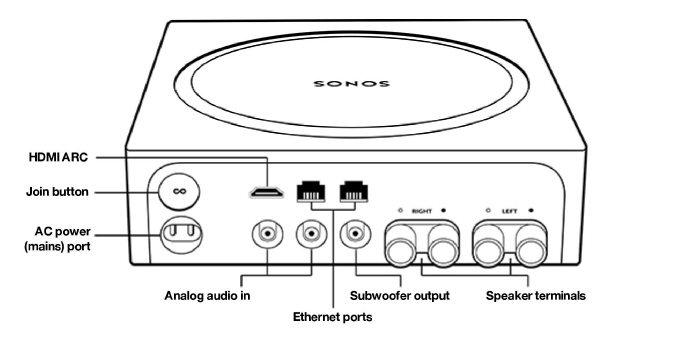
 

Beam - use the HDMI port with the Optical adapter
Arc & Arc Ultra - use the HDMI port with the Optical adapter
Amp - use either HDMI or Analog audio in connections


Move, Move 2, Roam & Roam 2, Era 100 & Era 300 (Bluetooth)

With Moves, Roam and Eras, things are a lot more simple. Hooking up these products is as easy as switching them over to Bluetooth mode, opening the Bluetooth settings of your PC and selecting them from the list, just like you would to connect a mobile device. We’ll show you how to do this in the next section.
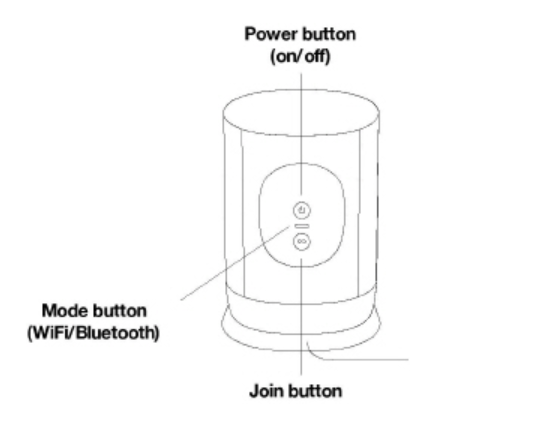
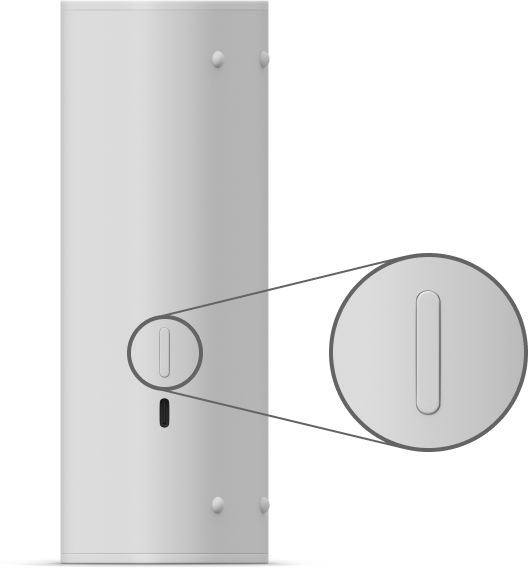
Move & Move 2 - push the Mode button to switch to Bluetooth
Roam & Roam 2 - push and hold the power button for 2 seconds to switch to Bluetooth
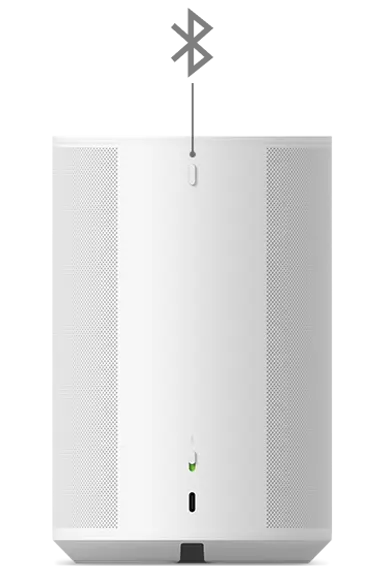
Era 100 - hold the Bluetooth button until you hear a chime to pair​​​​


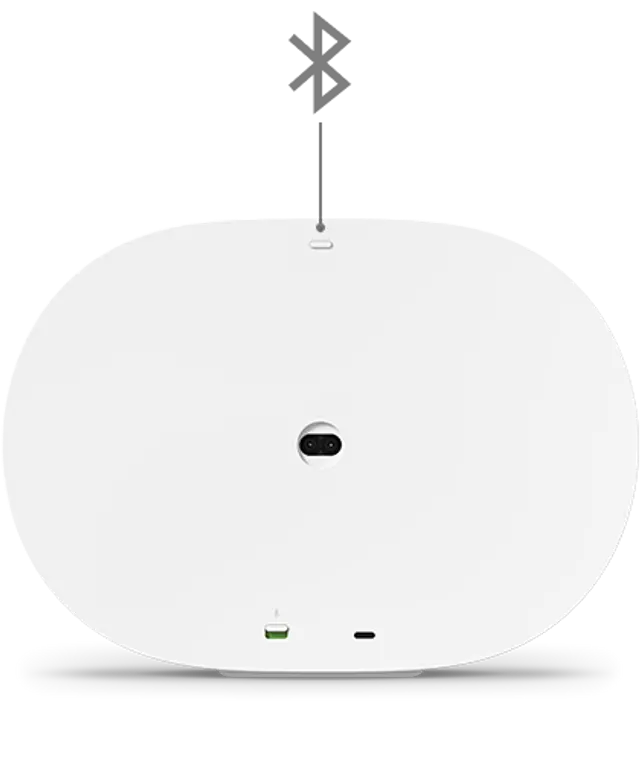
Era 300 - hold the Bluetooth button until you hear a chime to pair

Note that you only need pair a Sonos device to your PC once - from then on, you can use the computer to reinstate the link. 


Settings:
 

Connecting via optical cable or Sonos Optical Audio Adapter


Once you are connected with an optical cable, you may need to perform some steps to get everything running smoothly. It would be almost impossible for us to list specific settings for every sound card or motherboard that has an optical port built in, but we can provide some basic recommendations.


Once the optical cable is plugged in, click the speaker icon in the bottom-right corner of your Windows taskbar, then click the speaker name above the volume slider to see if an “Optical” or “Digital” sound output has shown up. If it has, just click to enable it. 
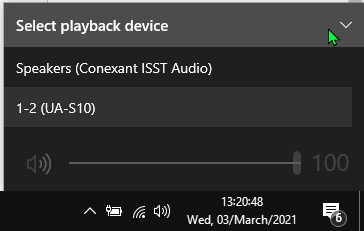
Look in this drop-down list for “Optical” or “Digital” sound output

If the speaker doesn’t show up there, right-click the speaker icon in the taskbar, click Open Sound Settings, Sound Control Panel and then the Playback tab.

Right-click anywhere in the list, then click “Show Disabled Devices.”
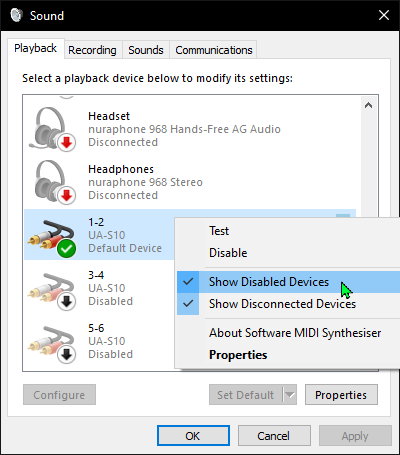
 

Make sure “Show Disabled Devices” is checked


Once you’ve done that, a device named “digital output” or “optical output” should show up. Right-click it and click “Enable” to switch it on. Once you’ve done that, right-click it again and click “Set as default device.” You should now have optical audio enabled and be able to listen to your PC audio through your Sonos player. You may need to open your Sonos app and select TV from the browse menu if TV Autoplay isn’t enabled.

If this doesn’t work for you, double-check the cable is properly seated in the optical port (it should have a gentle bump or click when fully inserted), and make sure the latest drivers are installed for your sound card or motherboard’s audio processor. If all this checks out, but you’re still not seeing the options show up, get in touch with the manufacturer of your device for further assistance.


Connecting through Bluetooth


Connecting to Moves, Roam or Eras through Bluetooth is relatively quick and easy. Take a look at the GIF below to see how it’s done in Windows 10. Note: not all desktop PCs have Bluetooth built in, so you may need to use an external adapter/dongle.
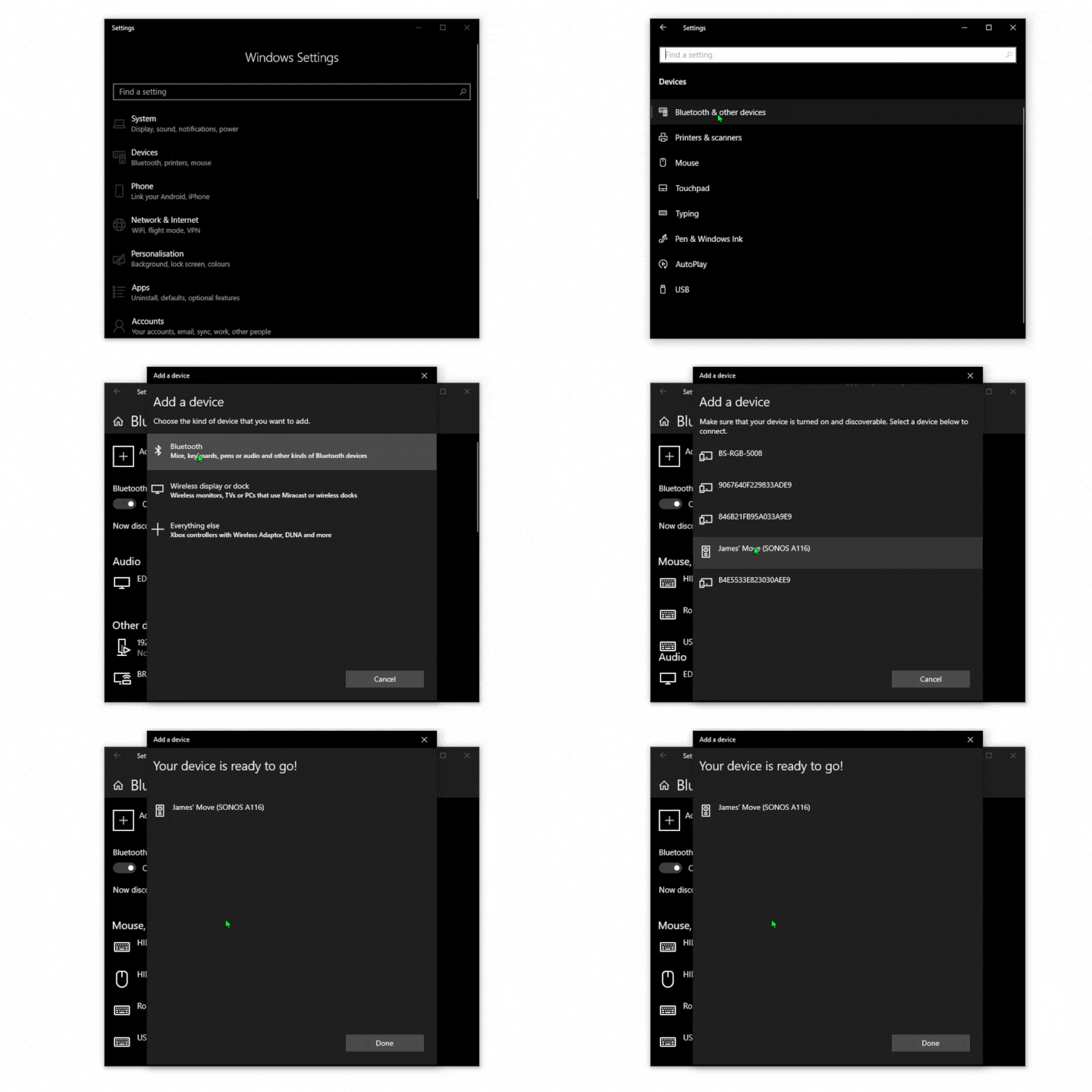
On Mac, the process is also fairly straightforward. You can use the same method for connecting to Sonos through Bluetooth, or you can establish an Airplay stream to any Airplay 2 capable speakers. Check out our FAQ on Streaming Airplay audio to Sonos.


And that’s it! Once you’re connected in either of these ways you’ll be able to enjoy your PC’s audio on your Sonos player. If you’re using the cabled method you’ll be able to group other wireless players in with your PC connected device and have that audio all around your home, just be aware that the players treat the incoming signal as TV audio, so a strong connection is required between players in order to enjoy uninterrupted sound on a large group.

We love to see what our users do with our products, so if you have your Sonos set up in an interesting way with your computer we’d love to see it! Feel free to post your images in this thread :smile:

This topic has been closed for further comments. You can use the search bar to find a similar topic, or create a new one by clicking Create Topic at the top of the page.

135 replies

Contributor I
March 14, 2023

Hello There, I got the Ray, i’m trying to connect it to my computer, but my computer does not have the optical port, it only has a audio type c. I bought an adapter USB AUDIO CONVERTER OPTICAL AND 3.5MM, I plug it into my type c and a usb port but there is no audio coming out, my computer does detect that there is a speaker plug it and even has the green audio lv going up, Any tips? I was going to return this but I really want to make it work. Much would be appreciated thank you.

Corry P
Sonos Staff
March 14, 2023

Hi @Johnson878 

Does the adaptor have separate outputs listed in Windows? If so, you’ll need to make sure that the Digital Output is selected (rather than the 3.5mm socket, which may be labelled as “Speakers”). 

One thing strikes me as a bit strange, however: you said “plug it into my type c and a usb port” - as a USB device, it should only need to plug into one USB socket, not a USB-C and a USB type A (if that’s what you meant). It may help if you provide a link to the device you purchased.

You may also need to specify/restrict the digital output format in Windows to be Dolby Digital (AC-3) or DTS - if it’s trying to send Dolby Digital + (EAC-3), for example, that will not work.

I hope this helps.

"Common sense is the collection of prejudices acquired by age eighteen." - Albert Einstein
Lyricist III
March 18, 2023

Hello There, I got the Ray, i’m trying to connect it to my computer, but my computer does not have the optical port, it only has a audio type c. I bought an adapter USB AUDIO CONVERTER OPTICAL AND 3.5MM, I plug it into my type c and a usb port but there is no audio coming out, my computer does detect that there is a speaker plug it and even has the green audio lv going up, Any tips? I was going to return this but I really want to make it work. Much would be appreciated thank you.

I bought this one for $20 on Amazon and it works great on my MacBook

https://www.amazon.com/dp/B09QFYNB7Y?psc=1&ref=ppx_yo2ov_dt_b_product_details

Make sure you get the “output” version and not the “input” as those are uni-directional.

Lyricist III
March 18, 2023

Could we possibly have some information on what sort of latency we should expect when we connect 2 Roam (or 2 Move) as a stereo pair over bluetooth?

My understanding is that S2 version 14.16 added the ability for Roam to play stereo over Bluetooth but only if WiFi is present. Would the expected latency be 20-40ms (from BT) + 75ms (for Sonos standard sync) =~ 100ms or something closer to only BT 20ms?

Also would the Roam negotiate AAC as the coded on MacBook Pro with Apple Silicon?

Thanks!

Corry P
Sonos Staff
March 21, 2023

Hi @zipuni 

Roam (with or without a stereo pair) can expect 200ms latency. There may be additional latency from the source device, however (the time it takes to encode the audio and transmit it).

Move cannot play Bluetooth in a stereo pair. I couldn’t find any figures for the latency, but I presume it would be lower as the Move can’t share it’s Bluetooth feed and therefore doesn’t need to prebuffer it.

I couldn’t find any information on which codec would be negotiated.

I hope this helps.

"Common sense is the collection of prejudices acquired by age eighteen." - Albert Einstein
Lyricist III
March 21, 2023

Hi @zipuni 

Roam (with or without a stereo pair) can expect 200ms latency. There may be additional latency from the source device, however (the time it takes to encode the audio and transmit it).

Move cannot play Bluetooth in a stereo pair. I couldn’t find any figures for the latency, but I presume it would be lower as the Move can’t share it’s Bluetooth feed and therefore doesn’t need to prebuffer it.

I couldn’t find any information on which codec would be negotiated.

I hope this helps.

Thank you so much Corry, wow 200ms is a lot. I guess the only option we have is using optical to a Ray / Beam assuming nothing will change with the new Era 100/300 and the 75ms minimum latency over Line-in.

This is such a bummer and a missed opportunity as so many other Sonos users have pointed out.  I am deep in the Sonos ecosystem and I really don’t want to buy Audiengine/Edifier/Kanto for my desktop and have them not join the rest of the party.

Maybe you can enable direct USB access to the Era like Audiengine and others support?

Thanks again for the reply.


Airgetlam
March 21, 2023

It’s a software thing, not a hardware thing. Removing the delay would require a significant rewrite of the entire underlying code base, and remove the Sonos “whole home audio” feature, which is their main marketing point. 

Bruce
Lyricist III
March 21, 2023

It’s a software thing, not a hardware thing. Removing the delay would require a significant rewrite of the entire underlying code base, and remove the Sonos “whole home audio” feature, which is their main marketing point. 

Not true. What everyone wants is to have the “local” pair of speakers play with minimal delay. The same way a Ray/Beam has minimal delay when it is directly connected to a TV.

Think about it. Can you imagine if Sonos were to launch Beam/Ray/Arc with a *minimum* of 75ms delay and said “we can’t do less because it goes against our marketing”?  No-one would buy them as lip-sync problems would be unbearable.

Desktop speakers, same as TV surround, is a minimal delay application and they are choosing not to support it.  It sure beats me why as I really don’t want to have sound bar below my “floating” arm-mounted display.

jgatie
March 21, 2023

Not true. What everyone wants is to have the “local” pair of speakers play with minimal delay. The same way a Ray/Beam has minimal delay when it is directly connected to a TV.

Think about it. Can you imagine if Sonos were to launch Beam/Ray/Arc with a *minimum* of 75ms delay and said “we can’t do less because it goes against our marketing”?  No-one would buy them as lip-sync problems would be unbearable.

Desktop speakers, same as TV surround, is a minimal delay application and they are choosing not to support it.  It sure beats me why as I really don’t want to have sound bar below my “floating” arm-mounted display.


Sonos users expect to group/ungroup on the fly, it is a core functionality.  Making the “local” speaker impossible to group because it is used as a computer speaker takes away from that.  You might as well make it a standalone computer speaker (which is what everyone says to get in the first place).

Also, the Arc/Beam has minimal delay because it is using an ad hoc private 5 GHz network to connect directly to the Sub/surrounds.  This configuration can be low latency because it is not expected to go through walls/floors like the regular grouping of rooms, which uses a greater buffer (hence the delay) and the more penetrating 2.4 GHz band.  

Lyricist III
March 21, 2023


Sonos users expect to group/ungroup on the fly, it is a core functionality.  Making the “local” speaker impossible to group because it is used as a computer speaker takes away from that.  You might as well make it a standalone computer speaker (which is what everyone says to get in the first place).

Also, the Arc/Beam has minimal delay because it is using an ad hoc private 5 GHz network to connect directly to the Sub/surrounds.  This configuration can be low latency because it is not expected to go through walls/floors like the regular grouping of rooms, which uses a greater buffer (hence the delay) and the more penetrating 2.4 GHz band.  

I get all that but please explain what is stopping Sonos from supporting zero-delay line-in on Era 100/300 (meaning just the delay of ADC) and then, to your point, add a 5GHz ad hoc private network for Left / Right direct connection?  How is this different to the ARC / Optical in + Surrounds that you describe?