
Avid Contributor I
December 19, 2021

Here we go again...

  • December 19, 2021
  • 67 replies
  • 1599 views

Yet again the wonderfully robust and user friendly software messes up my day. 

The Sonos software and update process is a piece of junk, there’s imply no way it should behave as it is, the lack of attention to detail is astonishing.

The hoops we have to jump through to get something working is absurd.

Of course to complain means I’ll get asked lots of questions, I’ll be asked to unplug this and that, connect this or that to something else with a piece of cable and so on and so forth, all the burden is on the customer.

I tried to update because the PS controller software insists that I update, yet it always fails. If I try the same update from my iPhone, again it fails.

The iPhone fails (I think) because the controller is “not S2 compatible” whatever that means. The PC software is not S2 yet that also fails and the error code I get varies each time.

e.g. “Error code 30: BRIDGE” or “Error code 1002: BRIDGE”.

If these error codes mean something then why not pull down the message text and display it in the controller software???

Everything was working but I have a Roam that fully discharged, I recharged it yet it was not visible in either the PC controller or the iPhone controller, as I tried to get more insight it kept suggesting I update so I tried.

Now the system can’t find jack s**t, it cannot see even one of the devices.

I submitted a diagnostic and the code I got back was: 703555998 perhaps that can shed light.

I’m a very experienced software engineer so before people rush in to defend Sonos don’t bother, this is abysmal, with today’s technology the customer experience can be far far better than it is.

Now I have no system, can listen to no music and was planning on a restful Christmas alone this year to do some reading and studying, without Sonos this really messes up what would have been a restful period for me.


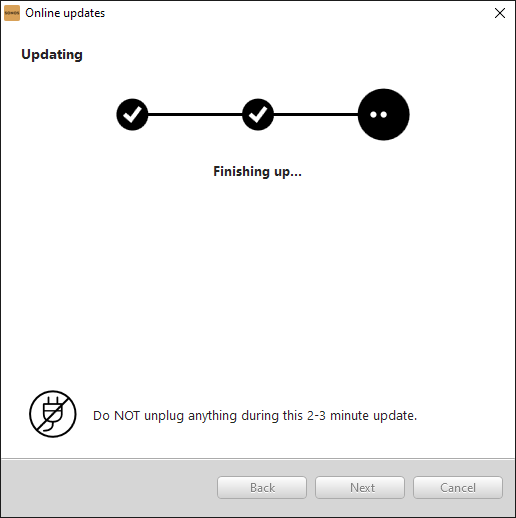
The update almost works, I get this far:
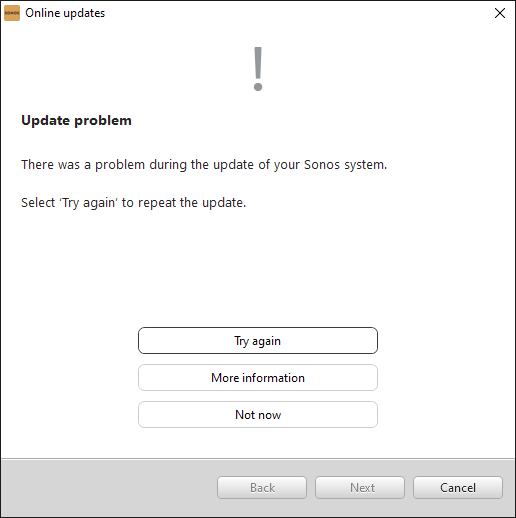
but then I get this:


“More information” gives this:
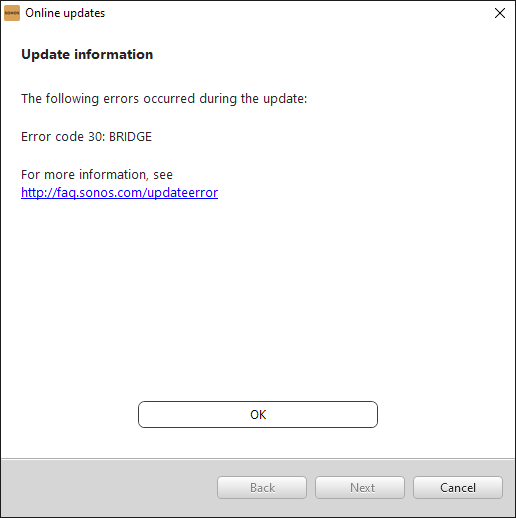


and that’s pretty much that!

Now I’m stuck with this:
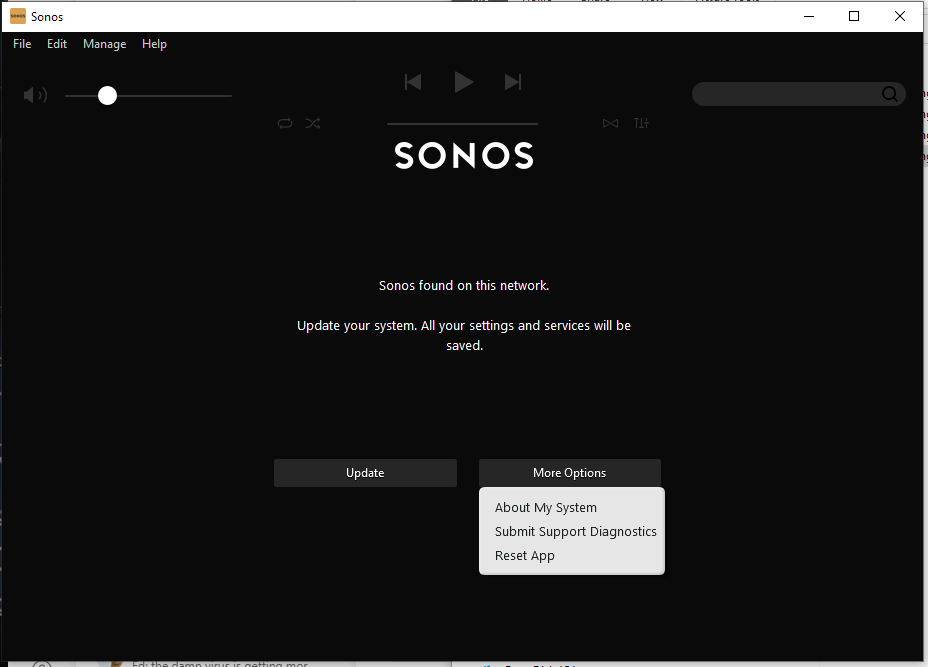
See? I cannot choose “Just continue running with current version” why? 

This update is something I CHOSE to try (because the Roam was not working) so by definition the existing version did work - at least - with the non-roam devices.

This is a one way trap door, the system works with some version, one tries to install an updated version - that fails - yet it is no longer possible to run with the older version - even though it was working!


    This topic has been closed for further comments. You can use the search bar to find a similar topic, or create a new one by clicking Create Topic at the top of the page.

    67 replies

    KorporalAuthor
    Avid Contributor I
    December 19, 2021

    What I loathe about the roam is the audio cue when I switch it off, but silence when I switch it on, this is the kind of detail that is just hard to understand how nobody cared to do that.

    Anyway I’m having trouble with this part, the app can’t detect it (or it doesn’t seem to even after several minutes) and I wonder if the ROAM is somehow connecting to a different WiFi network (rather than the apparently transient one created by the PLAY3 setup).


    KorporalAuthor
    Avid Contributor I
    December 19, 2021

    The ROAM is not acting as expected.

    Here’s the instructions, (red is what I think is missing and should be included):


    1. Press and hold the power button on the back of your Roam for 5 seconds to power it off. You will hear an initial chime and after the five seconds another, different chime, the status LED on the front near the top, will turn off.
    2. While holding the Play/Pause button, press and release the power button on the back of your Roam, the LED will initially be a slowly flashing white.
    3. Continue holding the Play/Pause button until the light on the front flashes orange and white, this usually takes between X and Y seconds.
    4. The light will eventually flash green when the process is complete (this usually takes between J and K seconds) and your Sonos Roam is ready to be set up.


    Mine doesn’t ever flash orange/white even after holding for like a minute, it just stays white…

    My mistake - the need to hold the power switch for five seconds when switching it off was overlooked, I heard the chime and had no idea there was a second chime to wait for.

    Ken_Griffiths
    December 19, 2021

    That’s not how you factory reset the Roam… try this:

    1. Power off the Roam (5+ second press) on rear power button until you hear the 4 descending shutdown tones.
    2. Wait 10 seconds
    3. Hold down Play/Pause - and power on with rear power button - keep Play/Pause button pressed until you see LED flash Amber. Then let go the button.
    4. Status LED will switch to flashing Green, at which point open the S2 Sonos App and setup the device on your existing system.
    KorporalAuthor
    Avid Contributor I
    December 19, 2021

    That’s not how you factory rest the Roam… try this:

    1. Power off the Roam (5+ second press) on rear power button until you hear the 4 descending shutdown tones.
    2. Wait 10 seconds
    3. Hold down Play/Pause and power on with power button - keep Play/Pause pressed until you see it flash Amber. Then let go the button.
    4. Status LED will switch to flashing Green, at which point open the S2 Sonos App and setup the device on your existing system.

    Well I got all this now but it just won’t play ball, after setting it up the app says something like  “it might not appear in the system” tab so hold the power switch for 5 seconds and then switch the unit back on then “in the app, continue with the rest of the setup” but the app sees nothing.

    In the app searching for “nearby products” again just seems to hang endlessly.

    During setup I could see it was connecting the ROAM to one of the WiFi channels generated by my repeater, not the network the PLAY3 are connected to.


    Ken_Griffiths
    December 19, 2021

    Maybe switch off the repeater temporarily and see if it switches/appears in your App (fully close and reopen the App).

    KorporalAuthor
    Avid Contributor I
    December 19, 2021

    The physical setup here is as follows:

    Main house

       WiFi router wired to incoming internet, WiFi network named “HOUSE”

       PLAY3 connected to router

       Three other PLAY3 units setup earlier.

       One is the main house, two in the Casita

    Casita

       A WiFi extender wirelessly connected to “HOUSE” and generating two networks “HOUSE_2G” and “HOUSE_5G”

       Two PLAY3 units, setup without issues earlier, setup in the Casita 

       ROAM setup a few minutes ago - message in app said it was being connected to “HOUSE_2G”

       The phone itself, while in Casita, was auto connected to “HOUSE_2G” (the strongest signal when in Casita).


    The credentials are identical for all three wifi networks.


    Ken_Griffiths
    December 19, 2021

    The ‘wifi repeater’ should ideally have the same SSID/Password/WiFi Channel and channel-width (20MHz preferably for 2.4Ghz band) as your main router.

    Ken_Griffiths
    December 20, 2021

    If you have different SSID’s for your WiFi network, at the very least you will need to add those to your Sonos App network settings (see screenshot example), but I think you’re much better off ‘mirroring’ the WiFi of your router (same SSID’s etc.) on your repeater.

    Ken_Griffiths
    December 20, 2021


       A WiFi extender wirelessly connected to “HOUSE” and generating two networks “HOUSE_2G” and “HOUSE_5G”

       Two PLAY3 units, setup without issues earlier, setup in the Casita 

       ROAM setup a few minutes ago - message in app said it was being connected to “HOUSE_2G”

       The phone itself, while in Casita, was auto connected to “HOUSE_2G” (the strongest signal when in Casita).


    The credentials are identical for all three wifi networks.


    So just to clarify, is your router WiFi called HOUSE_2G (2.4Ghz band) and HOUSE_5G (5Ghz band) and is this the same as your repeater SSID’s? (They should be the same). .. if you add devices to your 2.4Ghz band, I would also the 5Ghz SSID to your Sonos App network settings too and ensure each separate band on your router and repeater are on the same channels, so as an example you might have…

    HOUSE_2G SSID on both router and repeater set on channel 11 (20MHz channel width)
    HOUSE_5G SSID on both router and repeater set on channel 48 (20/40/80MHz channel width)

    and both SSID’s listed in your Sonos App network settings. 

    Ken_Griffiths
    December 20, 2021

    In the above example, don’t forget when using SonosNet for your non-portable Sonos devices, to set the SonosNet channel in the Sonos App, so it’s at least 5 channels away from your chosen 2.4Ghz WiFi channel... so in this (example) case you would set SonosNet to channel 1 or 6 …and not 11.