

Music Library Duplicate Albums - Fixing Metadata
Hi All,
For quite some time, I assumed my Music Library was in good order, but I often did not look at the Album section, so was largely unaware that I was also seeing an issue with some albums having duplicate entries in the Sonos app, as reported here by some Community members. This was a surprise to me, as I thought I had done a good job of keeping my metadata in good order.
It did take me a while (due to an issue I shall describe in detail below), but I did eventually find an easy fix, which I will share with you all here. Please note that I used (free) third-party software which you can install at your own risk.
Sonos cannot accept any responsibility for anything untoward happening as a result of using third-party software.
The solution will likely work if the same steps are taken with other software, but I will share how I did it with the software I used.
Before editing your metadata, I recommend backing-up your music folder.
Although how duplicate albums are shown in the Sonos app can (in more unusual circumstances) be somewhat confusing, once I fixed the metadata, the compilation albums showed correctly, so while things could be clearer when metadata is not ideal, once metadata is fixed, it all works how it should, so I do not consider this to be a bug.
After writing this, I decided to split it into two parts - the first part will deal with compilation albums - the issue that most of you are likely seeing. The second part will deal with when the steps given do not appear to work under slightly different circumstances. For legibility, the second part will be hidden - please click Show Content at the bottom of this post to reveal it.
The Issue
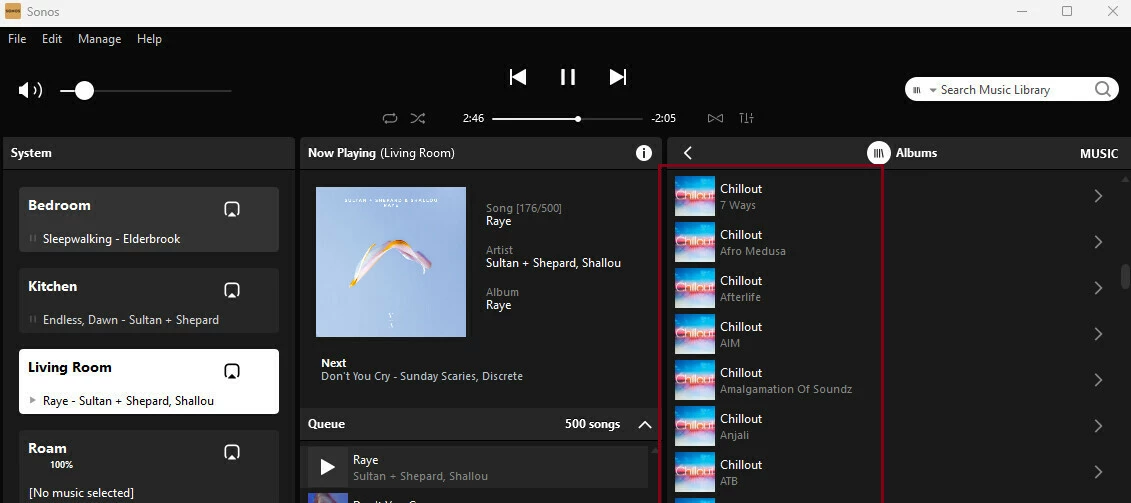
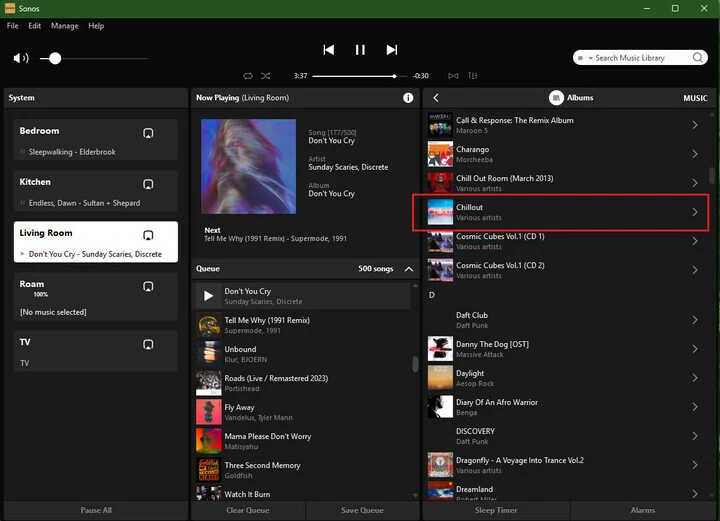
As you can see on the left of the Desktop App’s screen, I have multiple entries for the album “Chillout”:
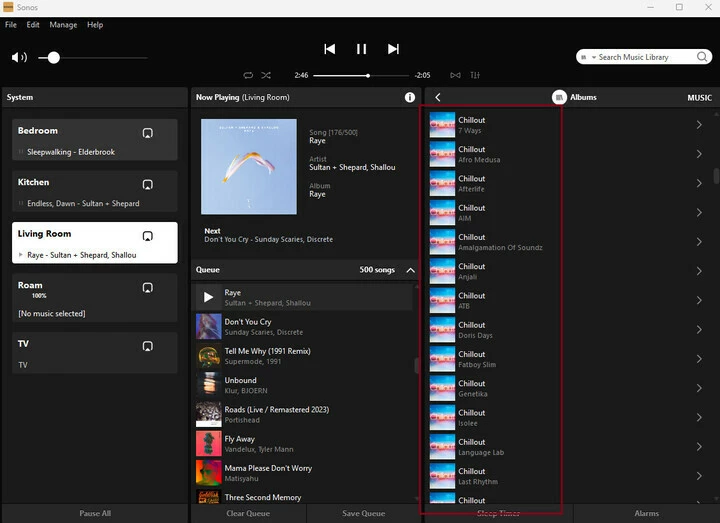
If I click on each entry, I see a different track in each.
The Solution
To resolve this issue, I used free software called MediaMonkey, available for download at www.mediamonkey.com. There is a paid version available, but I did not need it for this task. As I mentioned, you can likely fix this issue using alternate software (WinAmp being one), but MediaMonkey certainly made it easy for me, once I knew what to do.
After installing the software, you will need to point it to the same location that the Sonos Music Library is pointing to. Go to File >> Add/Rescan files to the library. In the pop-up box, select Add Location and browse to your music folder. Then click Scan Now to start scanning. This may take some time, depending on the size of your collection.
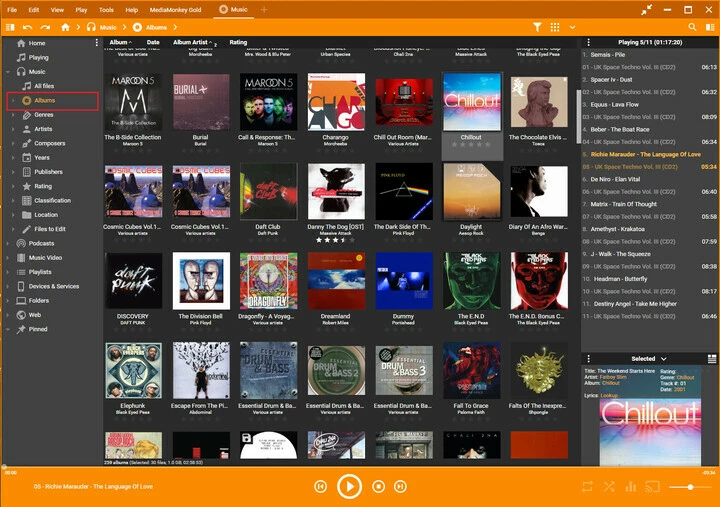
At the side bar, click on Albums so you see the following screen:
Find the problem album and click on it to see this screen:
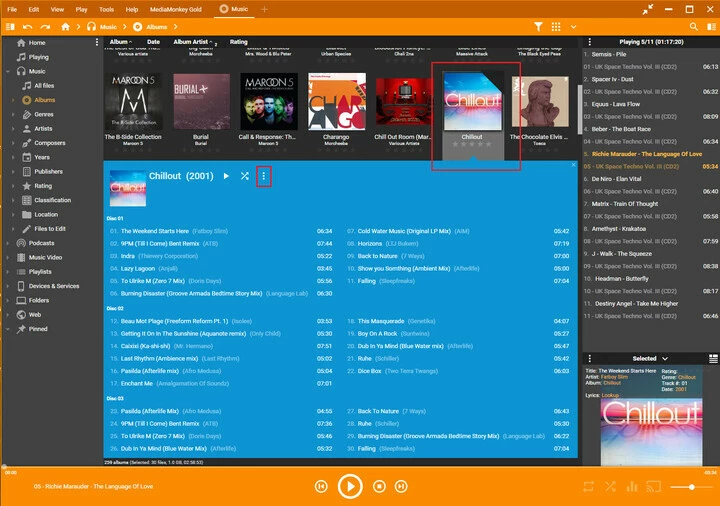
Next, click on the ellipsis menu button next to the Album name and choose Properties, as shown:
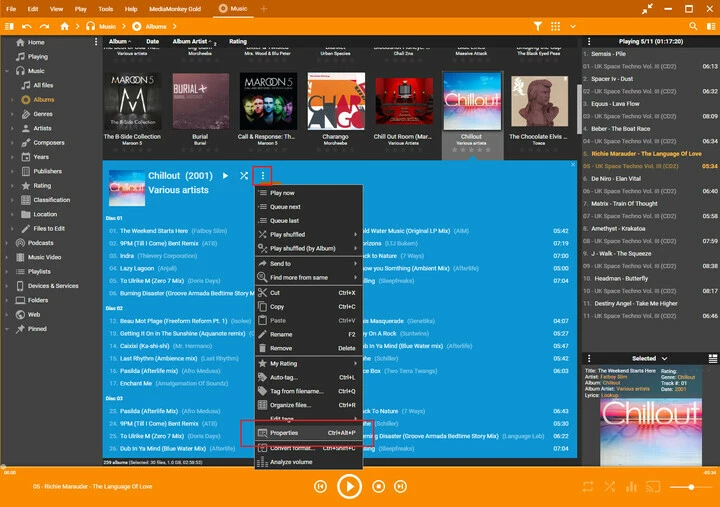
In the resulting pop-up window, you will see a screen like this:
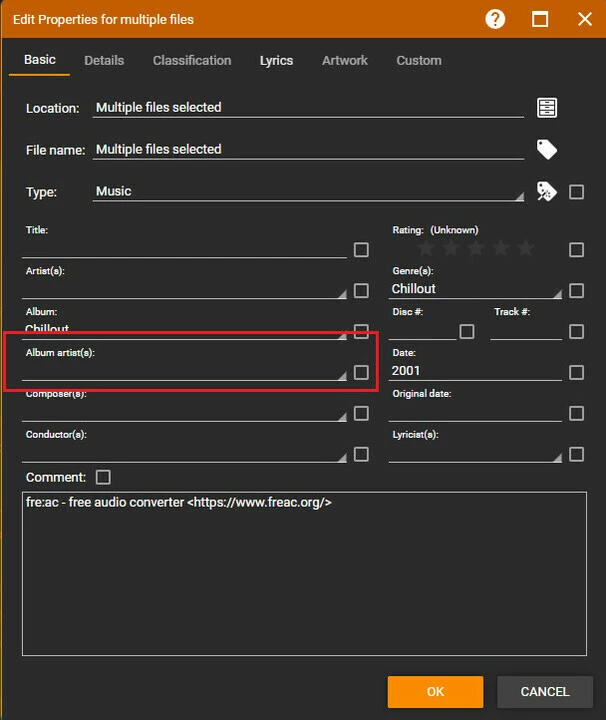
Note that the Album Artist tag is empty - this means Sonos does not index the album as being one entity.
To change this, we want to enter “Various Artists” into the Album Artist tag (this will make the check mark next to it get filled in, meaning an action will be taken, then click on OK:
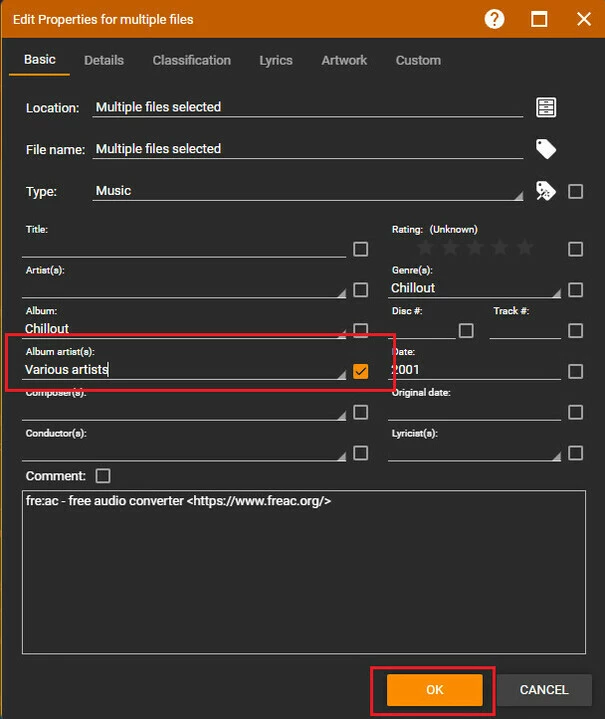
The pop-up window will disappear, and you will see a progress wheel spin in the orange bar to the top right of the screen. Once this disappears, the files have been updated.

With the files updated, we now want to tell the Sonos system to reindex.
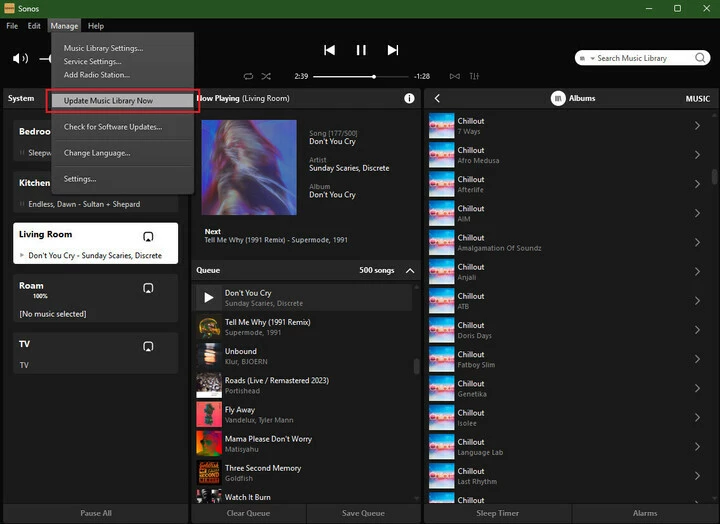
Once done, the “Chillout” album only has one entry in the Album listing:
Problem solved!
The Additional Issue
As you can see, I also have a duplicate of the Cold Play album, “Left Right Left Right Left”.
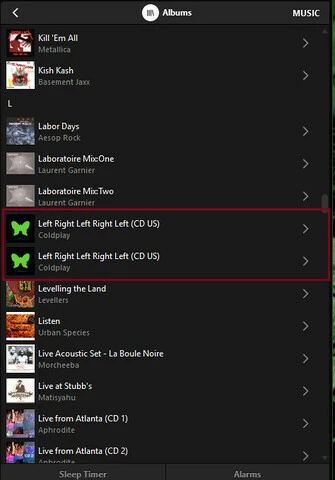
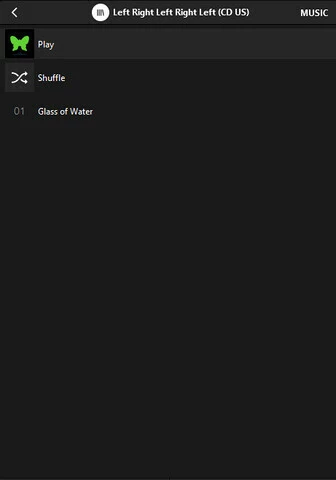
The part I didn’t quite understand is why if I click on either entry, I only see a single track (the same track being in each entry and the other tracks are completely missing):
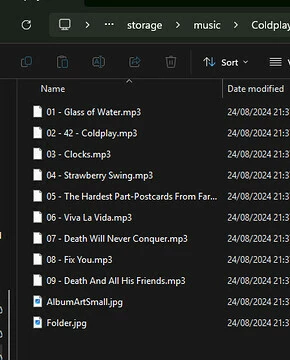
Though, as you can see, I do have more tracks than that:
The Additional Solution
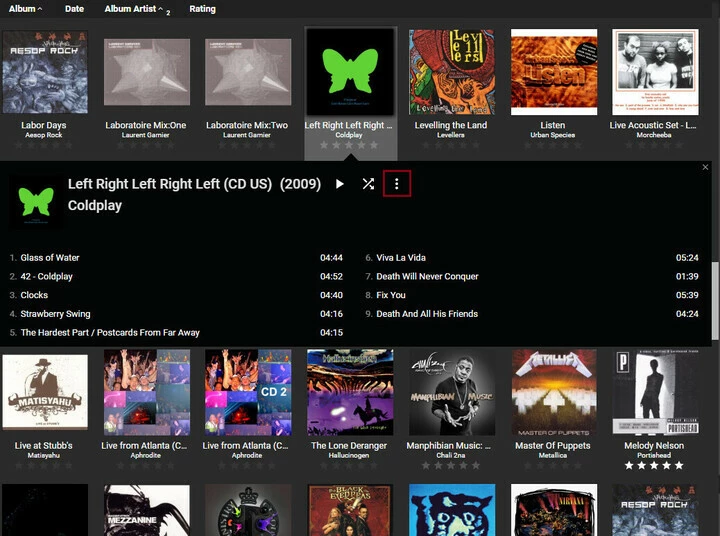
I again selected the problem Album:
Then clicked on the ellipsis menu and selected Properties.
In this case, I do not want to put “Various Artists” into the Album Artist tag, but I do want “Coldplay”. This data was already there, however.
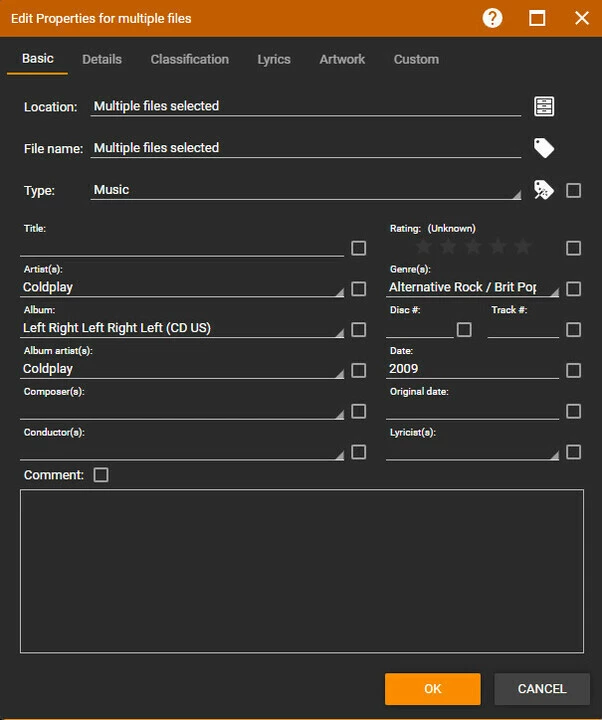
What threw me at this point, however, is the fact that MediaMonkey does not indicate that the tracks have different Album Artist tags (MediaMonkey will only show an entry if all tracks have the same data). So, why is it not being displayed properly in Sonos?
To force the tracks to all have the same entry, all you need to do is click the checkbox next to Album Title, then click on OK:
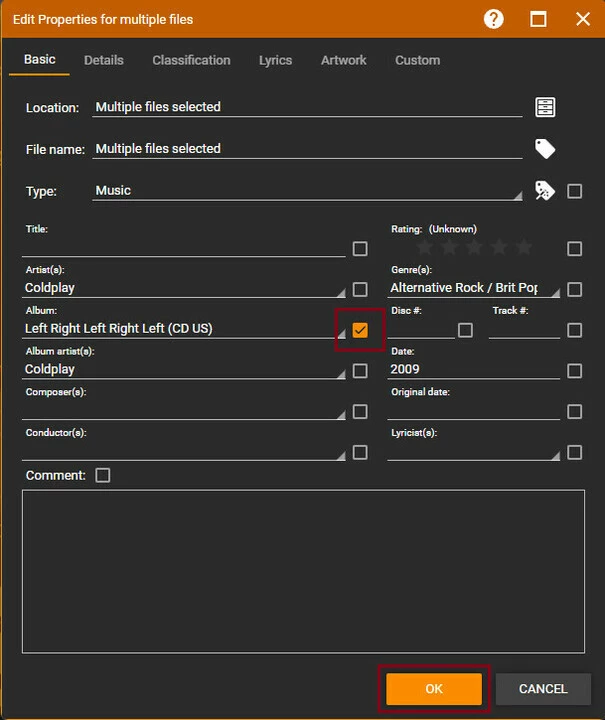
I’m not sure why it did not indicate differences, but this seems action to force the change to be made anyway, and it worked with the two previous albums I found issue with, before I started documenting everything.
You’ll see a progress indicator in the top right of the main screen:

When that goes away, the files have been updated. There is also a progress bar at the bottom.
Once the files have been updated, you can then go back to the Sonos app and reindex (Manage >> Update Music Library Now on the desktop app, or Settings >> Music Library >> Scan for New Content on the mobile apps), as before.
These steps worked for the previous two albums I fixed (not the Chillout example above which I had to synthesise so I could properly document the process), but not for this Coldplay album, for some reason.
What worked for me in the end was removing the Music Library path, then adding it back on again. It seems the Music Library database had gotten corrupted and only the removal of it and the subsequent rebuilding of the database from scratch fixed the issue. So, if you see an issue similar to mine and fixing the metadata does not seem to resolve it, I recommend you do as I did and force the database to rebuild from scratch by removing the folder from Music Library settings, then adding it again:
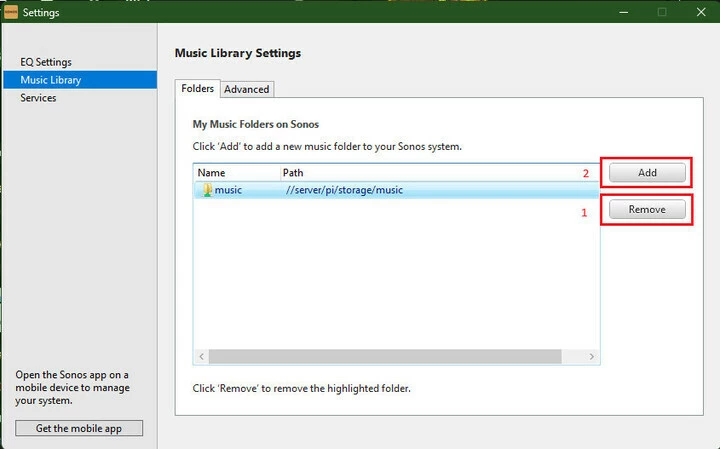
Be sure to take note of the existing path, then select it and click Remove.
Next, click Add to re-add it.
Note that on MacOS, these will be shown with -/+ rather than Remove/Add.
Next, be sure to select the third option (NAS):
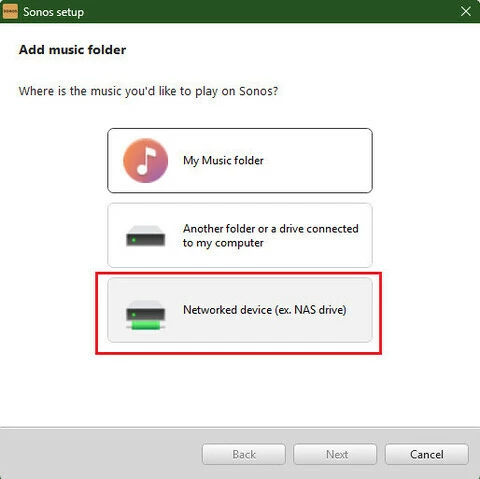
And enter the same path you took note of earlier:
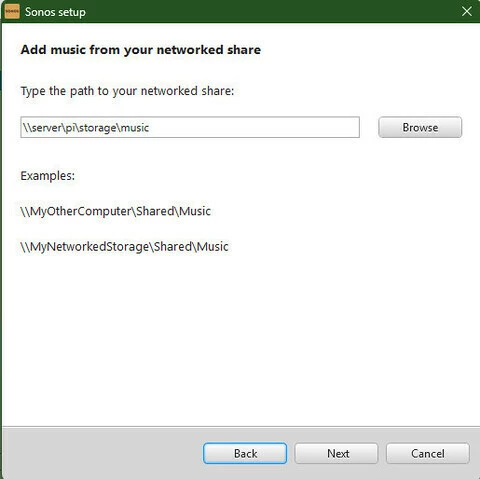
You will also need the username and password for the network share at this stage.
With the indexing completed, I at last saw the Album only had one entry (I also took the opportunity to correct the formatting of the album title to “LeftRightLeftRightLeft”, as shown):
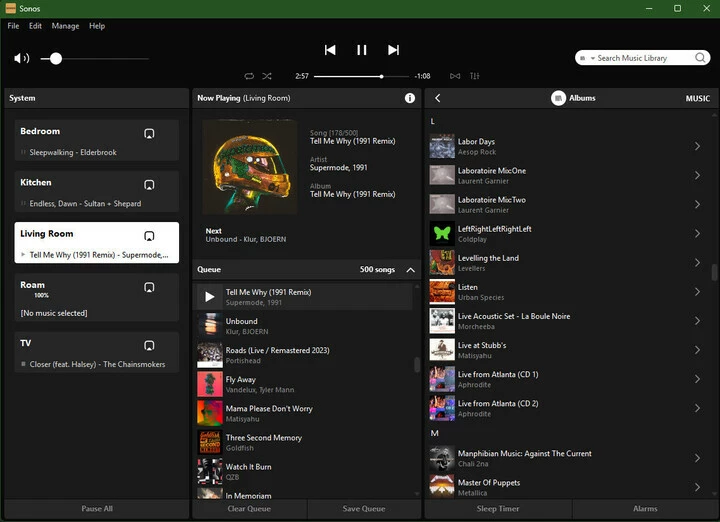
Problem solved!
I hope this helps.