

Troubleshooting Sonos on WiFi
Moderator note: This article was updated in December 2024.
Hi Folks,
I’ll share some general advice about how Sonos products connect to your network, and the kind of network problems that can result in dropping rooms, to help you understand and solve some challenges with your Sonos system.
Updated 19/4/24
2.4 & 5GHz bands (and WiFi 6)
A few older Sonos devices will only connect to the 2.4GHz band, whereas most will connect to the 5GHz band broadcasted from your router. A full list of which devices will connect to 5GHz can be found here on our Supported WiFi modes and security standards for Sonos products page, under “Products that can connect to 5GHz WiFi networks”. Arc Ultra, Era 100, Era 300, Move 2 and Sub 4 will connect to 802.11ax (WiFi 6) or 802.11ac (WiFi 5).
Home Theatre products other than Arc Ultra will not connect to 5GHz, as the 5GHz radio is reserved for talking to the surrounds and Sub(s). Arc Ultra has an extra radio.
Sonos will perform best on 5GHz as it is faster, has lower latency and has less congestion. 2.4GHz still has it’s advantages, however, as physics dictates that it has a better range and a stronger solid-matter penetration ability (it gets through walls, ceilings and furniture easier), so do not be too concerned if your router informs you that your Sonos device is utilising it. Due to the amount of varied use of 2.4GHz, it can be important to ensure that you do not use channels that overlap with other nearby sources (1, 6 & 11 are the only channels that do not overlap - it’s best to stick with these).
Although we used to recommend splitting the bands on your router so that they had different credentials, we now recommend letting the router do it’s work with band steering - this way, one set of credentials can get all your devices connected to the best band for them (this will vary with model and location/reception). If in doubt, please get in touch with our technical support team.
Mesh Networks
If you have a mesh WiFi system to extend the range of your WiFi, and your original router is still present, you must either:
- Configure your router to act as a modem only. Some have a specific option for this (like Virgin Media in the UK), but on most router’s you’d need to disable the DHCP server. If you still need to use the WiFi coming from your router, or if you connect devices via ethernet to it, this is not an option. Doing this will allow you to use the usually more advanced routing features on your mesh (as compared to those on a free, ISP-provided router).
or - Configure your mesh system to be in ‘Bridge/AP mode’ - otherwise it acts as a router and you now have two logical networks running on one hardware layer (this is commonly referred to as Dual DHCP). To find out how to do this, perform an internet search for “[name of your mesh system] mesh bridge mode”. I’ve listed a few common ones here:
Netgear Orbi mesh: https://kb.netgear.com/31218/How-do-I-configure-my-Orbi-router-to-act-as-an-access-point
Linksys Velop mesh: https://www.linksys.com/us/support-article?articleNum=243548
Tenda mesh: https://www.tendacn.com/faq/3123.html
Eero mesh: https://support.eero.com/hc/en-us/articles/208276903-How-do-I-bridge-my-eeros-
Google mesh: https://support.google.com/wifi/answer/6240987 - In my experience Google mesh systems can be difficult about going into Bridge mode. Please contact Google if you have trouble with this.
Extenders / Boosters / Powerline adapters / Sky Q
Another challenge, with networking and Sonos, is WiFi boosters and extenders. Sonos does not support these as they halve your available bandwidth (due to being half-duplex) and often block multicast transmissions which gets in the way of the Sonos system from operating smoothly.
Powerline line adaptors can also induce additional issues as they are subject to noise present on your mains power supply (‘noise’ is created by some LED dimmers, for example).
In the UK, Sky Q boxes can be a challenge with Sonos, as they repeat the WiFi from a Sky router (but not from other routers). If a speaker connects to one of these (common with Sonos Home Theatre products) it can result in the speaker being missing from the Sonos app. One option would be to use SonosNet by connecting one or more Sonos devices (not Era - Era does not use or create SonosNet) to the network with an ethernet cable. For other options, I recommend contacting our technical support team.
Sonos and Ethernet
To bypass some WiFi configuration issues, you can connect any one (or more) Sonos devices to the network with an ethernet cable (Sonos Move & Roam excluded). Wired Sonos products (other than Era models) will transmit a ‘Sonos only WiFi’ for use by your other Sonos devices (Sonos Move, Roam & Era excluded). This all happens automatically, but sometimes your speakers need a power cycle (unplug them from the wall socket, and plug them back in again after 30 seconds) to help them along. Wiring Sonos will not resolve anything if you have two routers on your network (as described in the Meshes section). Each Sonos player that picks up the ‘Sonos only WiFi’ from the wired Sonos speaker will rebroadcast it, thus extending the range for speakers out of range of the wired one(s).
When you wire a Sonos product, you go from a configuration like this:
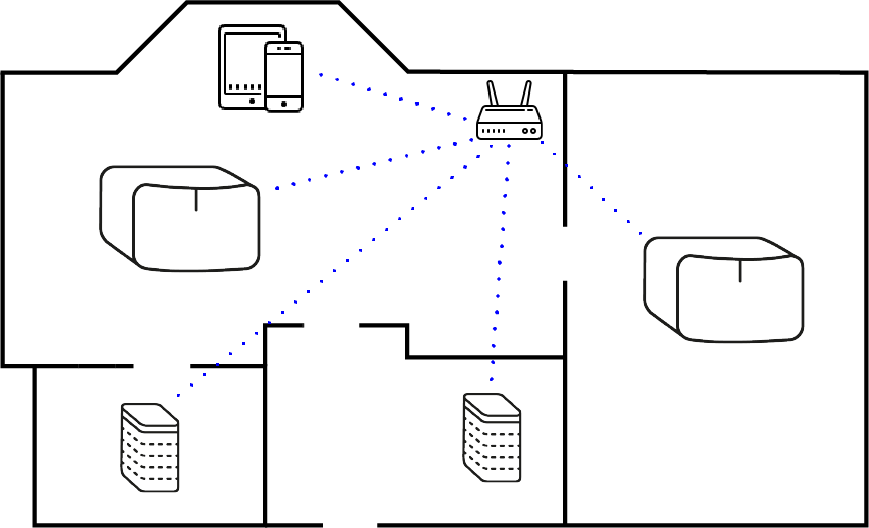
to one like this:
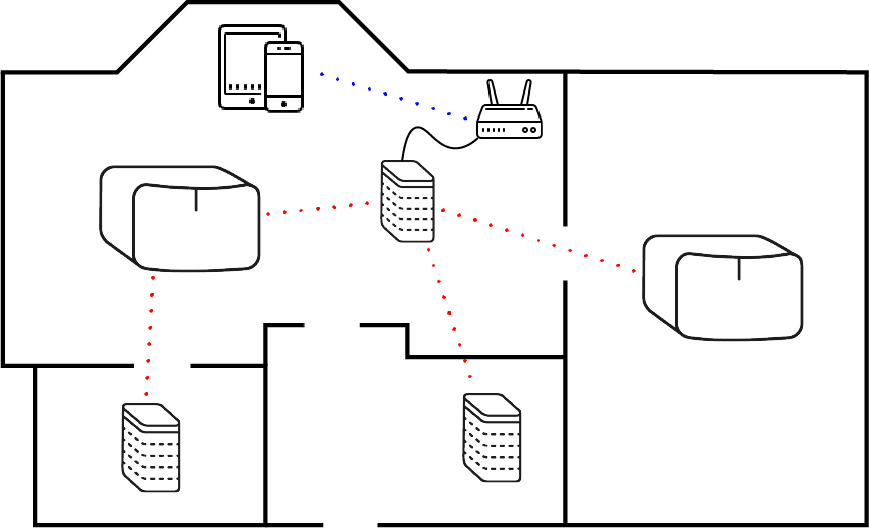
It is worth pointing out, however, that the bandwidth available on 2.4GHz (which SonosNet uses) is limited. If you’re going to group a lot of rooms together, we recommend having one wired unit for every 5 non-wired units, and these wired units would ideally be evenly distributed in your home.
As long as you have good WiFi coverage, your router’s WiFi will often be a better option. As became evident with the release of the Era speakers, we are now moving away from SonosNet which was only really needed back when routers were not the more capable devices that they are today.
WiFi Noise / WiFi interference
Sometimes it’s just not a network configuration issue. All WiFi devices (not just Sonos) like to have at least 1 meter / 3 feet of space from all other WiFi devices (and devices that are not on your WiFi but may use similar frequencies). In my experience, one of the most common solutions to a ‘WiFi problem’ has been to physically move a speaker/Boost/Bridge farther away from the router it’s wired to. A common misconception is that the closer the device is to the WiFi broadcasting unit the better - this is not the case. Sometimes speakers are kept very close the router, but this is far from ideal - these devices should not be located less than 1m apart from each other. We have a helpful guide on reducing wireless interference. Close by glass or metal surfaces can reflect WiFi back at a device and also create interference.
Interference is, I would say, the biggest cause of problems, like dropped rooms, or music interruptions, for Sonos users.
Many non-WiFi devices will use 2.4GHz - mobile/cellular telephones, baby monitors, smart meters, CCTV cameras, DECT phones, microwave ovens - the list goes on. This is another reason why 5GHz can be a better choice for your Sonos system to connect to - less congestion, more channels, more bandwidth, better experience.
Home Theatre
As mentioned above, Home Theatre Primary devices (like Ray, Beam or Arc, but not Arc Ultra) will only connect to 2.4GHz WiFi or SonosNet. However, their surround speakers and Sub(s)/Sub Mini will connect directly to the HT Primary over a dedicated, low latency 5GHz channel. So, if you ever experience audio interruptions on your surrounds or Sub, keep in mind that the cause could be interference near the HT Primary just as much as it could be interference near the surrounds/Sub.
Audio interruptions of TV audio heard on the Home Theatre Primary itself have nothing to do with interference or networking - this is most commonly fixed by forcing the TV’s software to restart by unplugging the TV for a couple of minutes.
Network Configuration (IP Reservation and IGMP Filtering)
Sonos needs no more from your network than many other devices, but it can often help to reserve IP addresses for the devices that commonly connect to your network, including Sonos.
Normally, connecting devices send out a broadcast asking to be assigned a unique IP address so that they can be found and recognised on the network. If, for whatever reason, the router loses track of which clients have which addresses (if it reboots but the devices keep their IP, for example) it can start distributing out IP addresses that are already in use. This can result in the Sonos app asking a particular speaker (by it’s IP) if it is still online and ready to operate, but because the speaker is in fact a smart refrigerator, it doesn’t reply, resulting in a room dropping from the Sonos app.
To combat this, reserve IP addresses in your router’s settings pages for all the devices that commonly connect. This will greatly reduce the chance of such an occurrence, and has often been the answer to many user’s woes.
How to do this exactly will depend on your router, but the option is typically found in the Network or DHCP section of the settings. If your router has a Basic/Advanced settings division, this will most likely be in Advanced. Please consult your router’s manual. For a typical installation, your router’s own IP address will be, for example, 192.168.0.1, 192.168.1.1 or 10.0.0.1 (though other addresses are possible and common). The “DHCP pool” will be a range of addresses that the router will distribute to client devices using DHCP, which will often range from 2 to 254 on the last number of the address. It’s easiest to reserve for a device the IP address that it already has, but you can set the numbers to be sequential if you like. Reserved IPs should be within the DHCP pool range, but some routers may allow them to be outside.
After making any such changes, it’s a good idea to reboot the router and the devices that connect to it, but from then on things should be pretty stable.
You may have heard of Static IPs. Static IP addresses are different - they require that the client device has it’s DHCP disabled and is manually configured to forcibly take an IP address from outside of the DHCP pool, without asking the router to decide which address it should be. Sonos devices cannot be configured to use Static IPs.
Not all routers have IGMP Snooping/Filtering, but if yours does, it’s a good idea to turn it on. This feature prevents multicast (more than one destination) data packets on the network that are not destined for Sonos devices from clogging up your speakers’ network input buffer with data it doesn’t want. IGMP-capable network switches can also be bought cheaply, but will only help a Sonos system using SonosNet, and should be fitted between the router and any Sonos devices wired to it.
Controllers
It may be that you cannot connect to Sonos not because your Sonos system is having trouble connecting to the network, but because the device you’re running the Sonos app on is unable to communicate with the System (or parts of it).
Although this can be caused by a few things, the most likely are the following:
- Multiple Access Points - WiFi boosters and Extenders tend not to work very well. Often, you can only connect to rooms that also connect to the same extender your phone is on, or can’t connect to them because your phone is on the main router’s WiFi. We don’t support the use of these products for this reason. Mesh systems are not affected by this. In the UK, Sky Q boxes repeat WiFi from Sky routers in this way.
- Guest WiFi - You cannot run Sonos on a Guest WiFi, nor can the Sonos app connect to a Sonos system if the controller is connected to a Guest WiFi.
- On iOS devices - make sure you give the Sonos app permission to access devices on the Local Network (more info on our Sonos app permissions help page)
- On iOS devices - make to to disable Private Address in the iOS connection options for your WiFi network.
Help
Sometimes, no matter how much you know, the speakers themselves have to be ‘consulted’ as to what is going wrong before you will find a resolution. In such situations, the only solution is to get in touch with our technical support team who can receive your Sonos system diagnostics which will tell the agent all about what your system has experienced. If you’re going to call/chat with our tech agents, please try to recreate the issue you are experiencing just before getting in touch, if you can, and try not to reboot any players - reboots clear the system logs and as a result the diagnostics contain less information.
I hope this helps you to understand a bit of what’s going on when no steps taken seem to be working for you. As always, we’re more than happy to assist with getting your Sonos system stable, so please either get in touch with our tech support if nothing works, or write here on the community if you need more guidance.
Edit: Updated to include additional mesh options, Roam and some other details.
Edit: Updated to include iPhone Local Network and Private Addresses options as they can affect connecting to Sonos
21/4/23 Edit: Changed some advice regarding WiFi bands to reflect software improvements, added Network Configuration and Home Theatre advice
19/4/24 Edit: Clarified some IP reservation details, added brief Static IP explanation.
16/12/24 Edit: Added that Arc Ultra will connect to 5GHz