

💡Now available: Sonos Voice Control for Lutron 💡
Starting today, we’re excited to announce that Sonos Voice Control (SVC) can be used to control your Lutron lights, dimmers, and shades from the convenience of your couch.
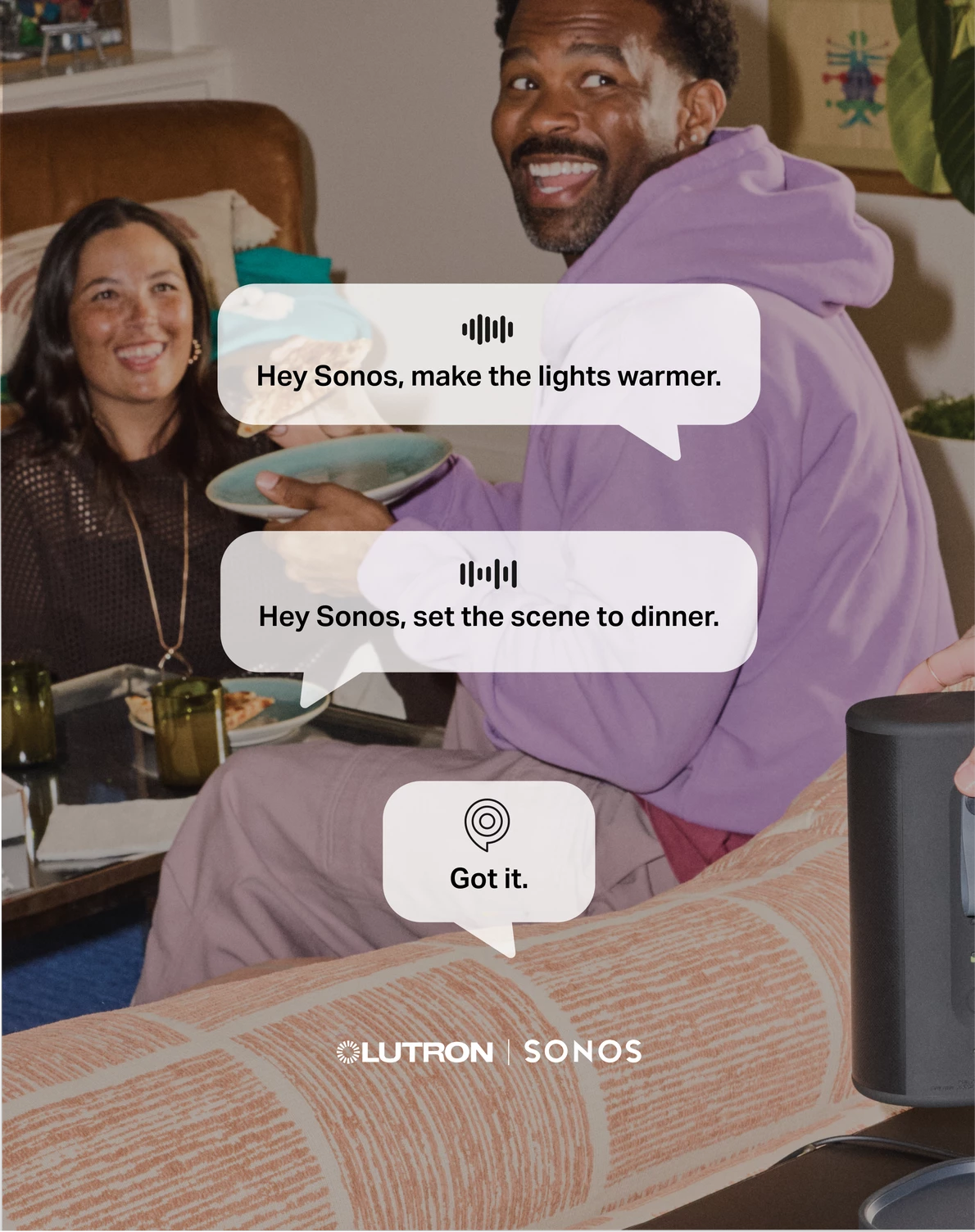
What You’ll Need
- a Sonos Account and a Lutron account
- a Sonos product with Sonos Voice Control enabled
- a Lutron Smart Hub (Bridge)
- Supported: RadioRa2 Select, RadioRa3, HomeWorks, and Caséta
- Not supported: RadioRA2, Vive and other Lutron systems
- one or more Lutron lights, dimmers, shades, or switches
- the latest updates (apps and firmware) for both Sonos and Lutron
Setup Process
- Make sure you’ve set up Sonos Voice Control if not already configured on the Sonos system.
- Open the Lutron app and tap Settings.
- Tap Integrations and select Sonos.
- Tap the Sign in to Sonos button and follow the in-app instructions.
- Once back in the Lutron app, enable Sonos Voice Control and tap Done.
- Tap Continue when prompted whether to approve Sonos to control Lutron devices.
Now you’re ready to control your Lutron products with SVC! Take a look at our Support article here for more info.
Available Voice Commands
Using simple voice commands with your compatible Sonos speakers, you’ll be able to:
- Turn on/off lights
- Change brightness
- Lower/raise shades
- Enable and disable scenes
- Check the status of a device (on or off)
You can find the full list of supported voice commands here. SVC for Lutron is available in English; French voice commands are not currently supported.
Other Details
SVC commands for controlling Lutron devices remain entirely on the local network, for fully local control. I haven’t tested this myself yet, but that means it should even continue to work during an internet outage (as long as the router/network is still working). Neat!
Some Lutron products and features, such as thermostats, are not currently supported.
A Sonos product that shares the same name with a Lutron Home Control room will be automatically mapped to control that room by default. You can manually assign a Home Control room to a Sonos product from the Lutron app.
Let us know in the comments below what you think! What features are you digging the most, which features you’re interested in for the future, and any other feedback - I’ll make sure to bring it back to the team for review.
Fiat lux! 💡