
Avid Contributor III
April 25, 2022
Answered

Too Many Music Sources

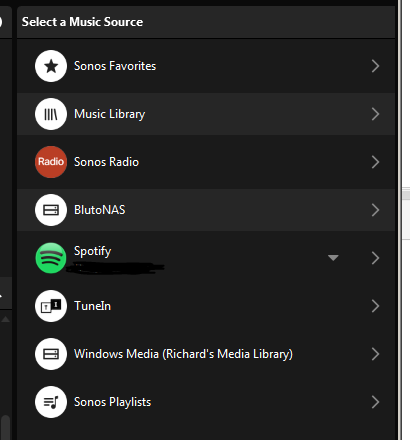
I have, somehow, created more music sources than I need. The image shows this. I only need the Music Library - that’s the one linked to my app. I need to get rid of BlustoNAS / Windows Media / Sonos Playlists. I can’t find a way to achieve this and would appreciate help please. Cheers all.
 

This topic has been closed for further comments. You can use the search bar to find a similar topic, or create a new one by clicking Create Topic at the top of the page.
John BAnswer
April 25, 2022

I may be completely off track here, but in Settings, System, Media Servers, do you have Show Media / UpnP Servers enabled?  What happens if you switch those off?

8 replies

John BAnswer
April 25, 2022

I may be completely off track here, but in Settings, System, Media Servers, do you have Show Media / UpnP Servers enabled?  What happens if you switch those off?

Avid Contributor III
April 26, 2022

Just to be clear. The image above is on my Win7 desktop. My MAC also see the same config. The mobile app does not see those other libraries.

On the mobie, UpnP was enabled. There was no change after turning that off.

Ken_Griffiths
April 26, 2022

Just to be clear. The image above is on my Win7 desktop. My MAC also see the same config. The mobile app does not see those other libraries.

On the mobie, UpnP was enabled. There was no change after turning that off.

Perhaps see if this link below assists you to remove some unnecessary services - you may also need to close and reopen the App after you have removed your services…

https://support.sonos.com/s/article/2853

Avid Contributor III
April 26, 2022

Thanks, but No.

It’s not Services I aim to remove but the added Libraries - as per the image. Specifically:

  1. BlutoNAS
  2. Windows Media
  3. Sonos Playlists
Ken_Griffiths
April 26, 2022

‘Windows Media’ and ‘BlutoNAS’ both normally disappear when you disable media servers in ‘Settings/System/Media Servers’ (on mobile device) but I understand you may have done that already? -

The ‘Sonos playlists’ can possibly be removed (I think, not sure🤔?) from the ‘My Sonos’ tab by selecting ‘Edit’ on the mobile controller App and going to playlists and removing any you may have saved there - I’m just not sure if the category will disappear when it’s made entirely empty, but worth a try.

controlav
Lead Maestro
April 26, 2022

‘Windows Media’ and ‘BlutoNAS’ both normally disappear when you disable media servers in ‘Settings/System/Media Servers’ (on mobile device) but I understand you may have done that already? -

The ‘Sonos playlists’ can possibly be removed (I think, not sure🤔?) from the ‘My Sonos’ tab by selecting ‘Edit’ on the mobile controller App and going to playlists and removing any you may have saved there - I’m just not sure if the category will disappear when it’s made entirely empty, but worth a try.

The Sonos Playlists root item will not vanish from the Desktop app if you delete every playlist.

The others are media servers so will go away once configured to do so.

Author of the leading independent Sonos apps for Android, MacOS, iOS, Windows and Xbox.
Avid Contributor III
April 27, 2022

disable media servers in ‘Settings/System/Media Servers’

====================================================

I had not done that. I did, and [1] BlutoNAS and [2] Windows Media dissapeared.

Thanks all


April 27, 2022

Isn't that what I suggested in the first reply to this thread?