I am very surprised that I can’t schedule an alarm with my radio or my music using my system, which consists of two Era 300 speakers. Moreover, I don’t see any option to adjust the balance between the two speakers. Did I miss something, or is the app stuck in the 1980s?
This topic has been closed for further comments. You can use the search bar to find a similar topic, or create a new one by clicking Create Topic at the top of the page.
Best answer by AjTrek1
There is no left/right balance for Era 300’s as they are Spatial Audio speakers. Everything is set by the App Tuning options.
The only speakers with left/right balance in stereo pair are those that are not Spatial Audio capable. *
Era 100’s
Five’s (and previous generations)
Sonos One’s (Gen 1 &2)
Play:1’s
Play:3’s
Move 2 and Move
Roam 2 and Roam
Sonos In-Wall/In Ceiling speakers by Sonance powered by a Sonos Amp
Certain Synfonisk speakers
* No Sonos soundbars have left/right balance
To set an Alarm
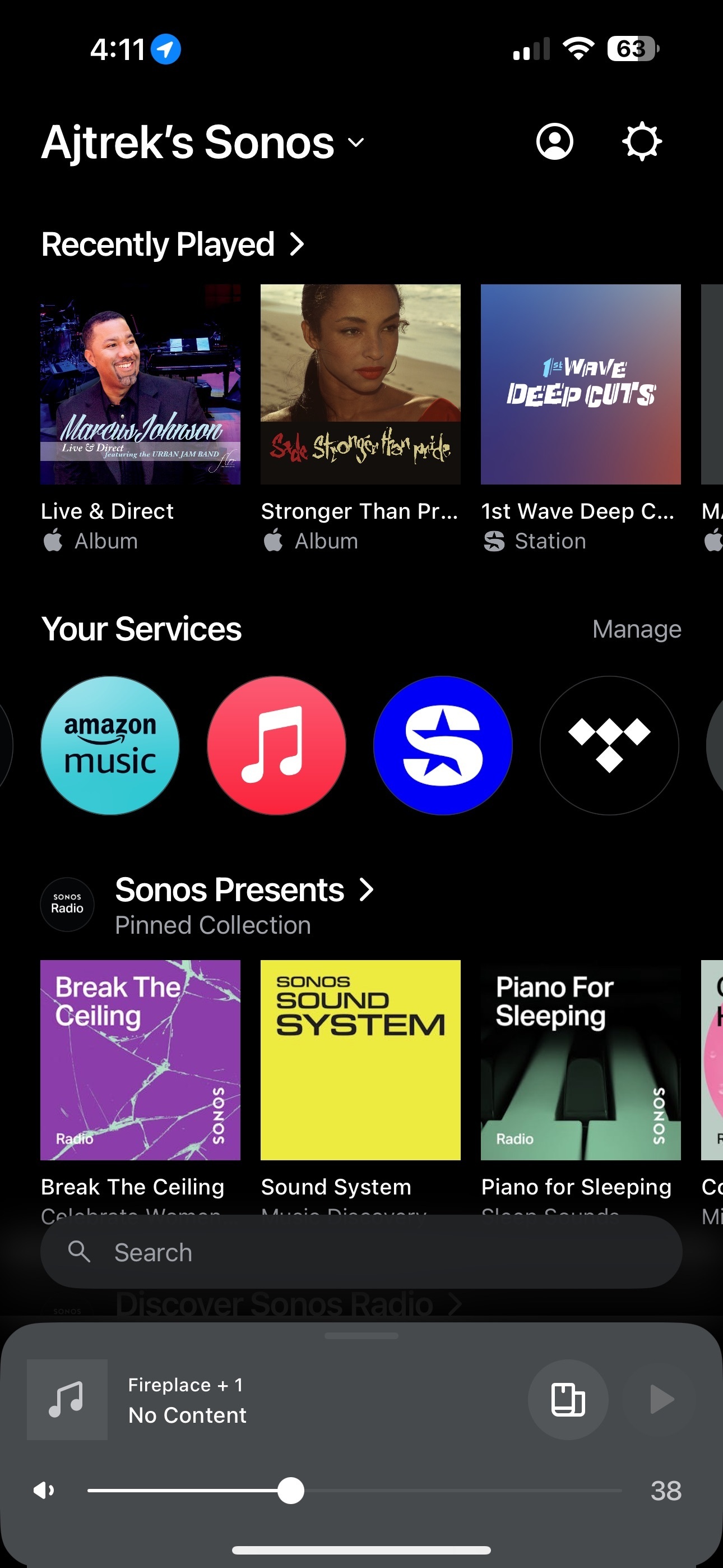
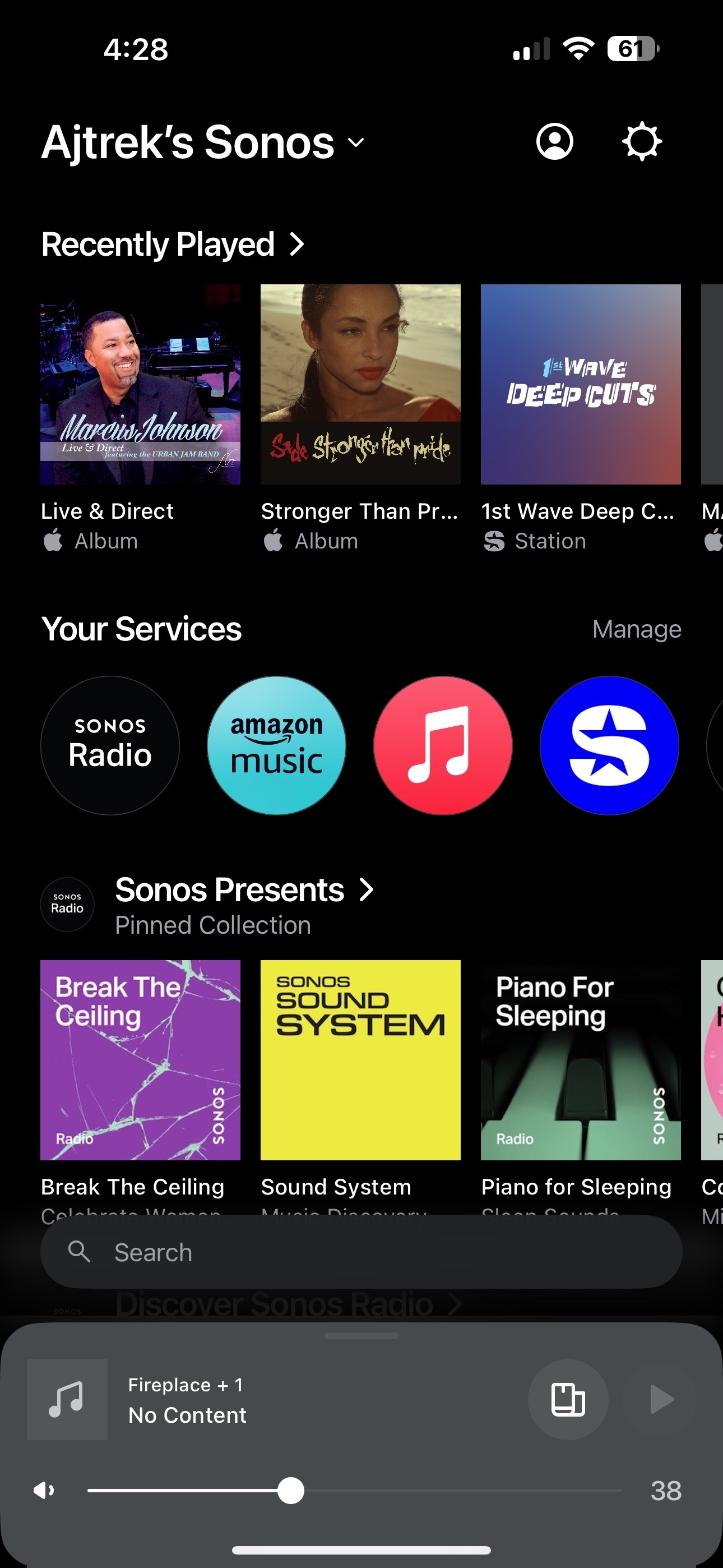
Pick an audio source under “Your Services”. We’ll use Amazon Music for this example.
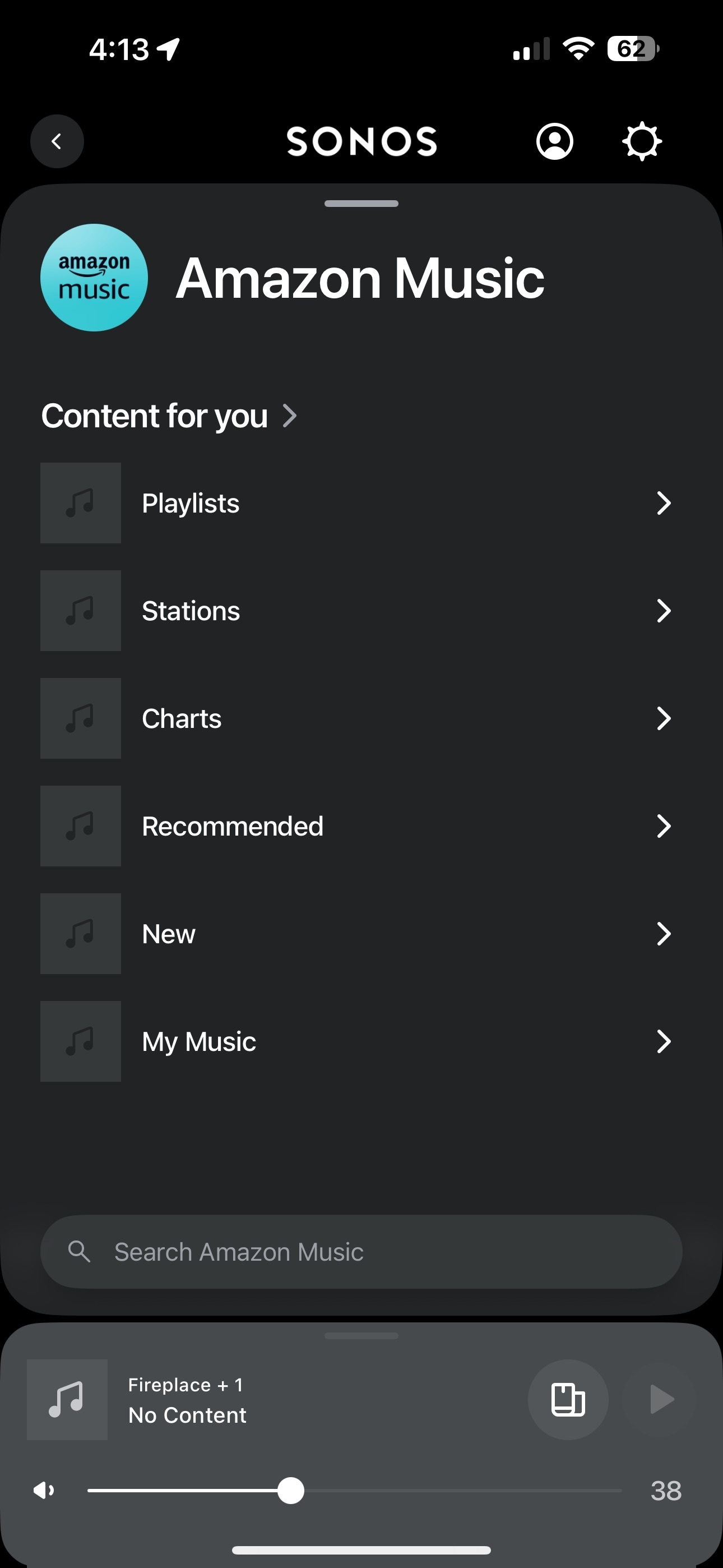
Select an Amazon Music content. We’ll use “Stations” for this example.
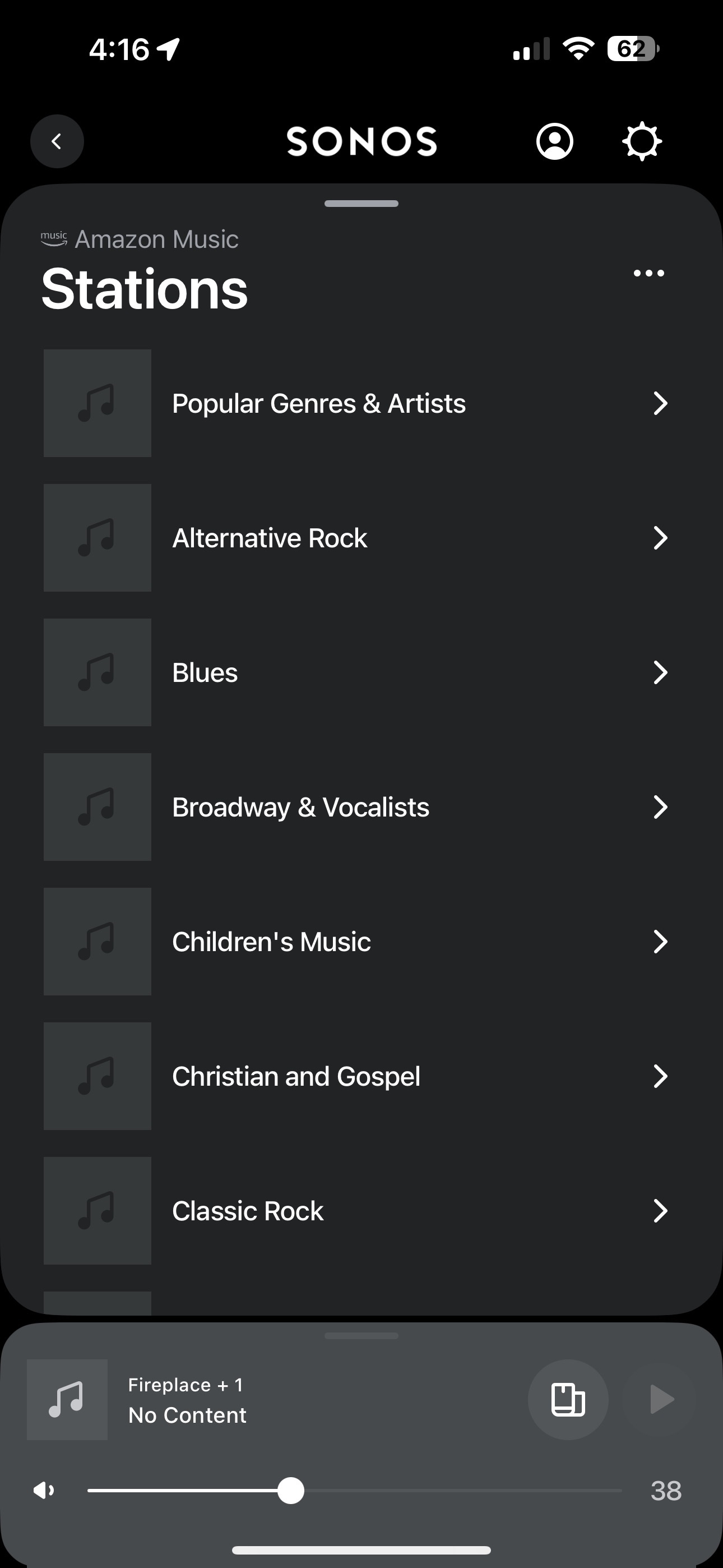
Select an Amazon Station. We’ll use “Alternative Rock” for this example
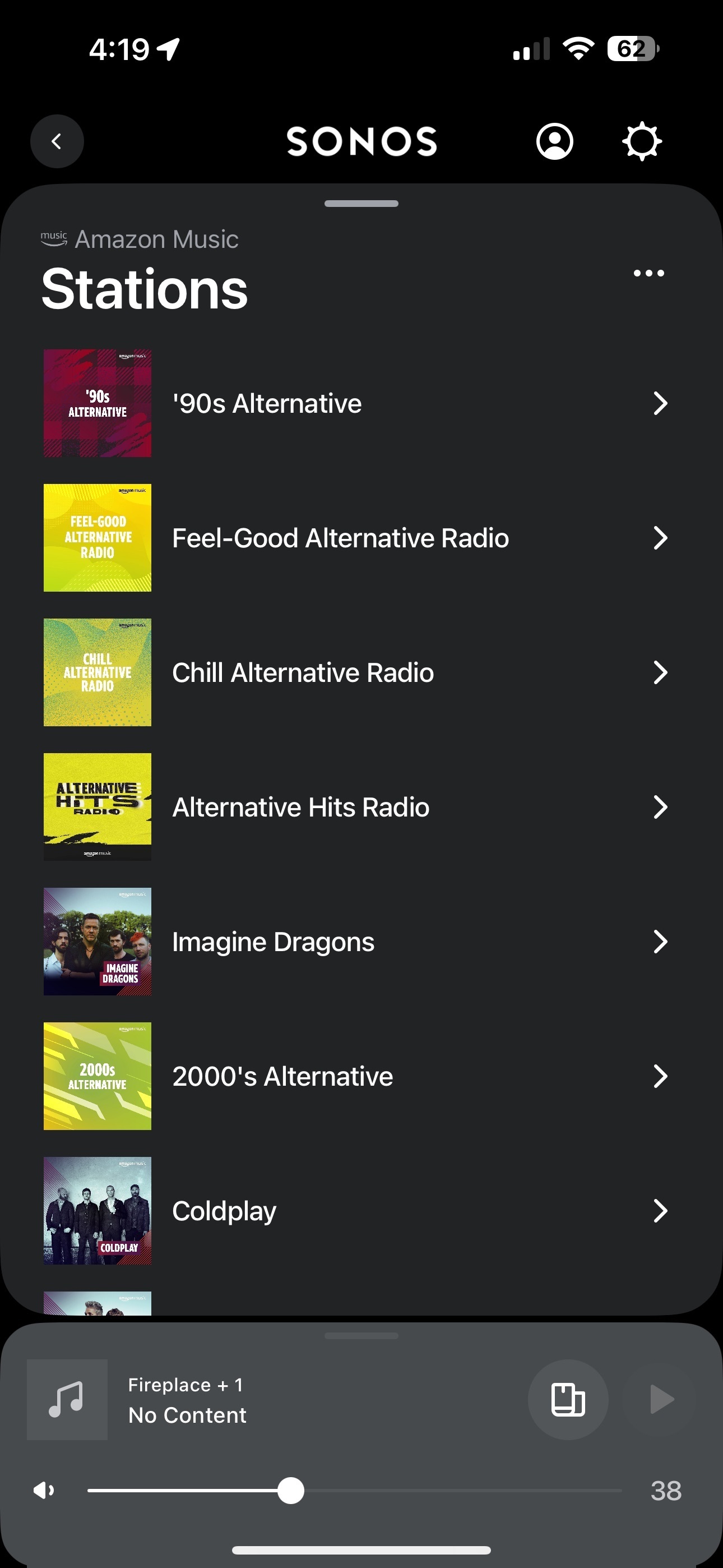
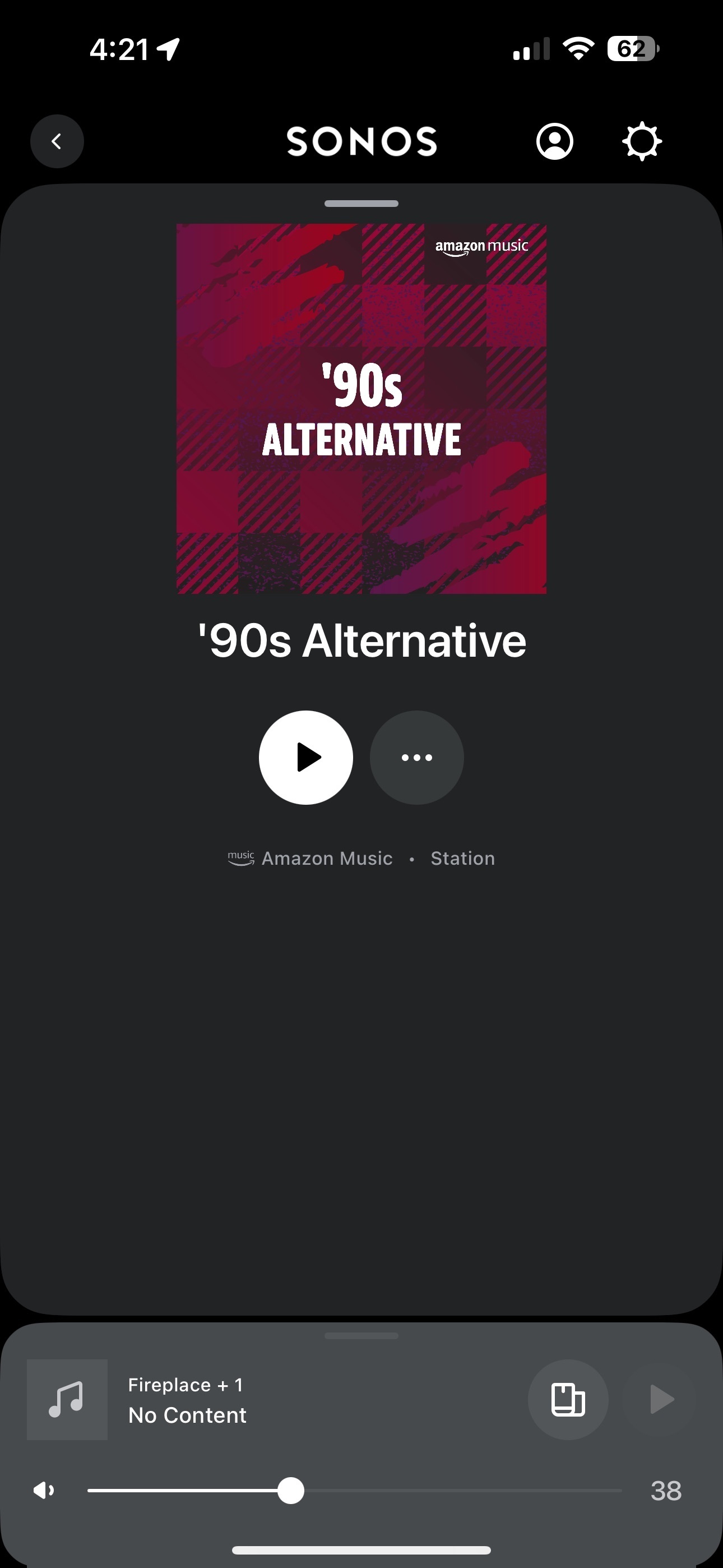
Select an “Alternative Rock” station. We’ll use “90’s Alternative” for this example
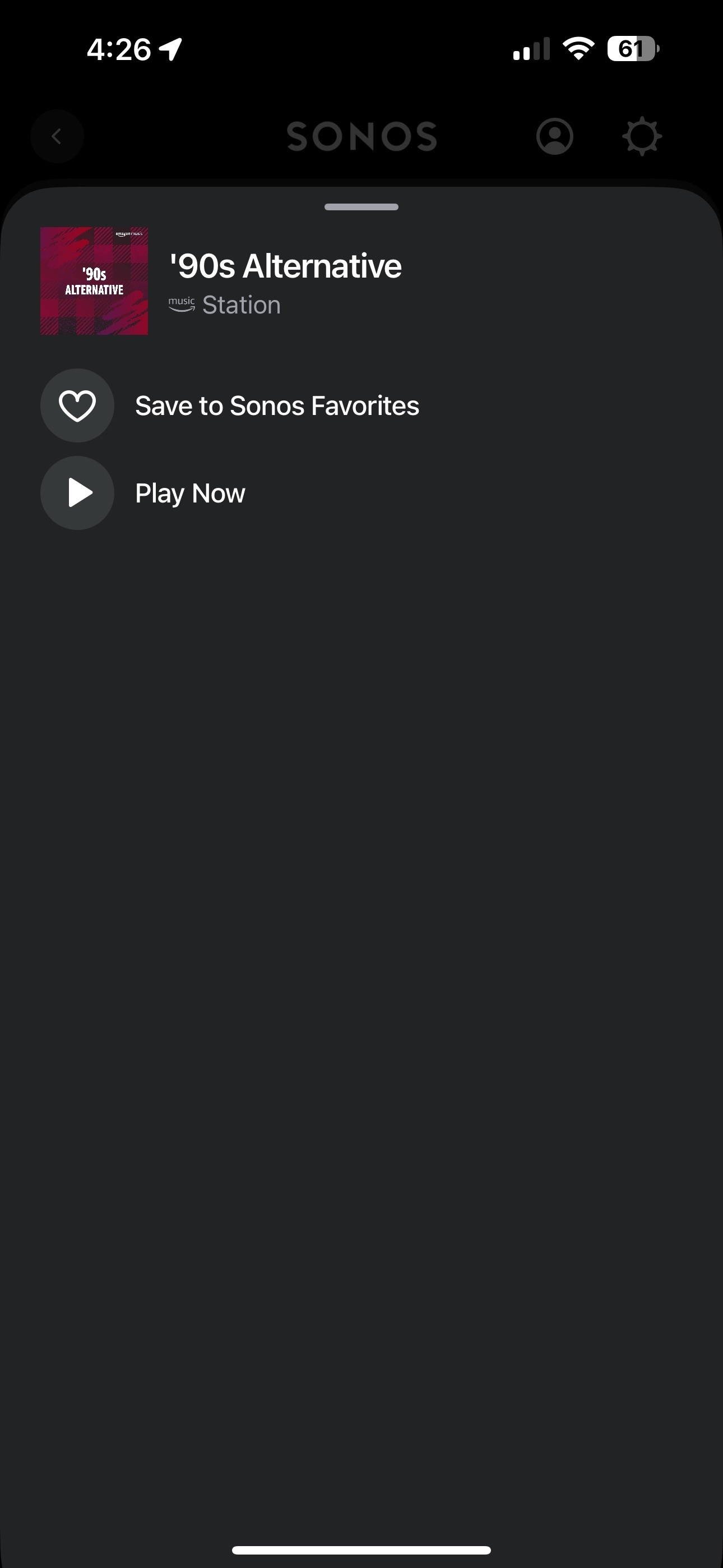
Click the three (3) dots … in the circle
Click the heart 💜 in the circle “Save to Sonos Favorites”
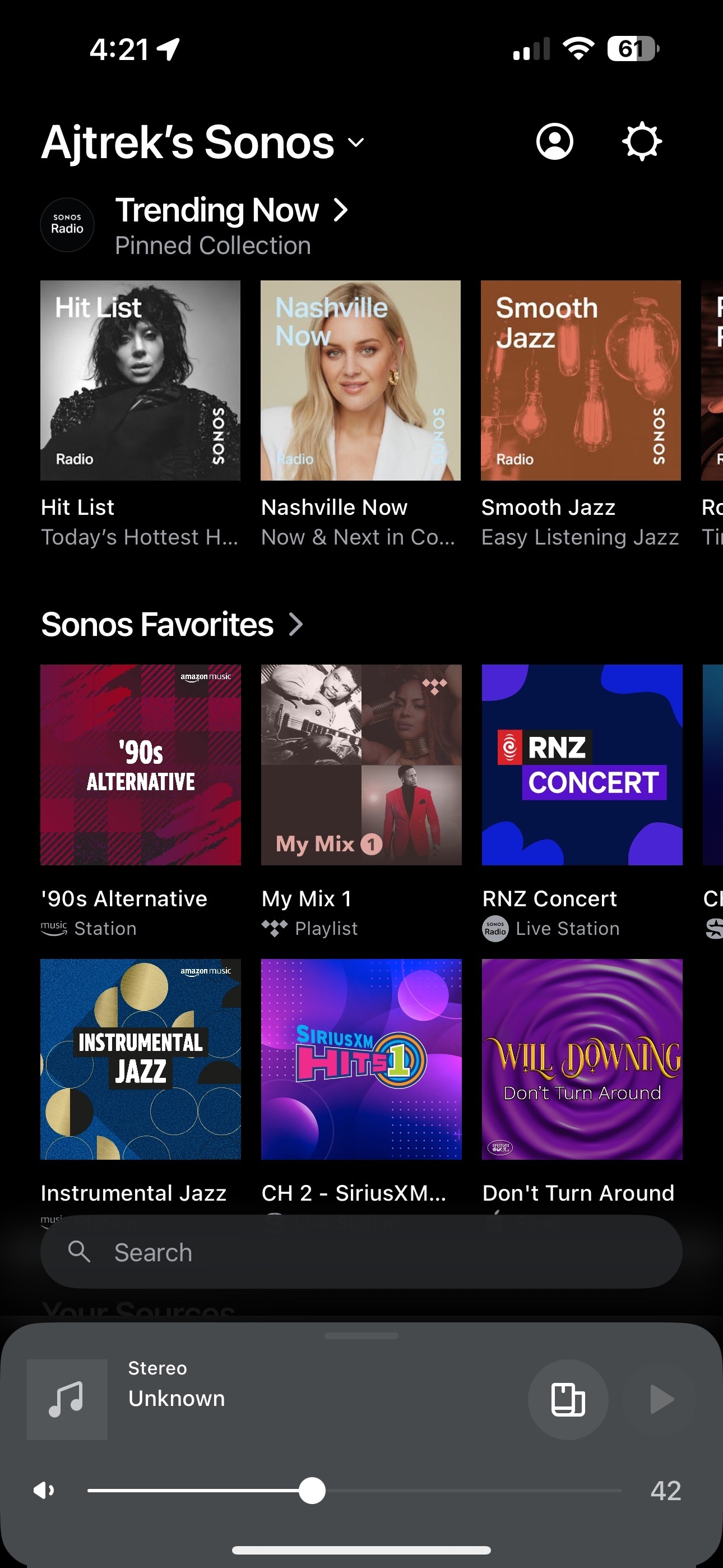
Go to Home Page on Sonos App. You’ll see your saved audio source under “Sonos Favorites” which in this example is 90’s Alternative.
Click the Cog Wheel ⚙ in upper Left corner of Sonos App
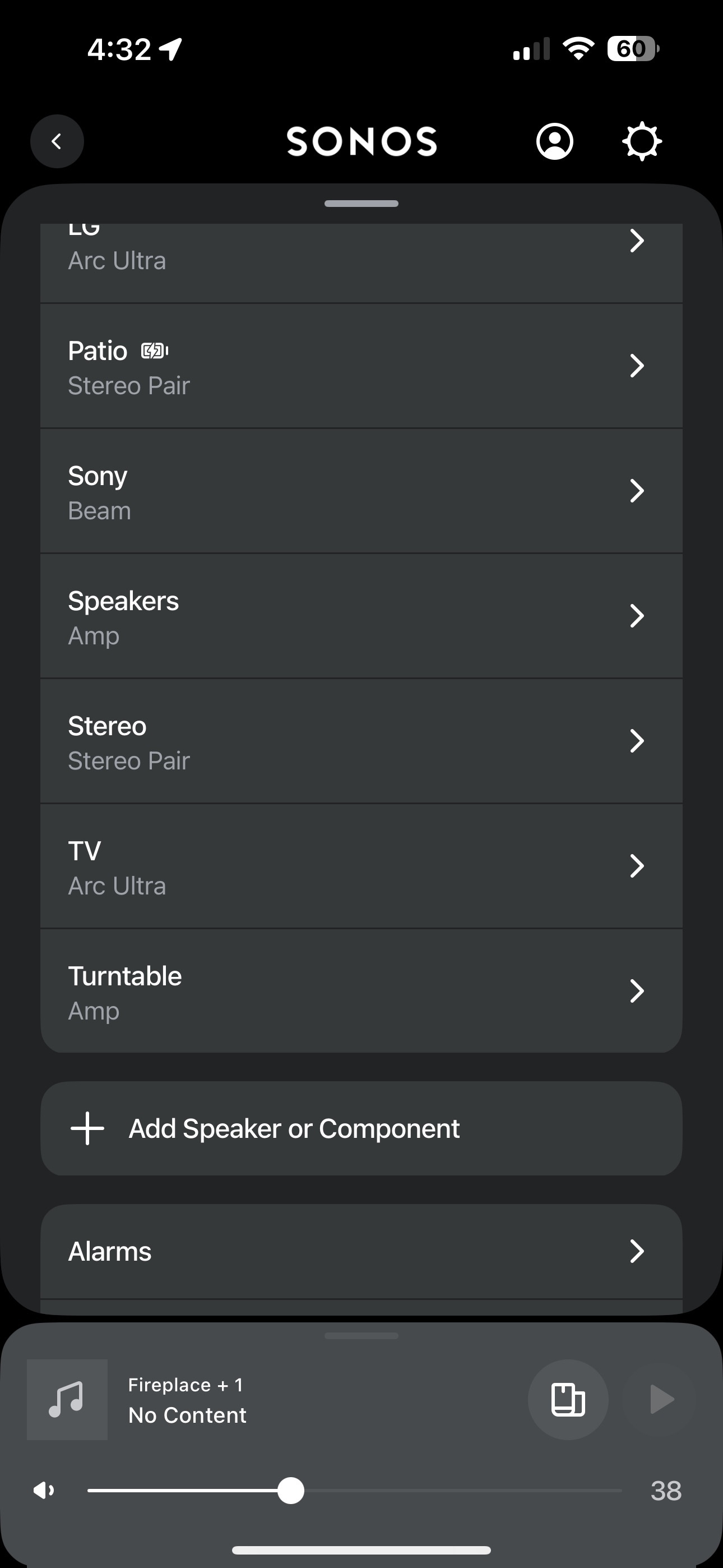
Scroll down to “Alarms”
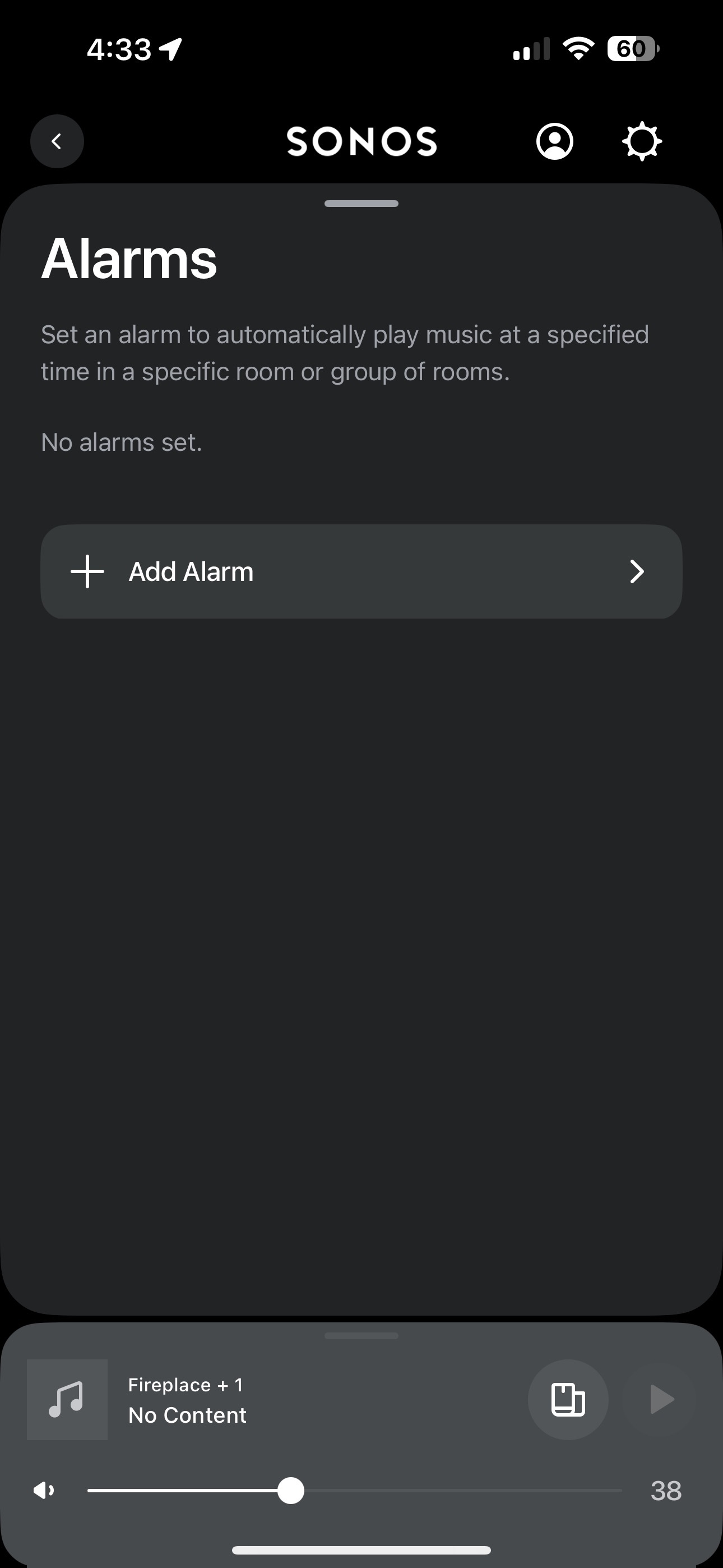
Select “+ Add Alarm”
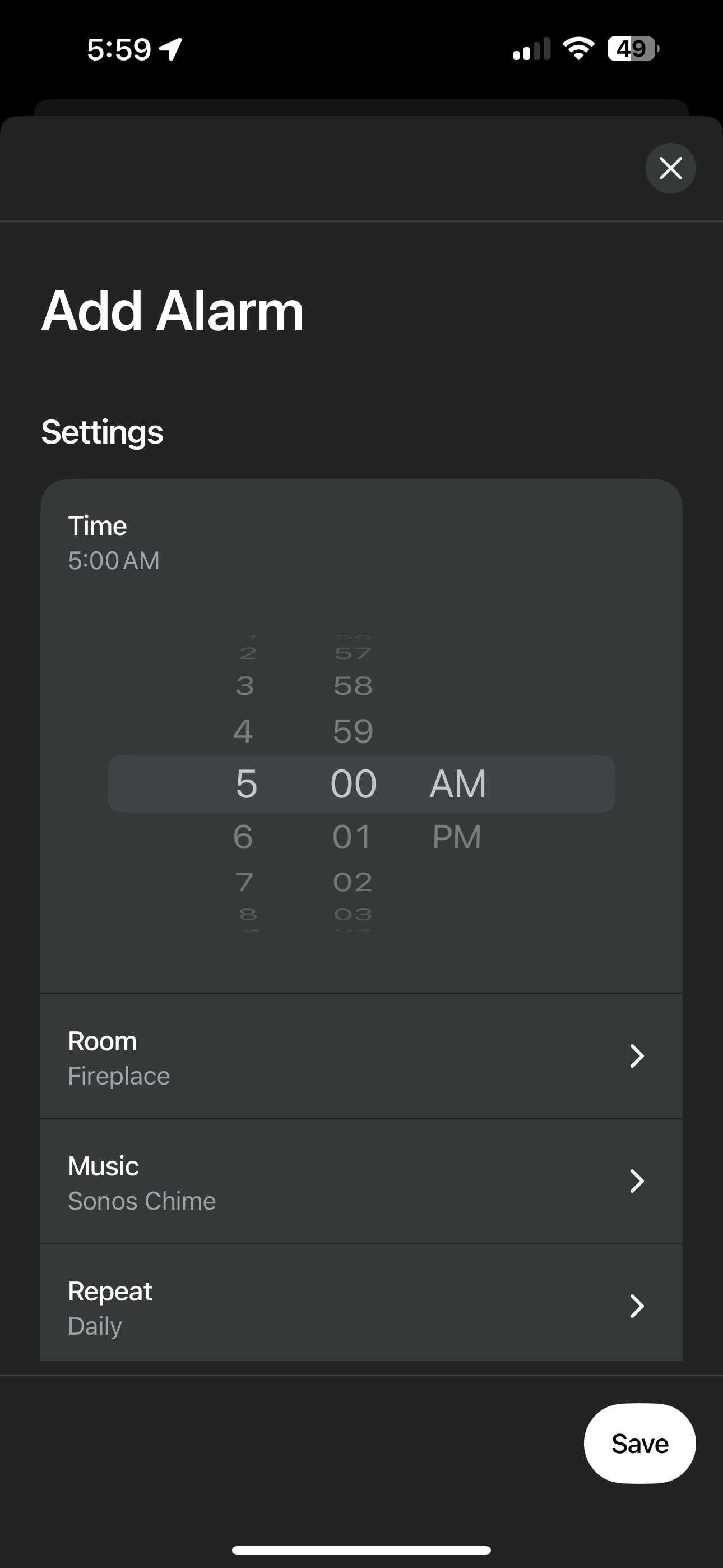
On the screen that appears set the two (2) parameters for the Alarm shown below. Note: 5AM and Fireplace are examples
Tap “Time” (5AM)
Tap “Room” (Fireplace) then tap Back Arrow (<)
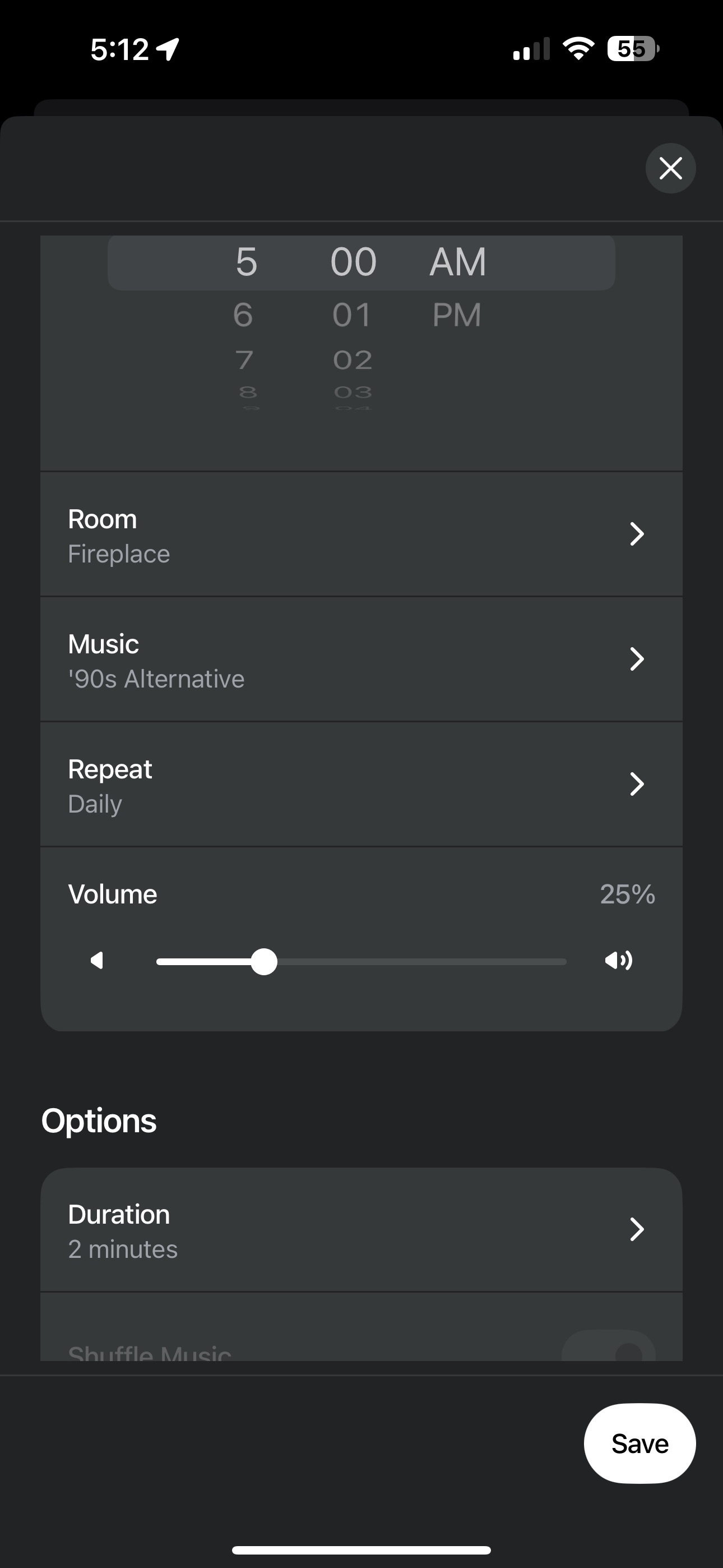
Now you’ll see the screen below. Note: Music, Repeat, Volume and Duration have not yet been set.
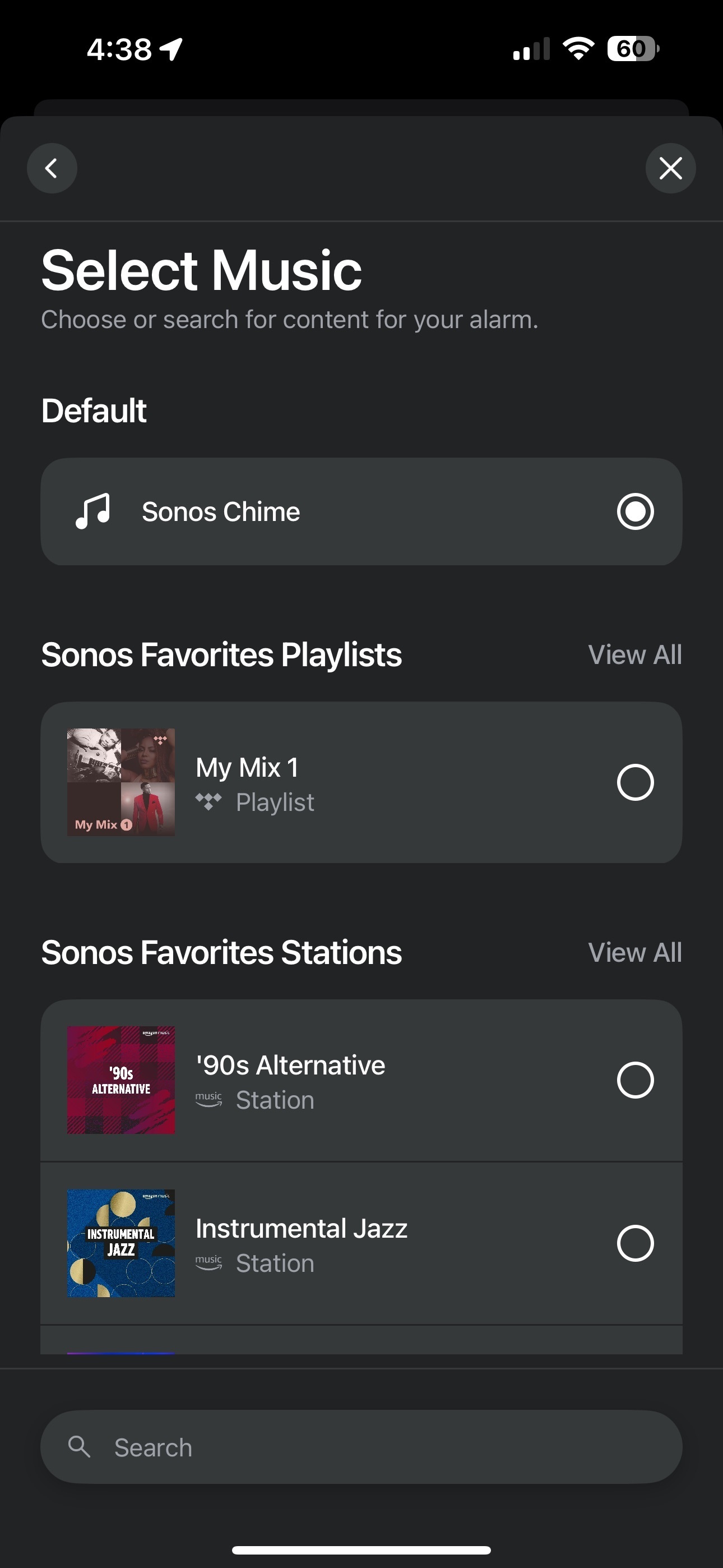
Tap Music
After you tap “Music” (above) select “90’s Alternative” and click “OK”
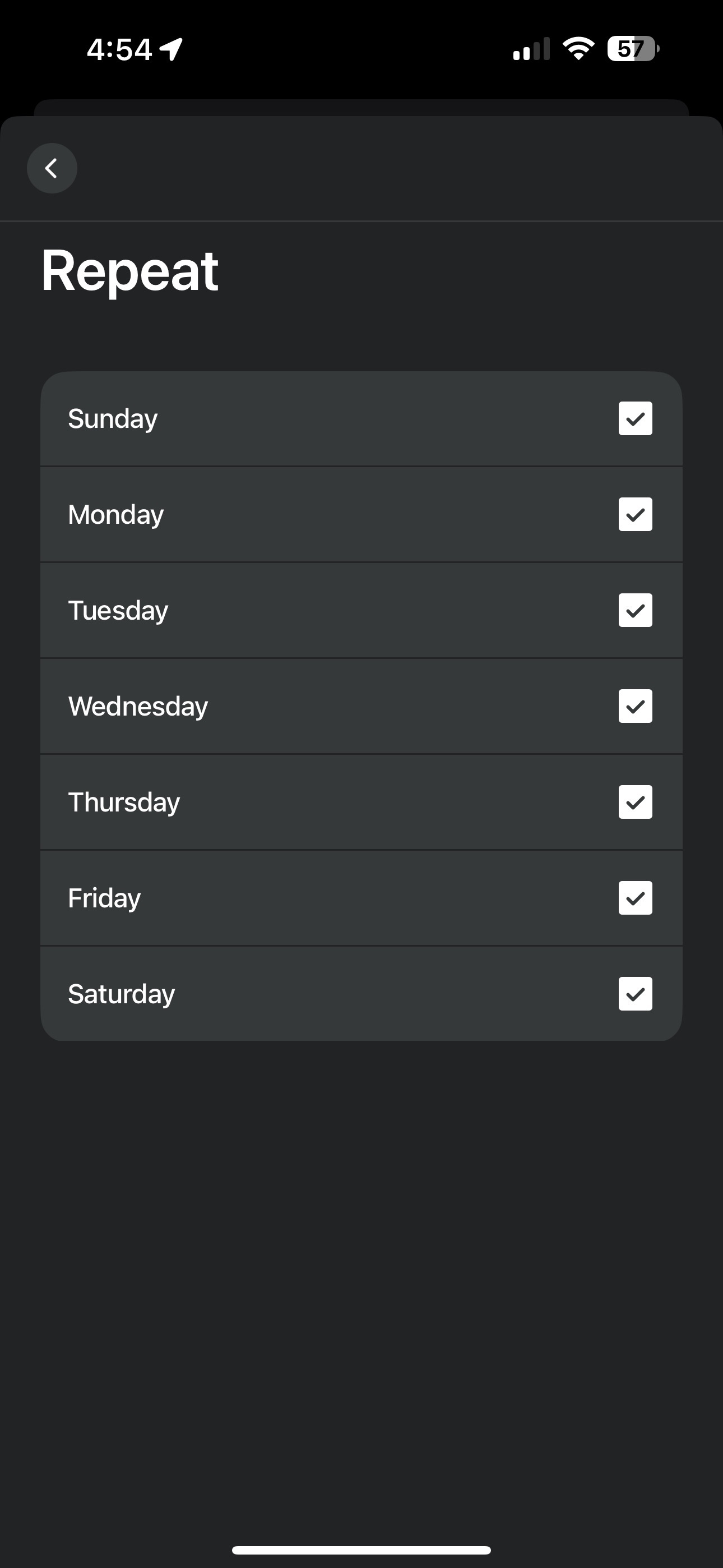
Tap Repeat
Select specific days for the alarm then click the Back Arrow (<) in upper left corner
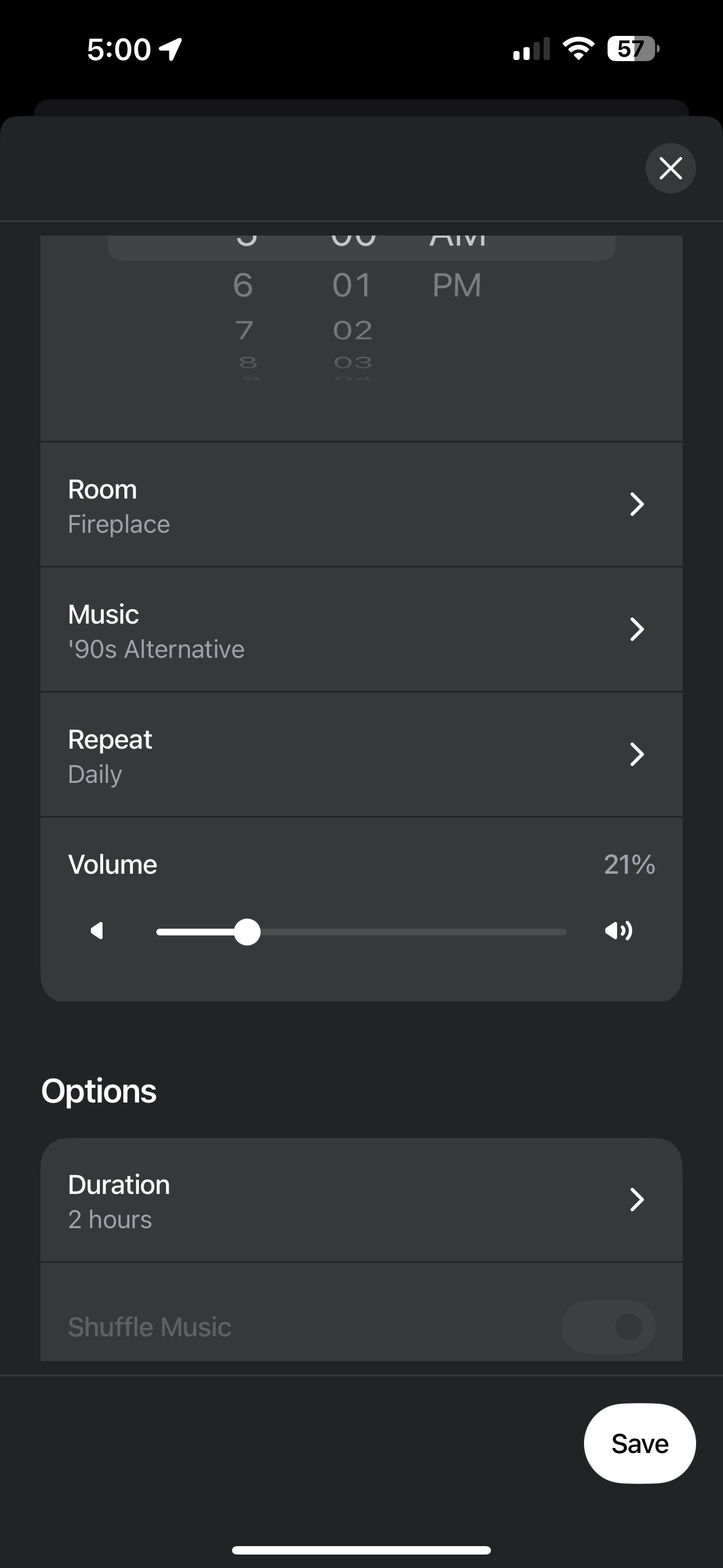
On the screen below set the Volume (level) percentage by moving the slider left or right
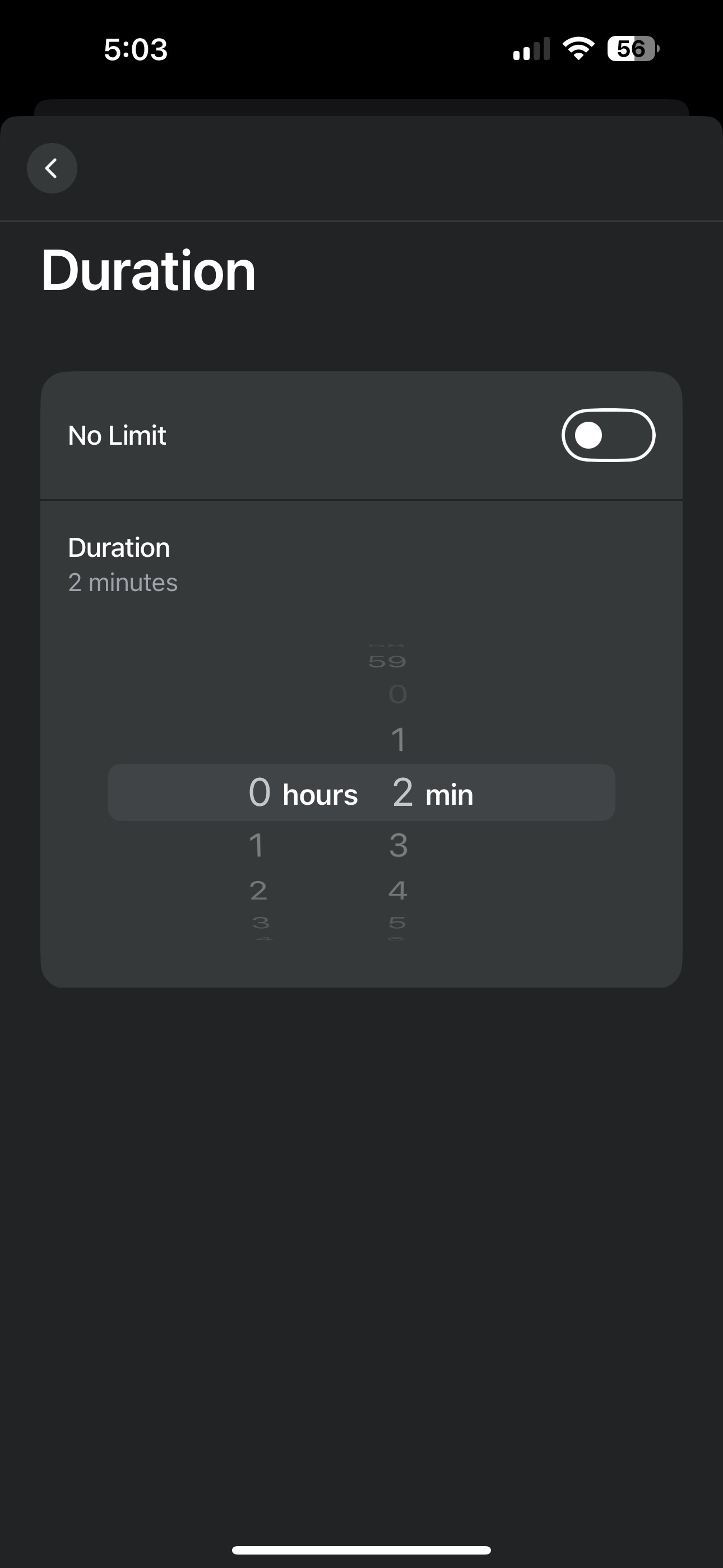
Under “Options” set the duration by tapping Duration
Set the Duration then click the Back Arrow (<) in upper left
Now you should see your set parameters for your Alarm. Similar to what you see below. If satisfied click “Save” in the lower right corner.
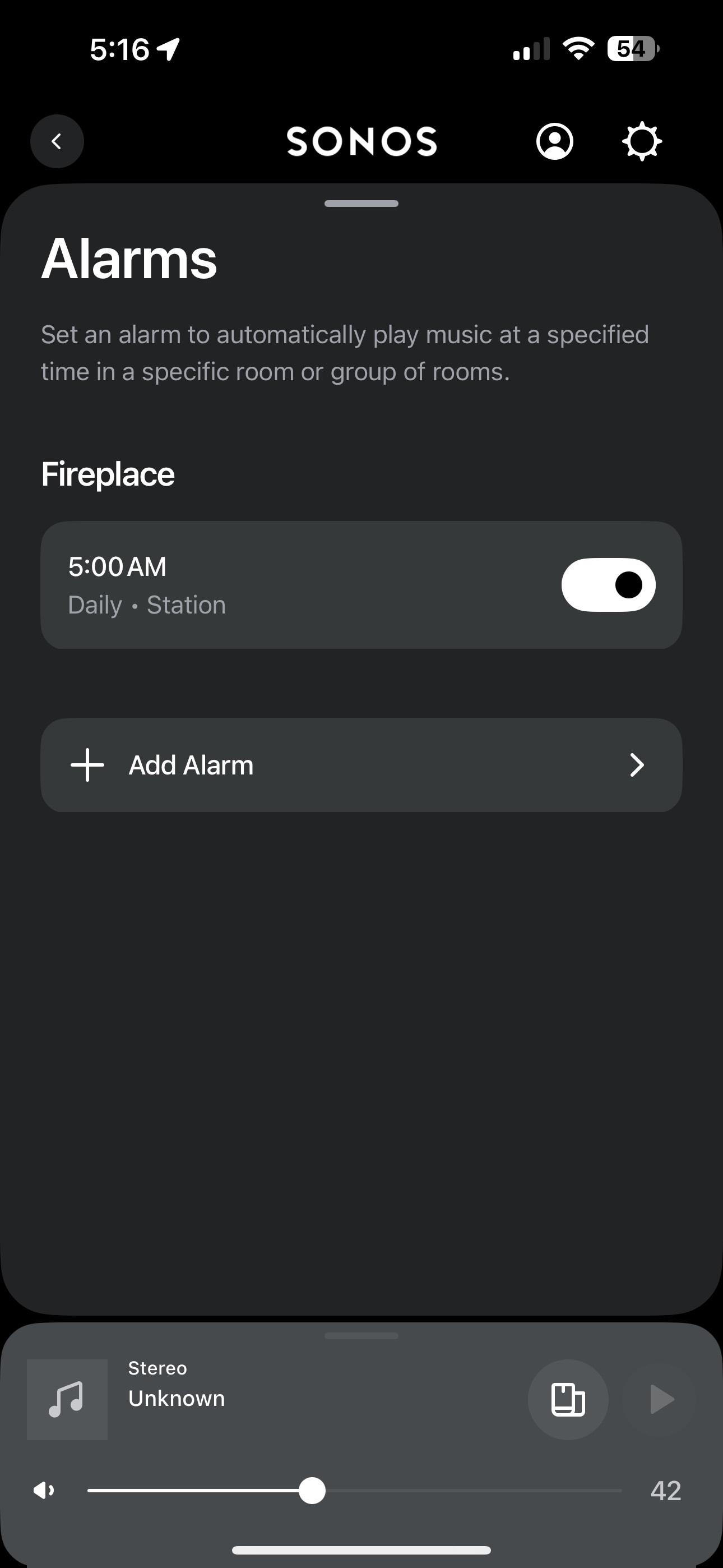
After clicking “Save” the Alarm screen appears as shown below with your scheduled Alarm. Note: See the Room Name that identifies your alarm location in upper left below “Alarms”. You can toggle the alarm on/off.
To delete an Alarm
Tap the Cog wheel ⚙ in upper right corner on the Alarm page or Sonos App home page
Scroll down and tap on Alarms
Open the Alarm you want to delete
Scroll down to “Delete Alarm”
Tap the “Trash Can” 🗑
Confirm your action to delete the alarm
Tap the Back Arrow (<) one or twice to go back to Sonos App home page
Tap the Cog wheel ⚙ in upper right corner on Sonos App home page
Scroll down to Alarms
Tap Alarms to verify that the Alarm has been deleted
There is no left/right balance for Era 300’s as they are Spatial Audio speakers. Everything is set by the App Tuning options.
The only speakers with left/right balance in stereo pair are those that are not Spatial Audio capable. *
Era 100’s
Five’s (and previous generations)
Sonos One’s (Gen 1 &2)
Play:1’s
Play:3’s
Move 2 and Move
Roam 2 and Roam
Sonos In-Wall/In Ceiling speakers by Sonance powered by a Sonos Amp
Certain Synfonisk speakers
* No Sonos soundbars have left/right balance
To set an Alarm
Pick an audio source under “Your Services”. We’ll use Amazon Music for this example.
Select an Amazon Music content. We’ll use “Stations” for this example.
Select an Amazon Station. We’ll use “Alternative Rock” for this example
Select an “Alternative Rock” station. We’ll use “90’s Alternative” for this example
Click the three (3) dots … in the circle
Click the heart 💜 in the circle “Save to Sonos Favorites”
Go to Home Page on Sonos App. You’ll see your saved audio source under “Sonos Favorites” which in this example is 90’s Alternative.
Click the Cog Wheel ⚙ in upper Left corner of Sonos App
Scroll down to “Alarms”
Select “+ Add Alarm”
On the screen that appears set the two (2) parameters for the Alarm shown below. Note: 5AM and Fireplace are examples
Tap “Time” (5AM)
Tap “Room” (Fireplace) then tap Back Arrow (<)
Now you’ll see the screen below. Note: Music, Repeat, Volume and Duration have not yet been set.
Tap Music
After you tap “Music” (above) select “90’s Alternative” and click “OK”
Tap Repeat
Select specific days for the alarm then click the Back Arrow (<) in upper left corner
On the screen below set the Volume (level) percentage by moving the slider left or right
Under “Options” set the duration by tapping Duration
Set the Duration then click the Back Arrow (<) in upper left
Now you should see your set parameters for your Alarm. Similar to what you see below. If satisfied click “Save” in the lower right corner.
After clicking “Save” the Alarm screen appears as shown below with your scheduled Alarm. Note: See the Room Name that identifies your alarm location in upper left below “Alarms”. You can toggle the alarm on/off.
To delete an Alarm
Tap the Cog wheel ⚙ in upper right corner on the Alarm page or Sonos App home page
Scroll down and tap on Alarms
Open the Alarm you want to delete
Scroll down to “Delete Alarm”
Tap the “Trash Can” 🗑
Confirm your action to delete the alarm
Tap the Back Arrow (<) one or twice to go back to Sonos App home page
Tap the Cog wheel ⚙ in upper right corner on Sonos App home page
Scroll down to Alarms
Tap Alarms to verify that the Alarm has been deleted